
 E2E Cloud
Run AlphaFold2 on an instance
Install AlphaFold2 and its genetic databases in your instance’s workspace, and predict a protein’s 3D structure from its amino-acid sequence. AlphaFold2 is DeepMind’s open-source model for protein structure prediction. Its own install instructions use Docker. An instance runs without a Docker daemon, so here you install AlphaFold2 and the tools it calls directly, in a conda environment.
Keep everything in the workspace at /home/jovyan: the AlphaFold2 folder, conda and
its environment, the databases, your input, and the predictions. Files there survive restarts and
stops. The rest of the container, including /root and /tmp, is emptied each time the instance
restarts.
Before you begin
Section titled “Before you begin”- An instance in the Running state. A GPU instance is recommended, and the GPU commands on
this page need a driver for CUDA 12: run
nvidia-smion the instance and check that CUDA Version shows 12 or later. See Create an instance. - A terminal on the instance: a JupyterLab terminal (File > New > Terminal), or an SSH
session as
root. See Connect to an instance over SSH. Run these commands in a terminal, where a conda environment you activate stays active from one command to the next; in a notebook, it lasts only for the cell that activated it. gitandwgeton the image. If either is missing, install them asrootover SSH withapt-get update && apt-get install -y git wget. Packages installed withapt-getare lost at the next restart, so run that line again after one.- Storage for the databases, chosen as the next section describes. Choose it before you start, because the download takes hours.
Choose where the databases live
Section titled “Choose where the databases live”AlphaFold2 searches large genetic databases for each prediction. The full set is a 556 GB download and takes 2.62 TB once unpacked. The reduced set takes about 600 GB and is quicker to download and to search. Each set has its own command when you run a prediction.
The databases need storage that keeps its data through restarts. These are the places on an instance that do:
| Storage | Size | Where it appears | Access |
|---|---|---|---|
| Workspace | 30 GB to 15,000 GB | /home/jovyan |
Read-write, this instance only |
| Disk dataset | 10 GB to 15,000 GB | /datasets/<dataset name> |
Read-write, one instance at a time |
| EOS dataset | Set by its bucket | /datasets/<dataset name> |
Read-only, many instances at once |
| Shared File System | 250 GB to 64,000 GB | The mount path you choose | Read-write, many instances at once |
| Parallel File System, Delhi only | 1,000 GB to 250,000 GB | The mount path you choose | Read-write, or read-only if you tick Read Only |
The upper sizes are your account’s limits in the region, which E2E can change. An EOS dataset is read-only, so use it only for databases you have already put in the bucket; the download and the predictions need storage you can write to. Data you write anywhere else in the container goes to ephemeral storage, which is emptied on every restart. When ephemeral storage is full, the instance restarts and the data is lost. See Where your files live on an instance.
Workspace above 30 GB is billed for as long as the instance exists, even while it is stopped. Datasets and file systems are billed as their own products. See pricing. To grow the workspace, see Increase the workspace size. To mount a dataset or file system, see Mount datasets and file systems on an instance.
These commands keep the databases in /home/jovyan/af-data. If you keep them on a
dataset or file system, use its mount path in place of /home/jovyan/af-data in every command.
Download AlphaFold2
Section titled “Download AlphaFold2”In the terminal, clone the AlphaFold2 repository into the workspace:
cd /home/jovyangit clone https://github.com/google-deepmind/alphafold.gitcd alphafoldThe code is now in /home/jovyan/alphafold.
Install conda in the workspace
Section titled “Install conda in the workspace”Install your own conda, Miniforge, in the workspace, so conda and the environment you create with it survive restarts whatever the image includes:
cd /home/jovyanwget https://github.com/conda-forge/miniforge/releases/latest/download/Miniforge3-Linux-x86_64.shbash Miniforge3-Linux-x86_64.sh -b -p /home/jovyan/miniforge3The -b option runs the install unattended and leaves your shell’s startup files unchanged. Then
make the conda command available in this terminal:
eval "$(/home/jovyan/miniforge3/bin/conda shell.bash hook)"Run this line in every new terminal before you use conda. A line added to .bashrc, by you or by
conda init, is lost at the next start.
Create the conda environment
Section titled “Create the conda environment”Create an environment with Python 3.11 in the workspace, activate it, and install the tools
AlphaFold2 calls. HMMER, HH-suite, and Kalign run the sequence searches, and aria2 and rsync
download the databases.
conda create -y -p /home/jovyan/envs/alphafold -c conda-forge --override-channels python=3.11conda activate /home/jovyan/envs/alphafoldconda install -y -c conda-forge -c bioconda --override-channels hmmer hhsuite=3.3.0 kalign2 aria2 rsyncThe terminal’s prompt starts with the environment’s path while it is active. In a new terminal,
run the eval line from the previous section, then conda activate /home/jovyan/envs/alphafold.
Install the Python packages
Section titled “Install the Python packages”The PyTorch pre-built image pins every pip install, even inside a conda environment, to its own
build of PyTorch, so clear that pin before you install anything. With the environment active,
install AlphaFold2’s packages and the GPU build of JAX:
cd /home/jovyan/alphafoldunset PIP_CONSTRAINTpip install -r requirements.txtpip install "jax[cuda12]==0.4.26"jax[cuda12] brings the CUDA 12 libraries that let AlphaFold2 use the GPU. The packages go into
the environment in /home/jovyan/envs/alphafold, so they stay through restarts.
AlphaFold2 also needs a file of stereochemical properties in its common folder. Download it:
cd /home/jovyanwget -q -P alphafold/alphafold/common/ https://git.scicore.unibas.ch/schwede/openstructure/-/raw/2.2.0/modules/mol/alg/src/stereo_chemical_props.txtDownload the genetic databases
Section titled “Download the genetic databases”The repository’s download script fetches every database and the model parameters into one folder. With the environment active, run one of these two commands, for the reduced or the full set:
cd /home/jovyan/alphafold# reduced databases, about 600 GB of disk:nohup scripts/download_all_data.sh /home/jovyan/af-data reduced_dbs > download.log 2>&1 &# or full databases, 556 GB download and 2.62 TB unpacked:nohup scripts/download_all_data.sh /home/jovyan/af-data > download.log 2>&1 &The download runs in the background for several hours and keeps going if you close the terminal.
It writes its progress to /home/jovyan/alphafold/download.log. To follow it, run
tail -f download.log. A restart of the instance ends the download. Until it finishes, avoid restarting or
stopping the instance, mounting storage on it, changing its plan, and updating its image, because
each of these restarts it. When it is done, /home/jovyan/af-data holds one folder per
database, named as in the commands below.
Add your input sequence
Section titled “Add your input sequence”AlphaFold2 reads the protein’s amino-acid sequence from a FASTA file. Create a folder for your input in the workspace:
mkdir -p /home/jovyan/af-inputPut your FASTA file in it. The commands below use T1049.fasta, a target from the CASP14
structure prediction contest. Use your own file’s name in its place. To upload a file from your computer, see
Copy files to and from an instance.
Run a prediction
Section titled “Run a prediction”Run AlphaFold2 from /home/jovyan/alphafold, with the environment active. Use the command that
matches the databases you downloaded. Each database path must point at the files the download
script made. If you keep them elsewhere, change /home/jovyan/af-data.
AlphaFold2’s own Docker setup lets a long protein use the instance’s memory when the GPU’s memory is full. Running it directly, you turn that on yourself. Run these two lines in the terminal before the command:
export TF_FORCE_UNIFIED_MEMORY=1export XLA_PYTHON_CLIENT_MEM_FRACTION=4.0With the full databases
Section titled “With the full databases”python3 run_alphafold.py --use_gpu_relax=True \ --fasta_paths=/home/jovyan/af-input/T1049.fasta \ --output_dir=/home/jovyan/af-output \ --data_dir=/home/jovyan/af-data \ --pdb70_database_path=/home/jovyan/af-data/pdb70/pdb70 \ --uniref90_database_path=/home/jovyan/af-data/uniref90/uniref90.fasta \ --mgnify_database_path=/home/jovyan/af-data/mgnify/mgy_clusters_2022_05.fa \ --bfd_database_path=/home/jovyan/af-data/bfd/bfd_metaclust_clu_complete_id30_c90_final_seq.sorted_opt \ --uniref30_database_path=/home/jovyan/af-data/uniref30/UniRef30_2021_03 \ --template_mmcif_dir=/home/jovyan/af-data/pdb_mmcif/mmcif_files \ --obsolete_pdbs_path=/home/jovyan/af-data/pdb_mmcif/obsolete.dat \ --max_template_date=2025-03-04 \ --db_preset=full_dbs \ --model_preset=monomer \ --use_precomputed_msas=FalseWith the reduced databases
Section titled “With the reduced databases”The reduced set uses the small BFD database in place of BFD and UniRef30, so the command names the small BFD database and leaves the other two out:
python3 run_alphafold.py --use_gpu_relax=True \ --fasta_paths=/home/jovyan/af-input/T1049.fasta \ --output_dir=/home/jovyan/af-output \ --data_dir=/home/jovyan/af-data \ --pdb70_database_path=/home/jovyan/af-data/pdb70/pdb70 \ --uniref90_database_path=/home/jovyan/af-data/uniref90/uniref90.fasta \ --mgnify_database_path=/home/jovyan/af-data/mgnify/mgy_clusters_2022_05.fa \ --small_bfd_database_path=/home/jovyan/af-data/small_bfd/bfd-first_non_consensus_sequences.fasta \ --template_mmcif_dir=/home/jovyan/af-data/pdb_mmcif/mmcif_files \ --obsolete_pdbs_path=/home/jovyan/af-data/pdb_mmcif/obsolete.dat \ --max_template_date=2025-03-04 \ --db_preset=reduced_dbs \ --model_preset=monomer \ --use_precomputed_msas=FalseAlphaFold2 searches the databases first, then runs the models and relaxes the structures on the GPU. Like the download, a run ends if the instance restarts.
Options you can change
Section titled “Options you can change”These are the options you are most likely to change, with what each one does:
--fasta_paths the input FASTA file, or several separated by commas--data_dir the folder that holds the databases and model parameters--output_dir where the predictions and their scores are written--max_template_date use only template structures released before this date--db_preset full_dbs or reduced_dbs, matching the databases you downloaded--model_preset monomer, monomer_casp14, monomer_ptm, or multimer--use_precomputed_msas True reuses the sequence searches of an earlier run on the same input--models_to_relax best (the default), all, or noneThe multimer preset predicts a complex of several chains. It also needs the UniProt and PDB
seqres database paths, and must leave out the PDB70 database path. Reusing the sequence searches
skips the database searches on a repeat run. If relaxation fails, run again with the models to
relax set to none.
Read the results
Section titled “Read the results”AlphaFold2 writes one folder per input to the output folder, named after the FASTA file, such as
/home/jovyan/af-output/T1049. It holds:
ranked_0.pdb ... ranked_4.pdb the five predicted structures, most confident firstrelaxed_model_1.pdb ... relaxed_model_5.pdb each model's structure after relaxationunrelaxed_model_1.pdb ... unrelaxed_model_5.pdb each model's structure before relaxationranking_debug.json the confidence scores that set the rankingresult_model_1.pkl ... result_model_5.pkl each model's raw outputrelax_metrics.json figures from the relaxationtimings.json the time each stage tookfeatures.pkl the model's inputmsas/ the sequence search resultsView the predicted structure
Section titled “View the predicted structure”Download the most confident structure, the first ranked file in that list, to your computer. Use the JupyterLab file browser, or copy it as Copy files to and from an instance describes. Open the NCBI iCn3D viewer, select File > Open File, and select the PDB file. The viewer draws the protein’s chain in 3D, and you can rotate and zoom it.
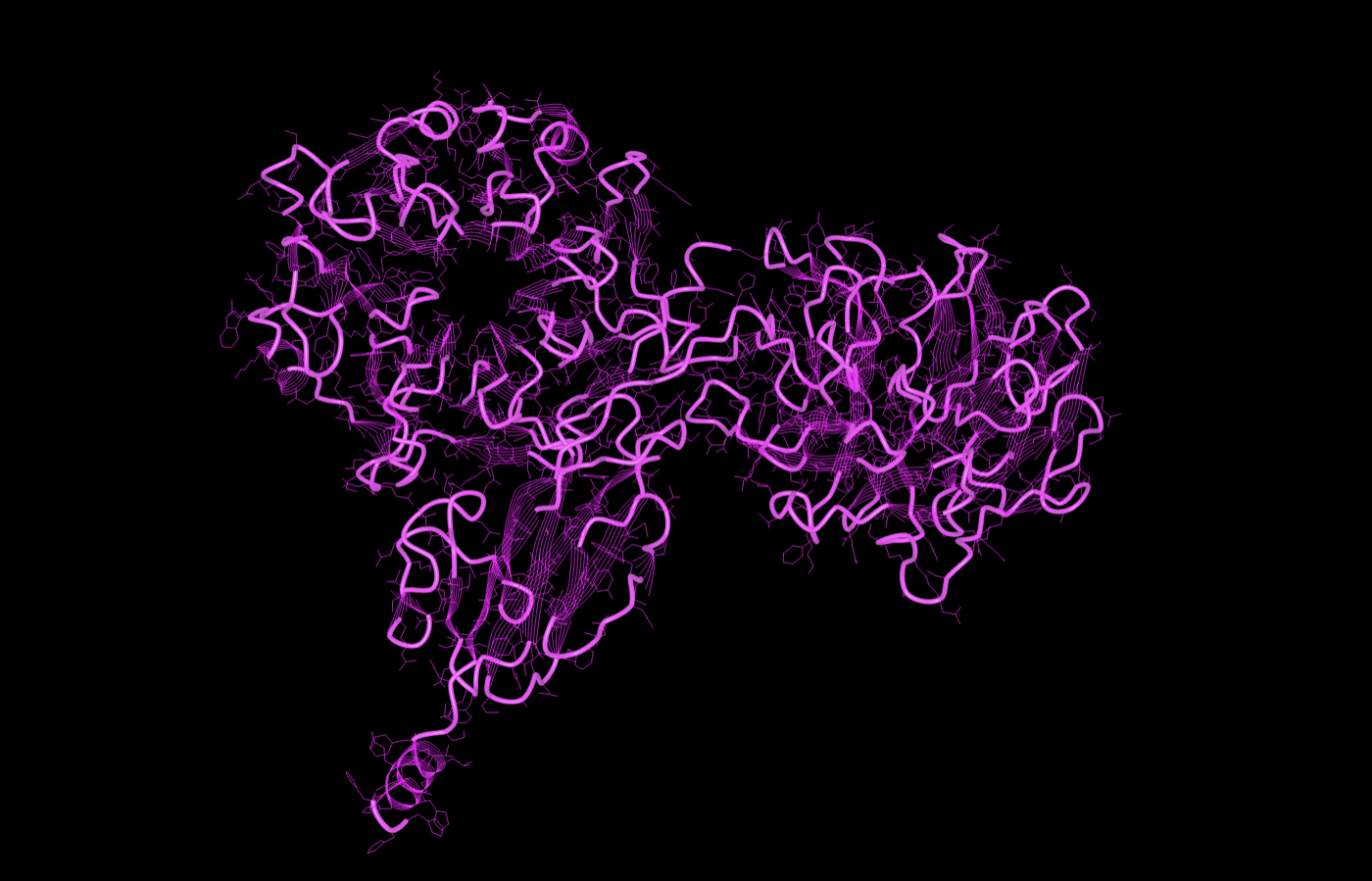
A predicted structure looks like this one: the protein’s backbone drawn as a continuous trace, here folded into two lobes, with the side chains as thin lines around it.
Fix common problems
Section titled “Fix common problems”CUDA out of memory
Section titled “CUDA out of memory”Check that you ran the two export lines in Run a prediction in this
terminal. If the run still stops, use the monomer preset rather than multimer, or move the
instance to a plan with more GPU memory. Memory the run takes from the instance counts against the
plan’s memory, and a process that goes over it is ended. See
Change the plan of an instance.
Missing files or path errors
Section titled “Missing files or path errors”Check that the FASTA file and every database path in the command exist and match the folders the download script made.
Permission errors
Section titled “Permission errors”The user that runs AlphaFold2 must be able to read the databases and write to the output folder.
Change the owner or the permissions with chown and chmod.
Long run times or too little disk
Section titled “Long run times or too little disk”Use the reduced databases. When you run the same input again, reuse the earlier sequence searches, as Options you can change describes.
The instance restarted during a download or a run
Section titled “The instance restarted during a download or a run”The download or run ended with the restart. Check that everything is in /home/jovyan or mounted
storage, then start the download or the run again. To find out why the instance restarted, see
The instance restarts on its own.
Design new sequences next
Section titled “Design new sequences next”Run ProteinMPNN on an instance designs new sequences for a structure and checks them with AlphaFold2. For problems with the instance itself, see Troubleshooting TIR Instances. For more options, see the AlphaFold repository.