Customer Validation
For Indian Customer
Aadhaar Validation
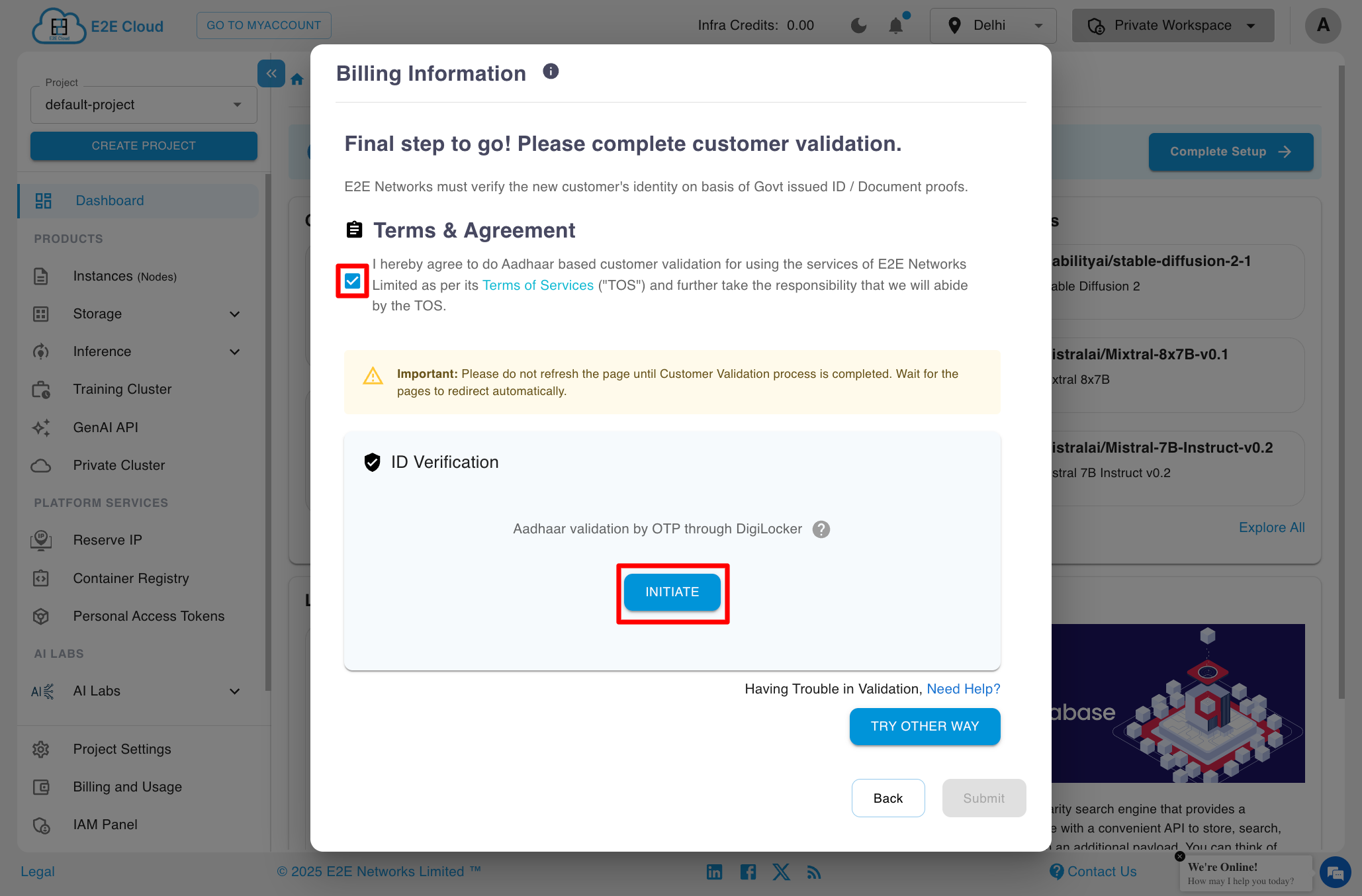
When the user clicks the option to Initiate, the page will redirect for Aadhaar validation After confirming proceed to this pop-up, the user will be redirected to the Bureau site for KYC verification with Digilocker.
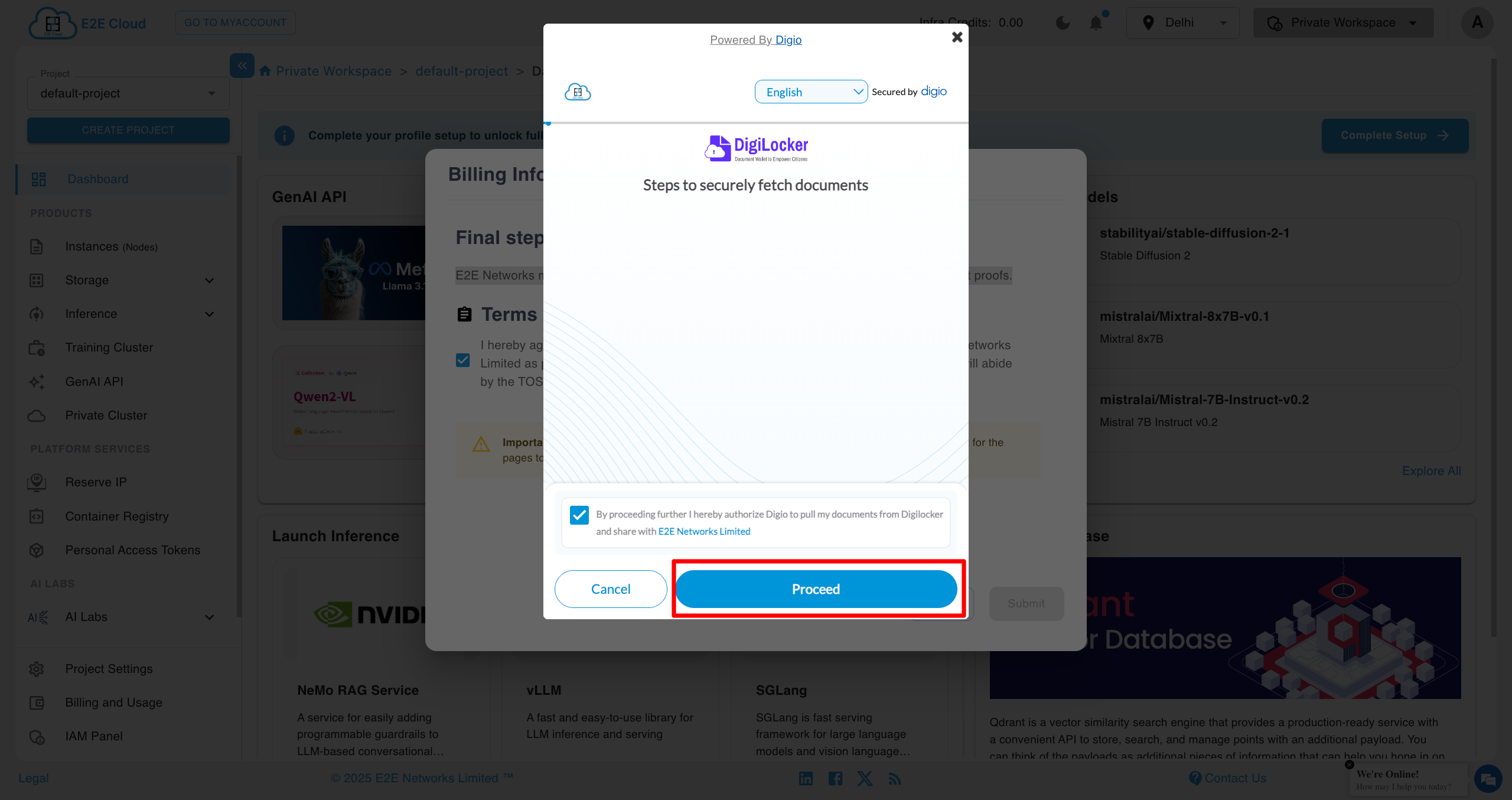
Another pop-up will open for Aadhaar validation Click on proceed.
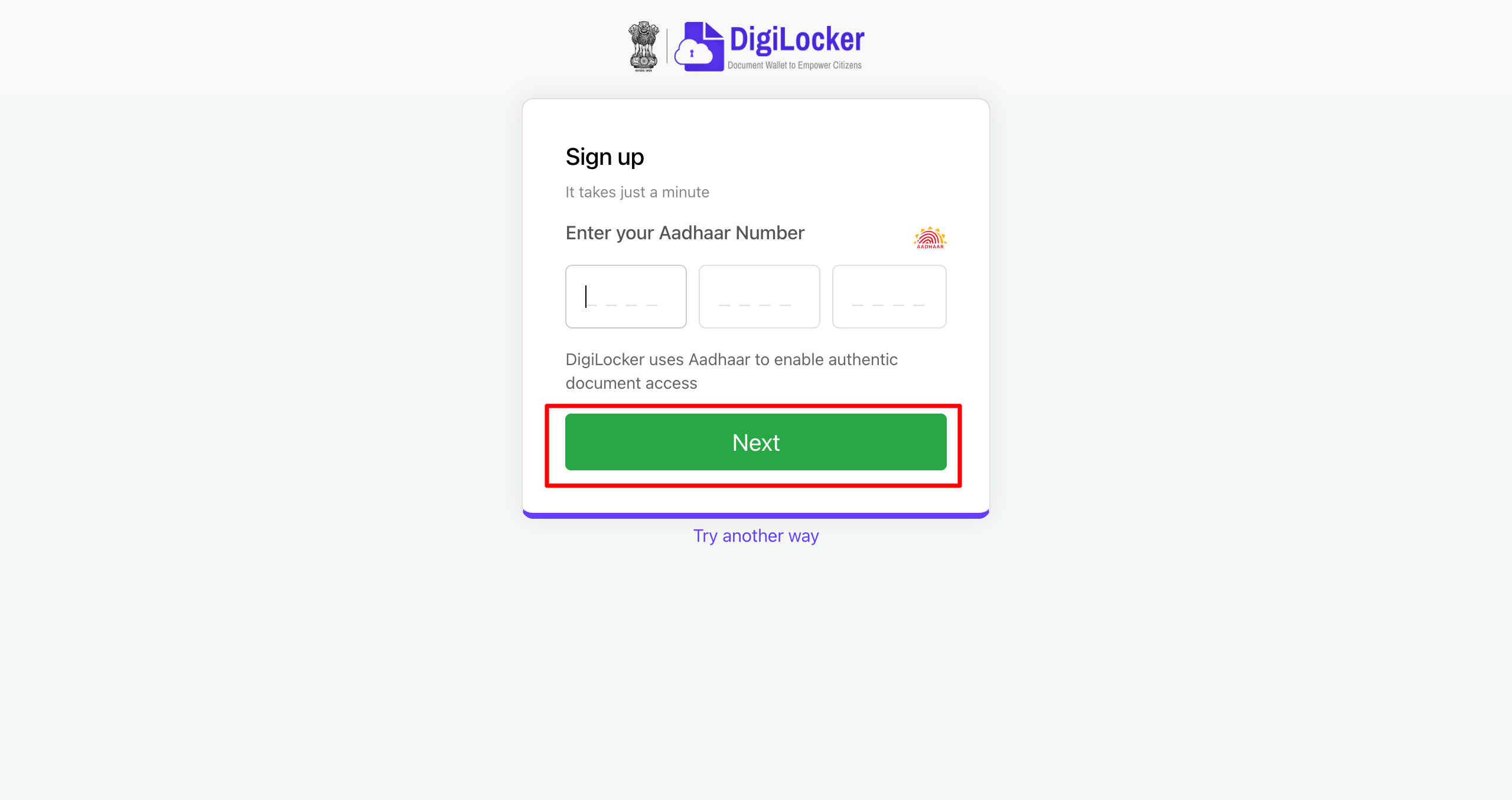
Enter your Aadhaar card number and proceed on Next.
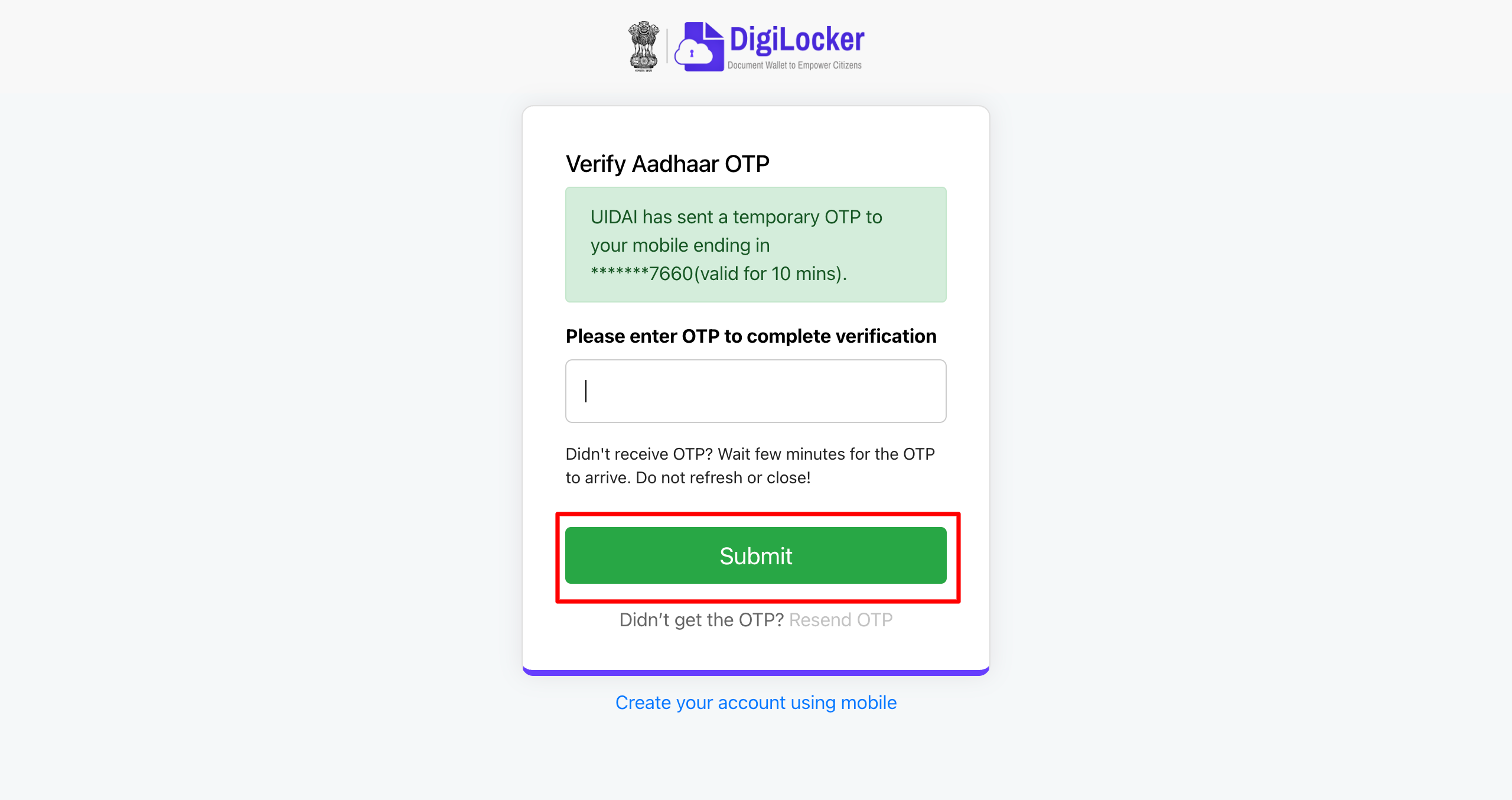
Enter the OTP sent to your mobile number for Aadhaar verification and click Submit.
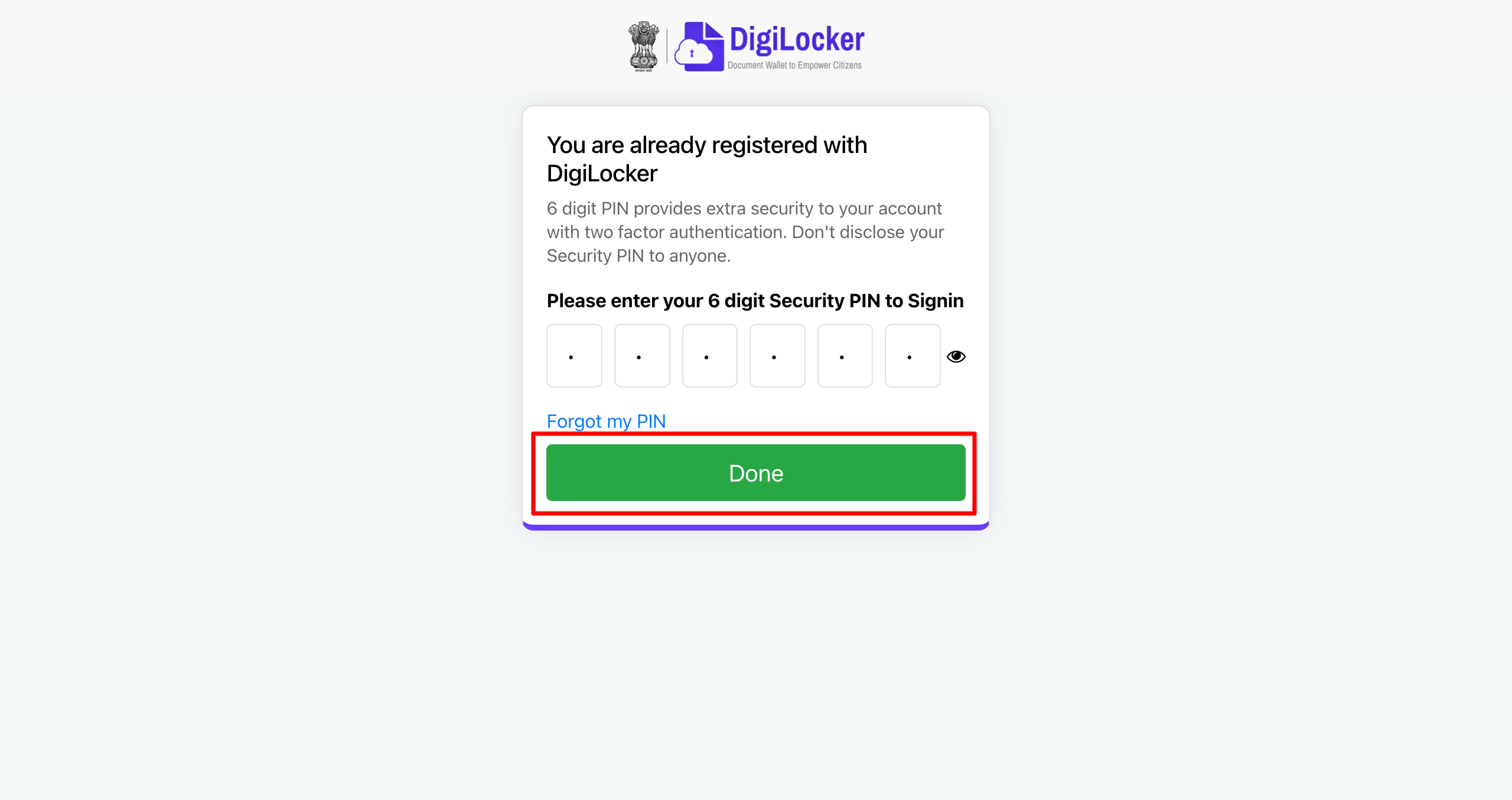
Then, enter your Digilocker security PIN and click Done
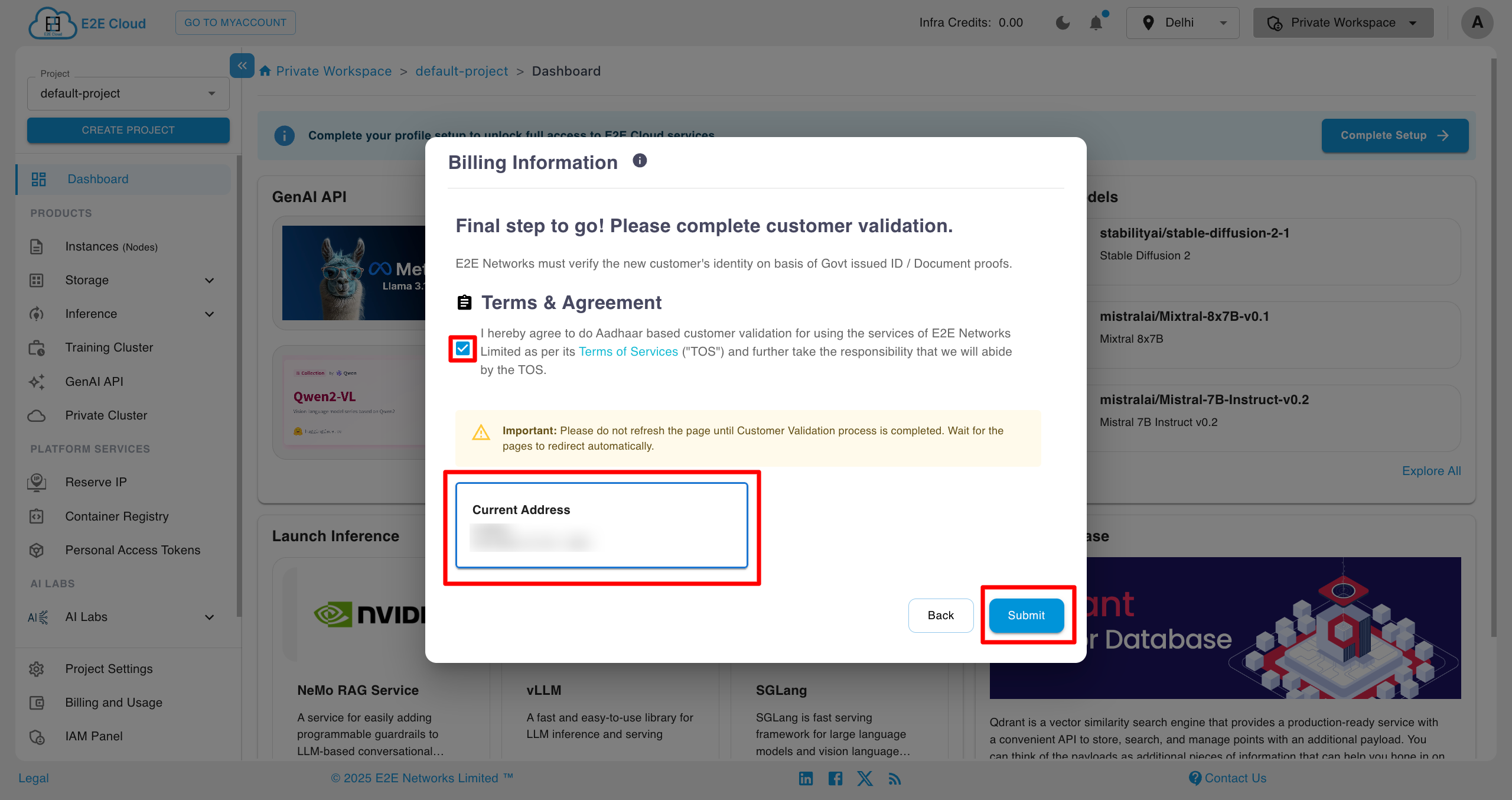
After completing the Aadhaar validation, now it shows Billing Address with current address and also a box of add new address, the customer has the option to choose an address from Aadhaar, or the customer can add another address that is different from the one mentioned in Aadhaar by clicking on the + "add new address".
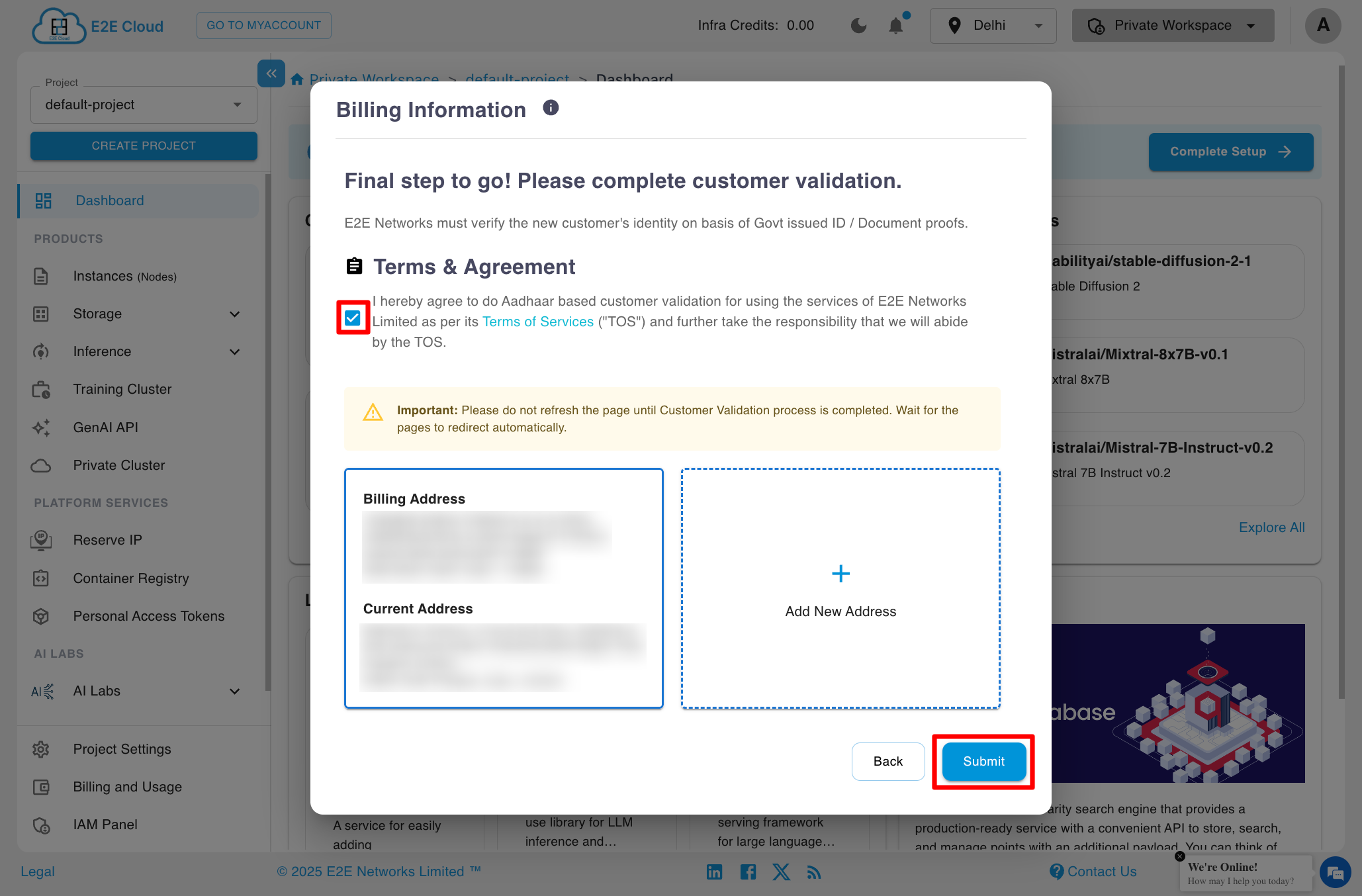
After clicking on submit, it will redirect you to dashboard now you can use the services.
Other Method of Validation
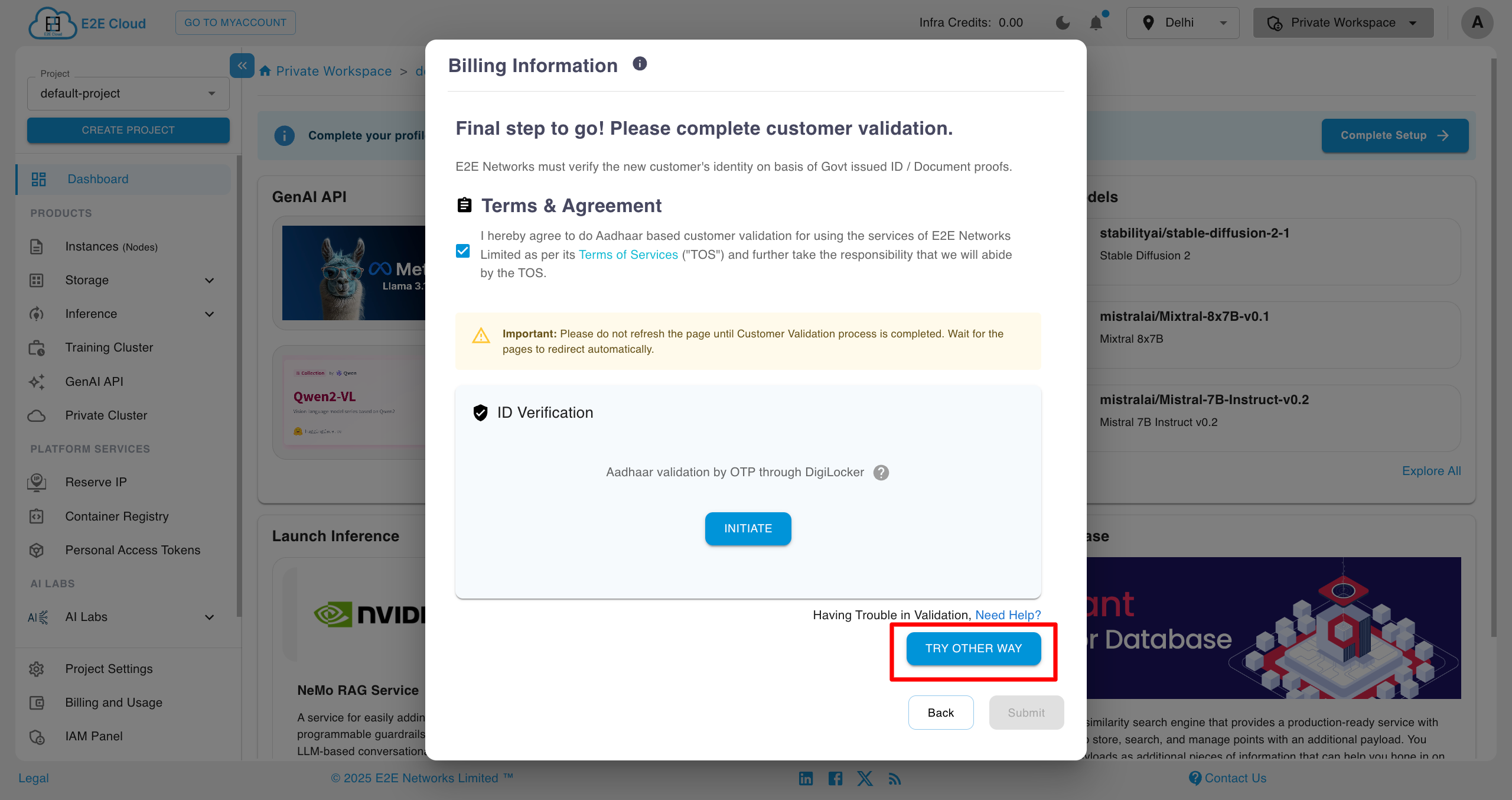
To explore other customer validation options, try clicking on the Try Other Way button.
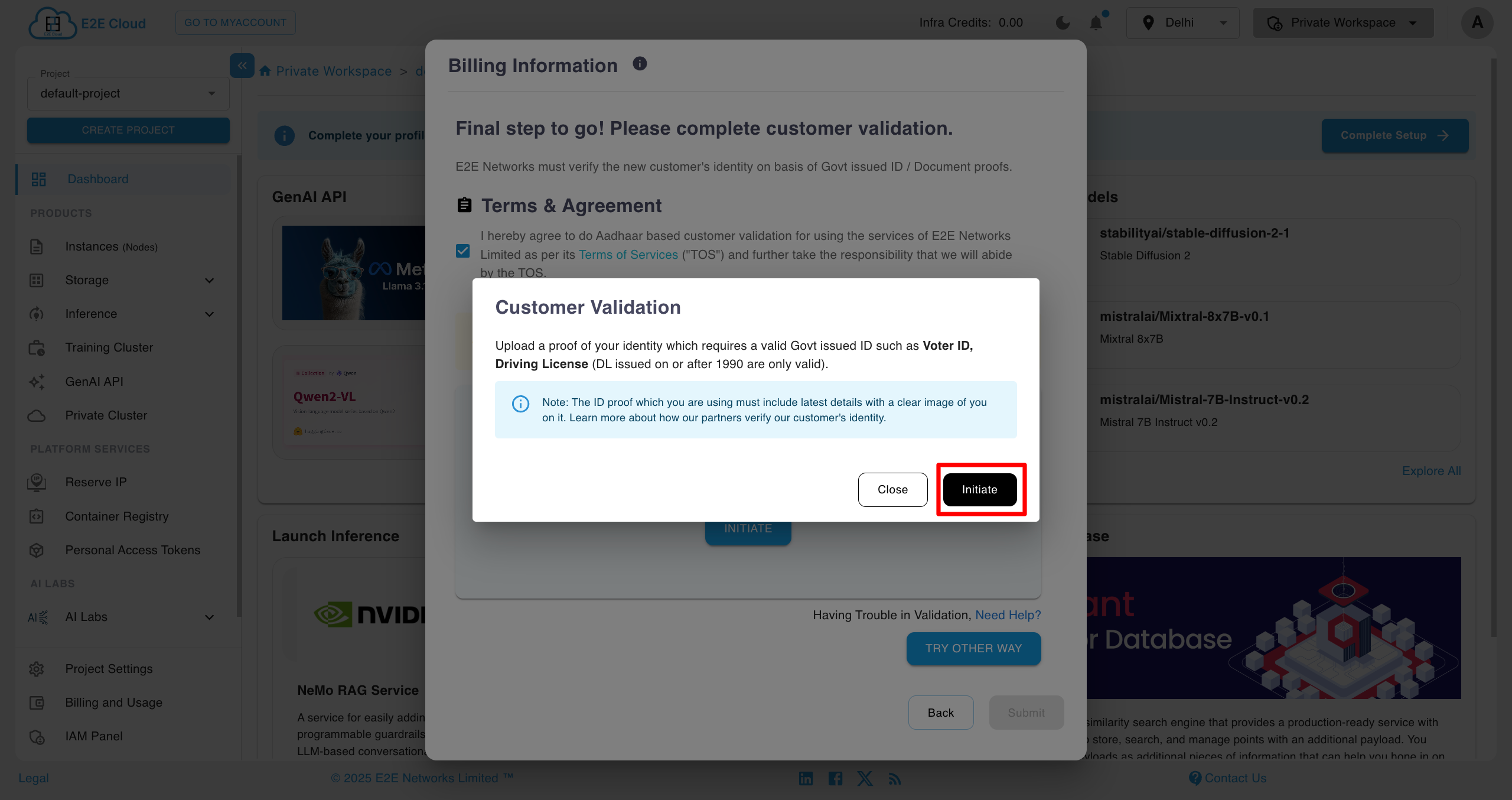
A popup will appear. You have to click on the Initiate button.
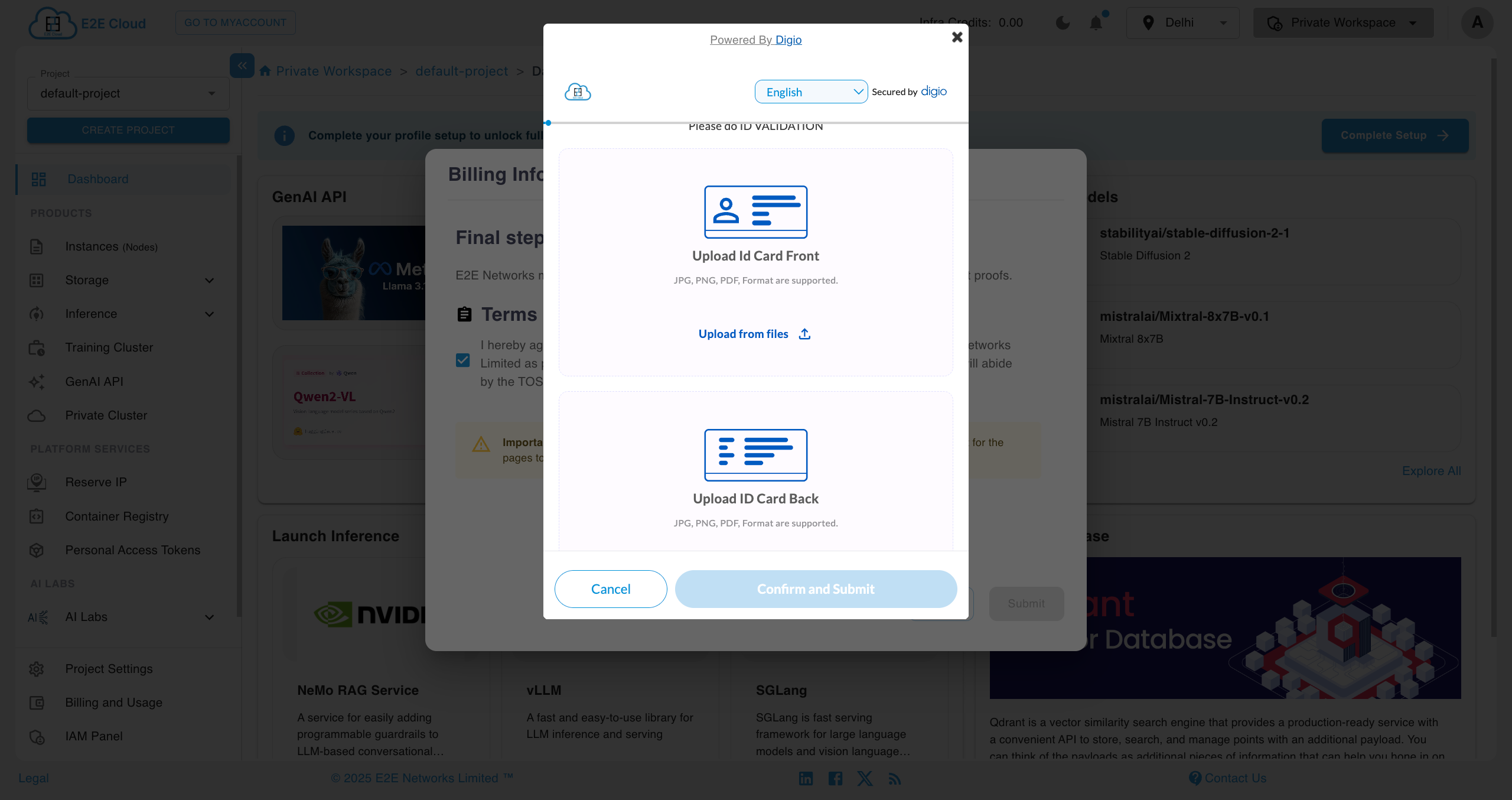
After clicking the Initiate button, a terms and conditions popup will appear. Click on Agree and Proceed to continue. Then, upload the front and back of the ID card. After uploading, click on the confirm and Submit button.
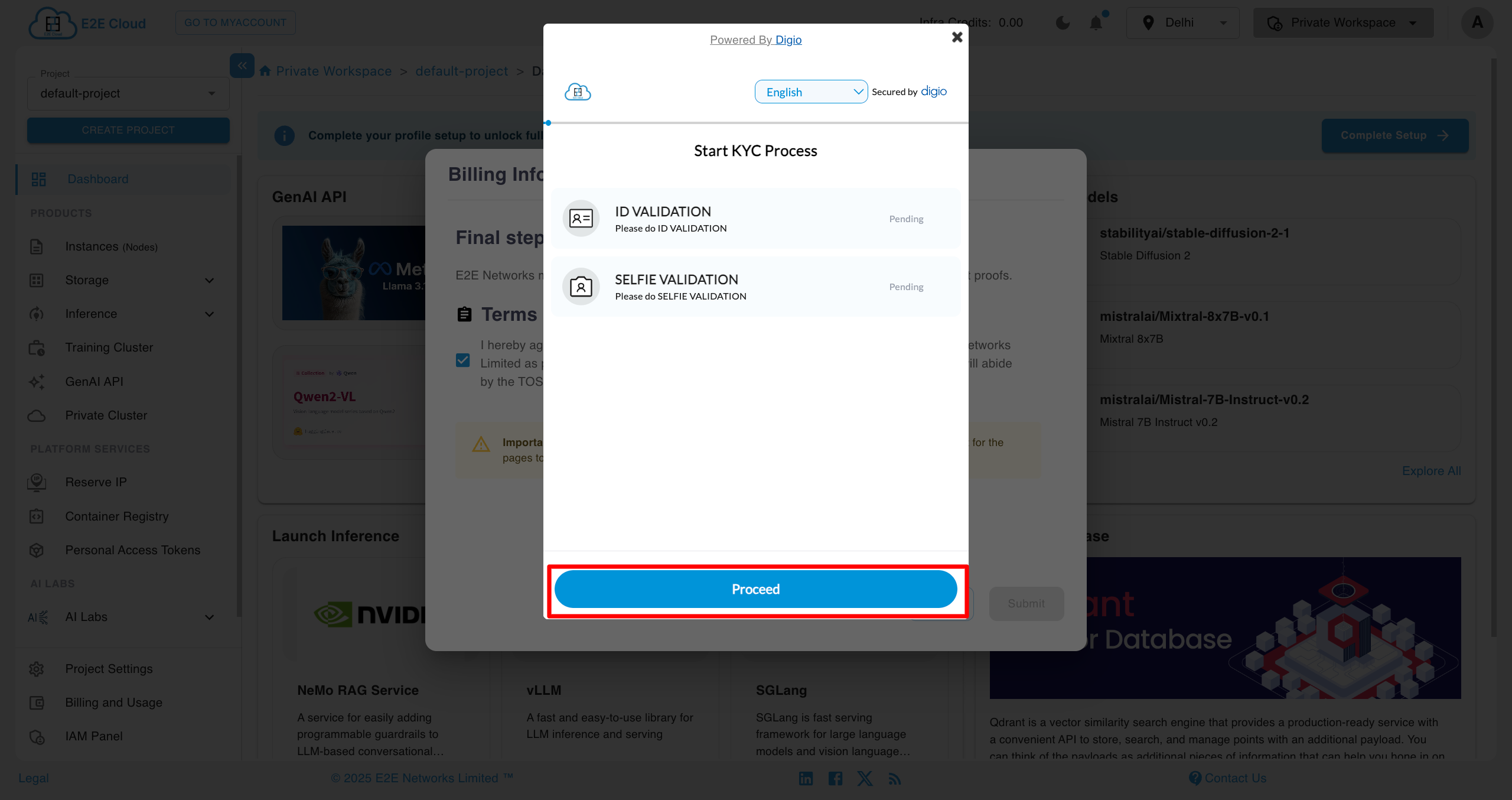
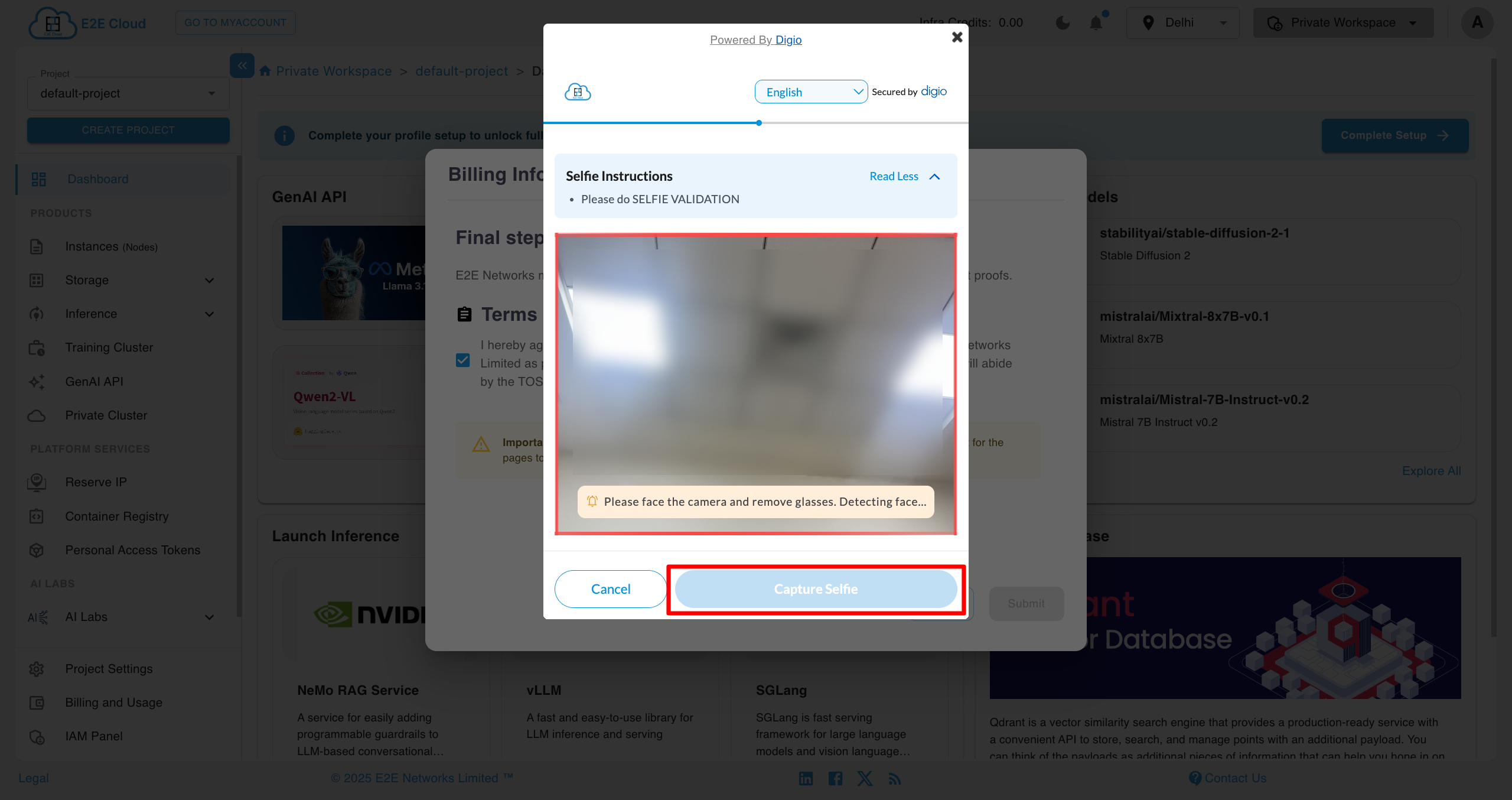
After submitting the ID card, the Selfie Validation process will start. The user has to capture their photo and click the Submit button after capturing the selfie.
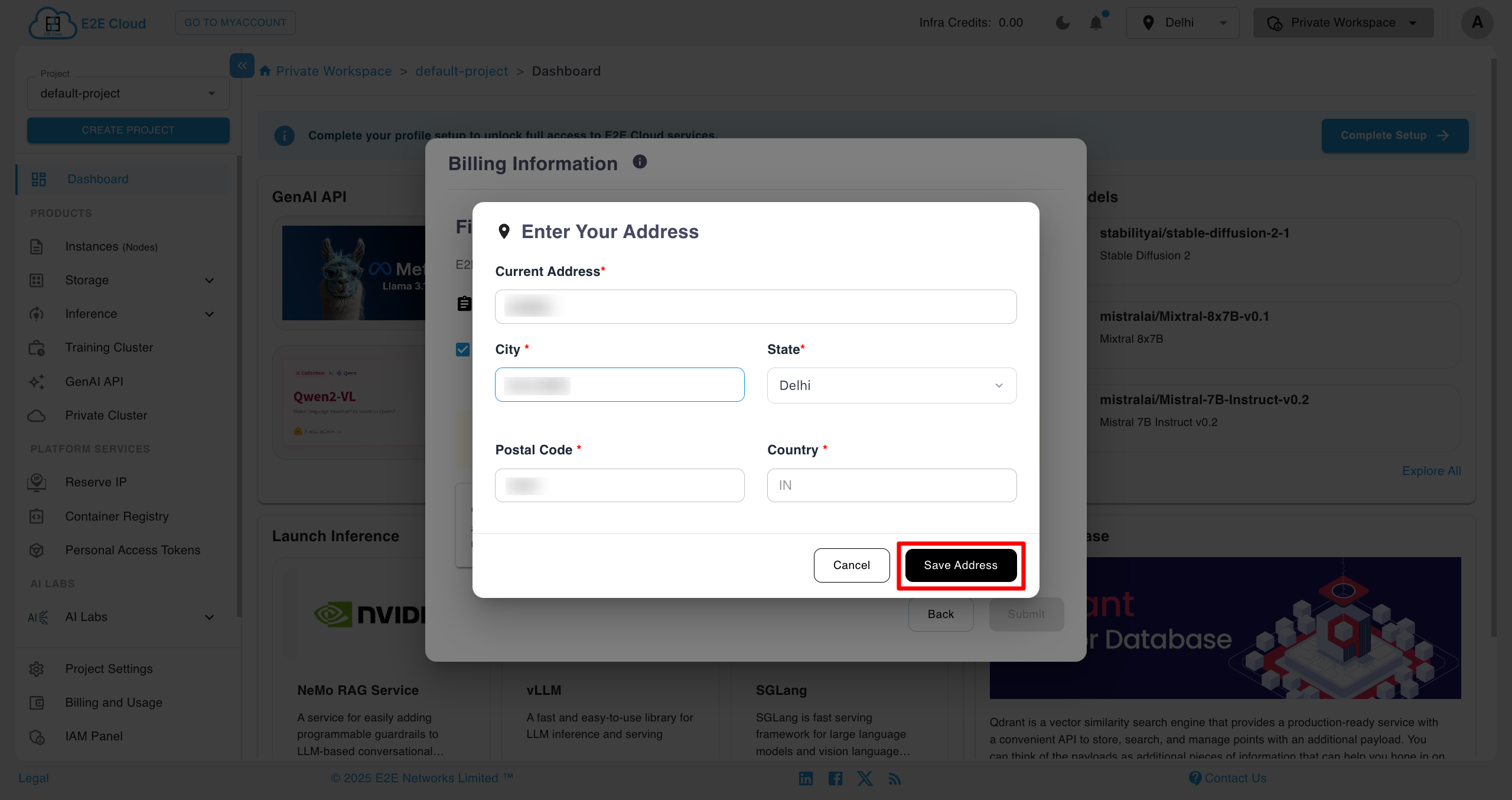
After clicking Submit, the user has to enter their billing address and click the Proceed button. The validation will then begin, and after completion, the user will be notified via email.
New user upon registeration with a new phone number, will receive a bonus of 2000 after completing the signup process.