Management
Once your CDP Backup service is activated and the initial backup is completed, you can manage and customize your backup settings as per your requirements. This section provides an overview of the various management actions available, including modifying backup schedules, archiving recovery points, excluding specific files/folders, and restoring data. It also covers MySQL backups, backup retention policies, and how to monitor backup task history to ensure seamless data protection for your E2E Nodes.
Actions of CDP Backups
You can perform the following actions for the backup service.
How to Change Backup Schedule Or Exclude File/Folder?
-
Go to actions and Click on the Change Schedule button to modify the current backup schedule type & frequency, and to change/add exclude files/folders paths.
-
Exclude File/Folder - By default, all files and folders located on your node are replicated. However, if you want to ignore specific files/folders during backup, you can exclude them by specifying the path of the file/folder.
-
Click on Change Schedule Button
How to Archive Backups?
To archive the recovery point of backups, follow the following steps -
- Go to actions and Click on the Archive Backup.
To Disable the Archive Backups.
- You can disable the toggle button of Archive Recovery Point and then click on Save Button.
To Enable the Archive Backups.
-
Choose Archive Recovery Point - Enable the toggle button for Archive Recovery Point. Archiving is enabled for the protected compute node.
-
Choose EOS Bucket - Please select the object storage bucket (archiving destination) to archive the recovery point snapshot.
-
Access Key - Please Specify the access key to use when connecting to the object storage bucket.
-
Secret Key - Please Specify the secret key to use when connecting to the object storage bucket.
-
Archiving Policy - Archive backup policy can be configured to create a snapshot on a daily, weekly, or monthly schedule in accordance with your retention requirements. According to these configurations, an Archive is created once the policy runs.
Archive Policy can be set for:
- Daily - The last recovery point of the day is archived.
- Weekly - The last recovery point of the week is archived.
- Monthly - The last recovery point of the month is archived.
Deactivate Backups
- To deactivate CDP backup service, click on the Deactivate Backup button to disable the backup service for your E2E Networks Node in Actions tab of CDP Backups. A confirmation popup will appear, click on the Deactivate button to stop your E2E Node backups.
CDP Backup Details
- The CDP Backup Details tab contains information about the Backup status, Backup Size, Next Backup Scheduled Run, Last Recovery Points Created On, MySQL Database Backup Status,Archive Recovery Point, Backup Schedule Time (IST), Backup Schedule Mode,Compression Type and Compression Level for the respective E2E Node.
MySQL Backups
- If MySQL server is running on this E2E Node, then you may provide the Admin credentials of MySQL server for activating backup to protect the following MySQL objects:
- Databases
- Tables
- Indexes
- Constraints
- Triggers
- Events
- Views
- Stored procedures
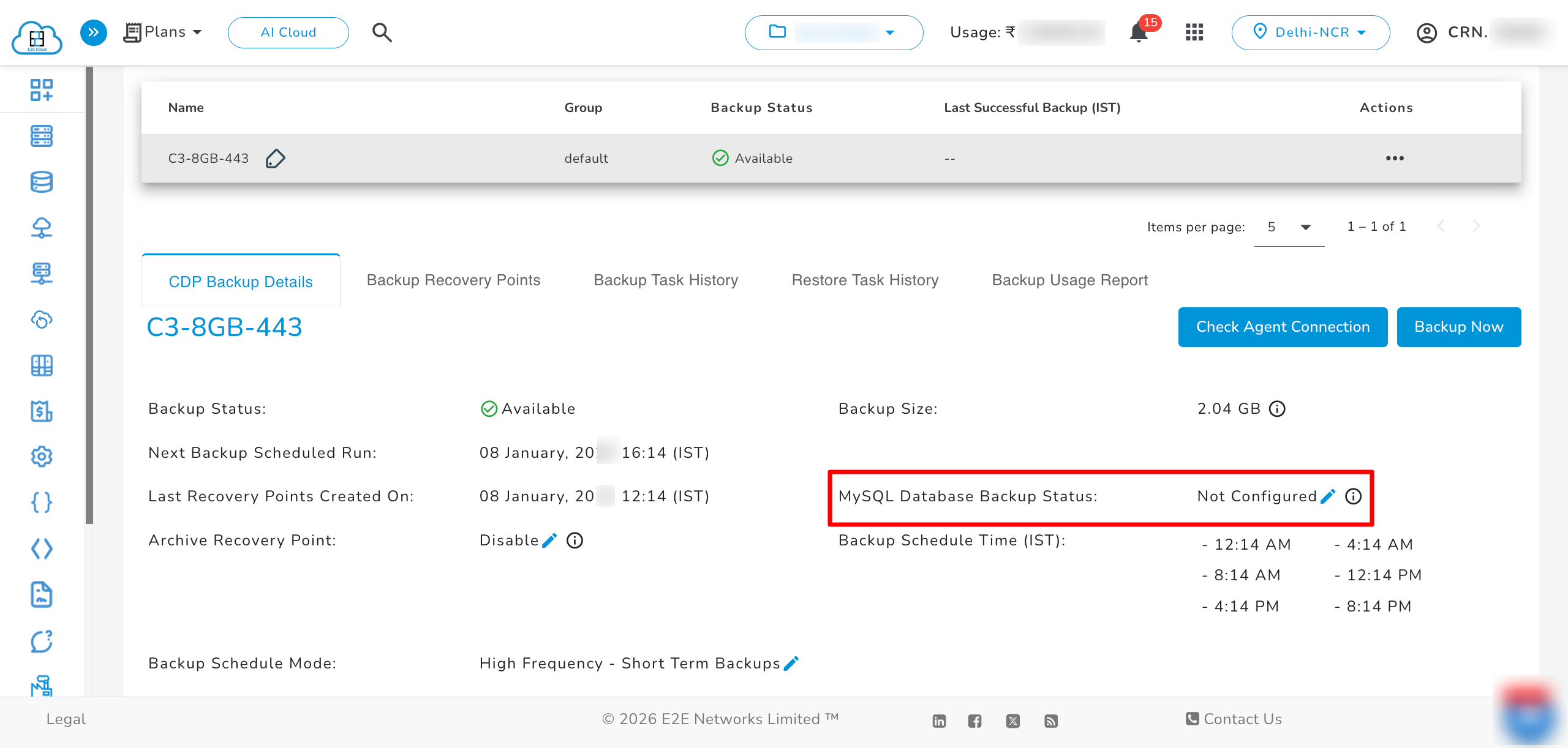
- Click on the edit button to configure MySQL.
- Enter the MySQL Server Username and MySQL Server Password.
- Click on the Activate button.
E2E Networks is not responsible for backup failures caused by incorrect customer-provided credentials.
How to Check the Agent Connection?
- Click on Check Agent Connection button in CDP Backup Details tab .
- Click on Check Connection button.
How to take Backup?
- Click on Backup Now button in CDP Backup Details tab.
- Click on Run button.
Backup Recovery Points
- The Backup Recovery Points tab has information about backup recovery points created for the respective E2E Node in chronological order. You can select any backup recovery points to restore files/folders to the respective node.
Backup Retention Policy
- Backup recovery point retention policy is default defined. The retention policy automatically decides on how many numbers of Recovery Points needed to retain and when to merge old recovery points. You can change the default policy according to your requirement to retain recovery points based on recovery point age.
Actions of Backup Recovery Points.
- You can perform the following actions for the backup recovery points.
How to Browse/Restore Files And Folders in Actions Tab of Backup Recovery Points?
Restore backups feature provides you with the facility to restore the entire file system or selected files and folders into your E2E Node from any available Backup Recovery Point. To know the process of restoring a database in MySQL click here
- Click on browse/restore option in actions tab of backup recovery points.
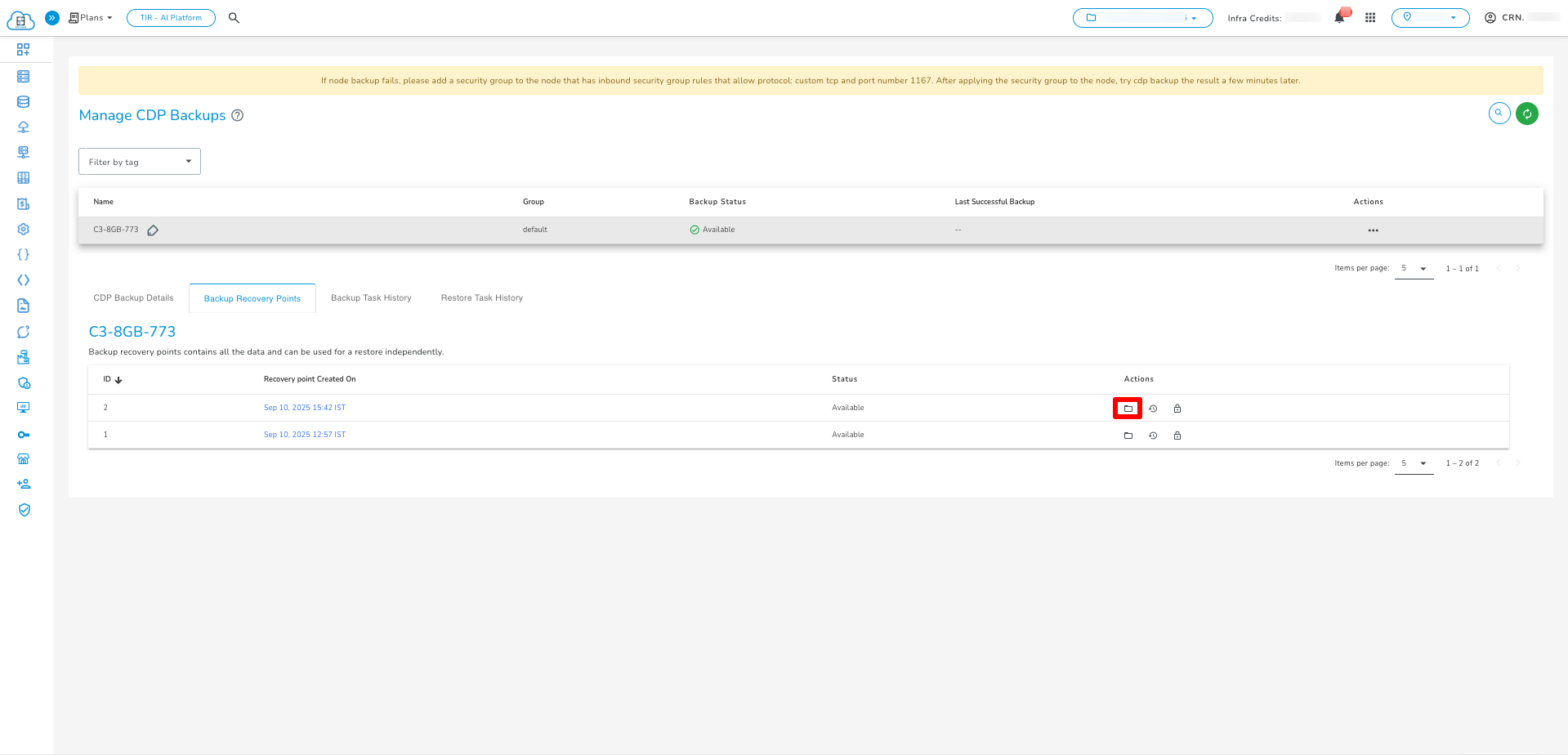
- Go to the Backup Recovery Point tab and select the backup recovery point.
- Click on the browse action to browse the file system.
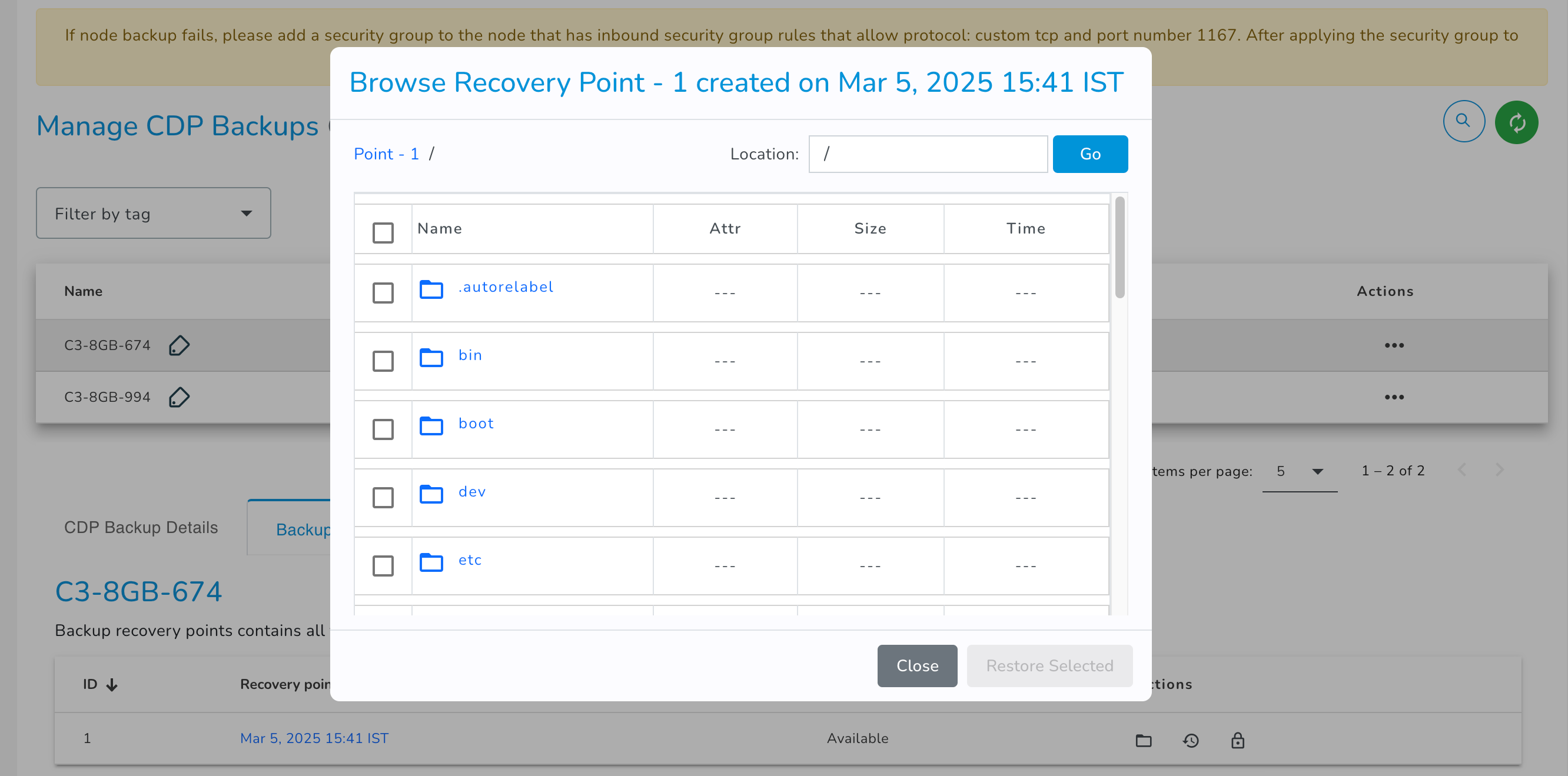
- The "Browse Recovery Point" pop-up window will appear on the screen.
- Select the required files/folders.
- After selecting the files/folder, click the Restore selected button.
- Now, you need to select the restore location radio button.
- You can select the desired node for restoring the backup. The node list will display only nodes with an active CDP backup and the same operating system (OS) as the backup source node.
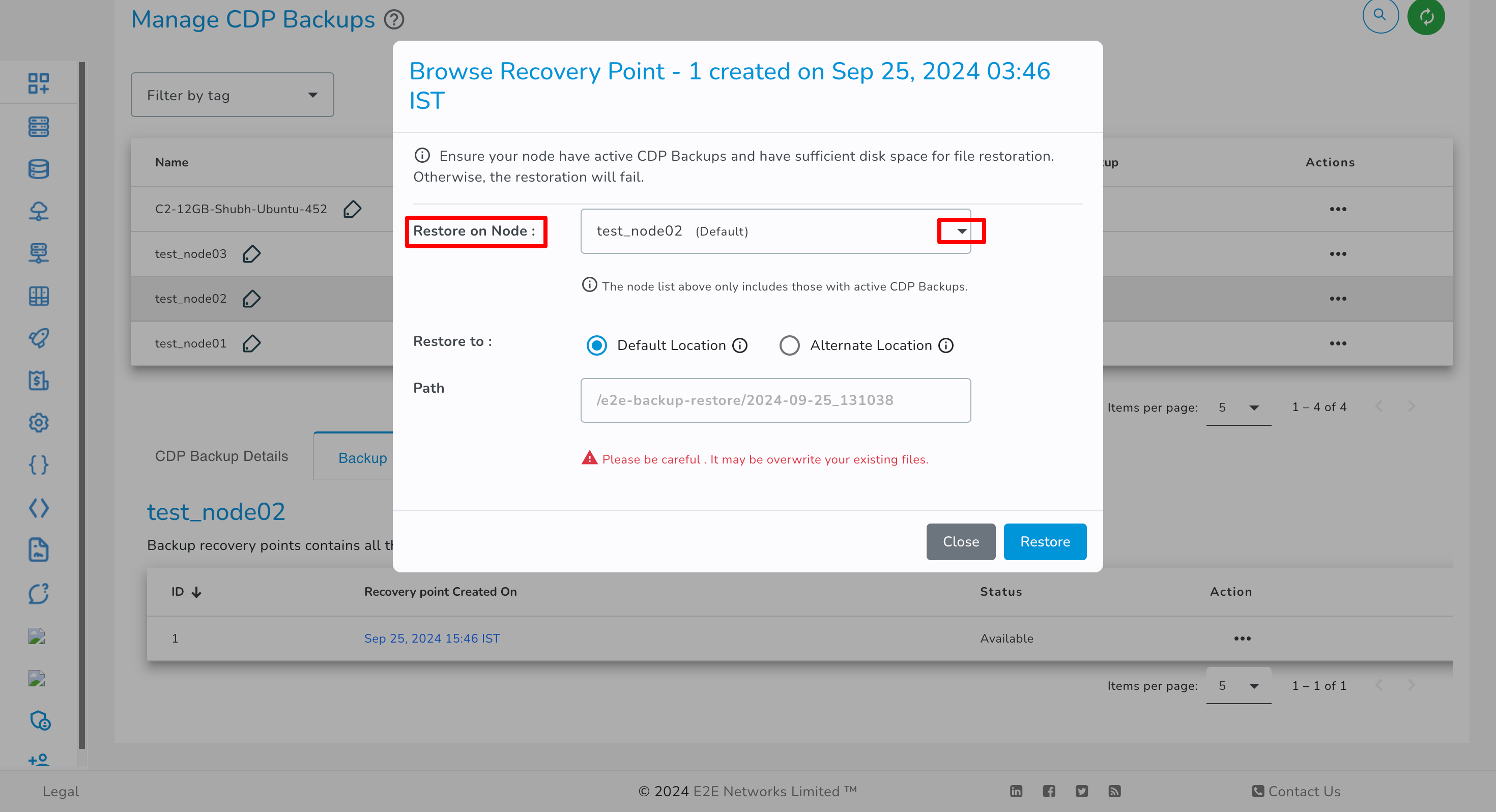
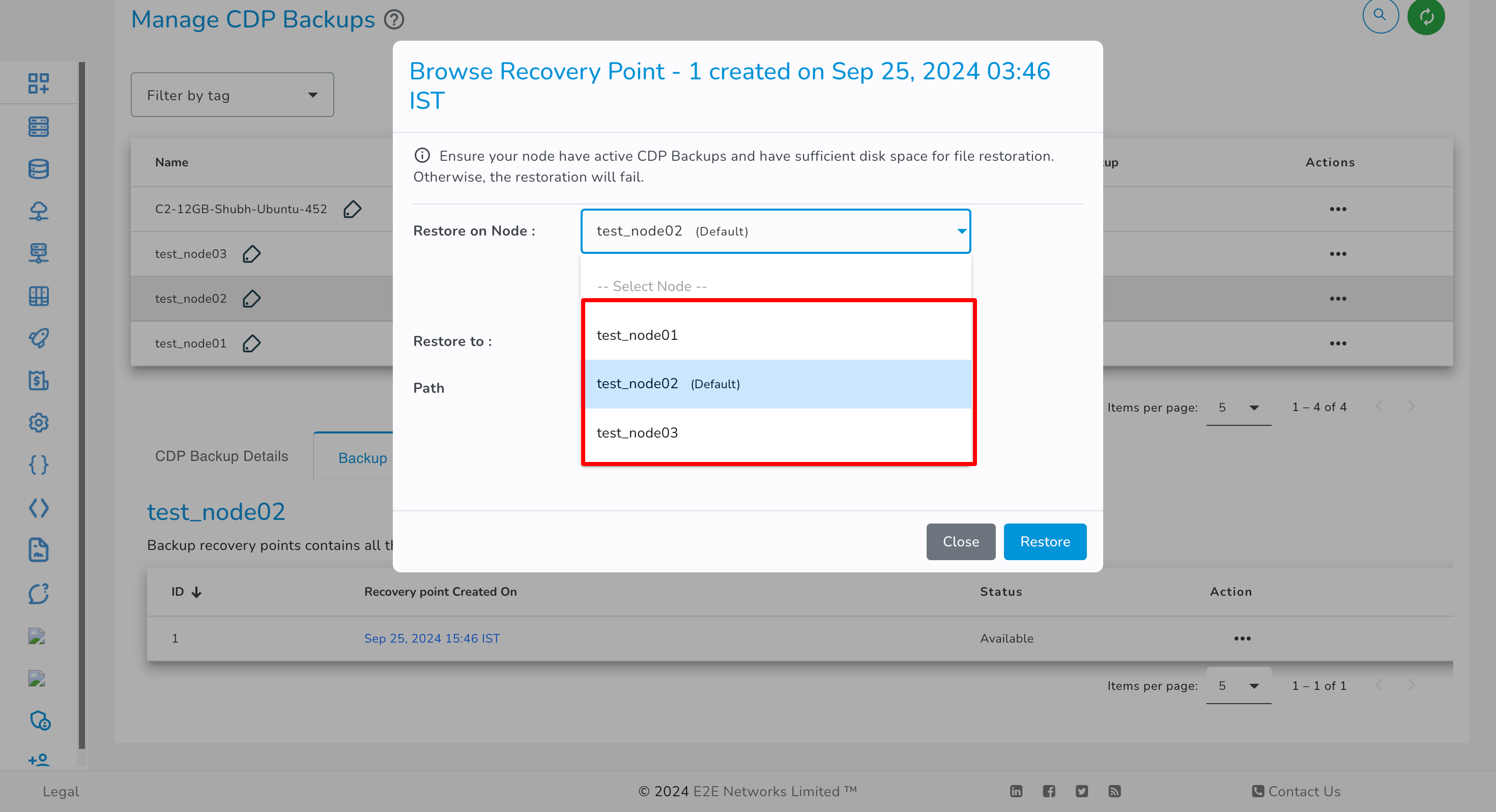
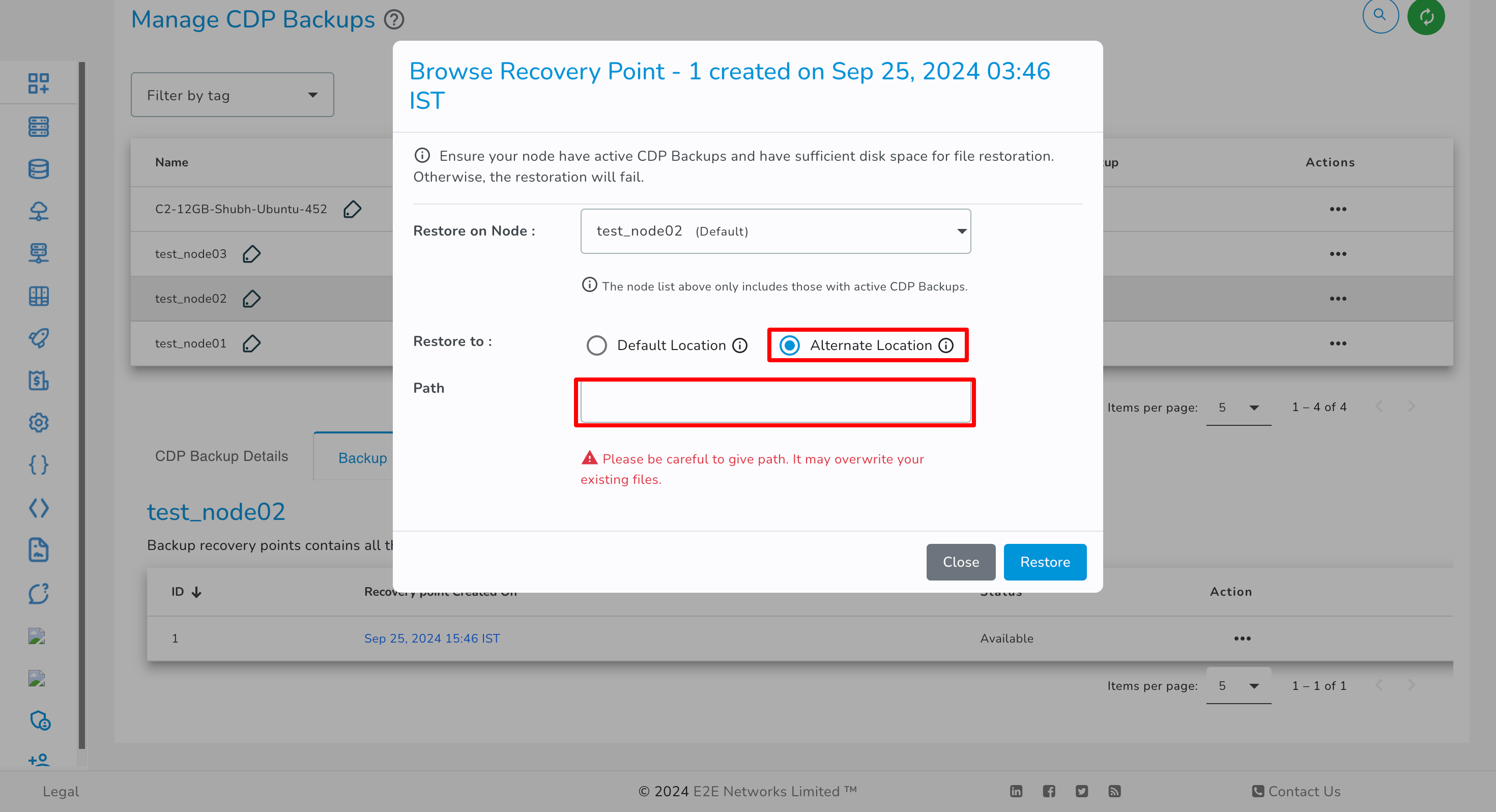
- You have the option to select either the Default Location or an Alternate Location for restoration, based on your preference.
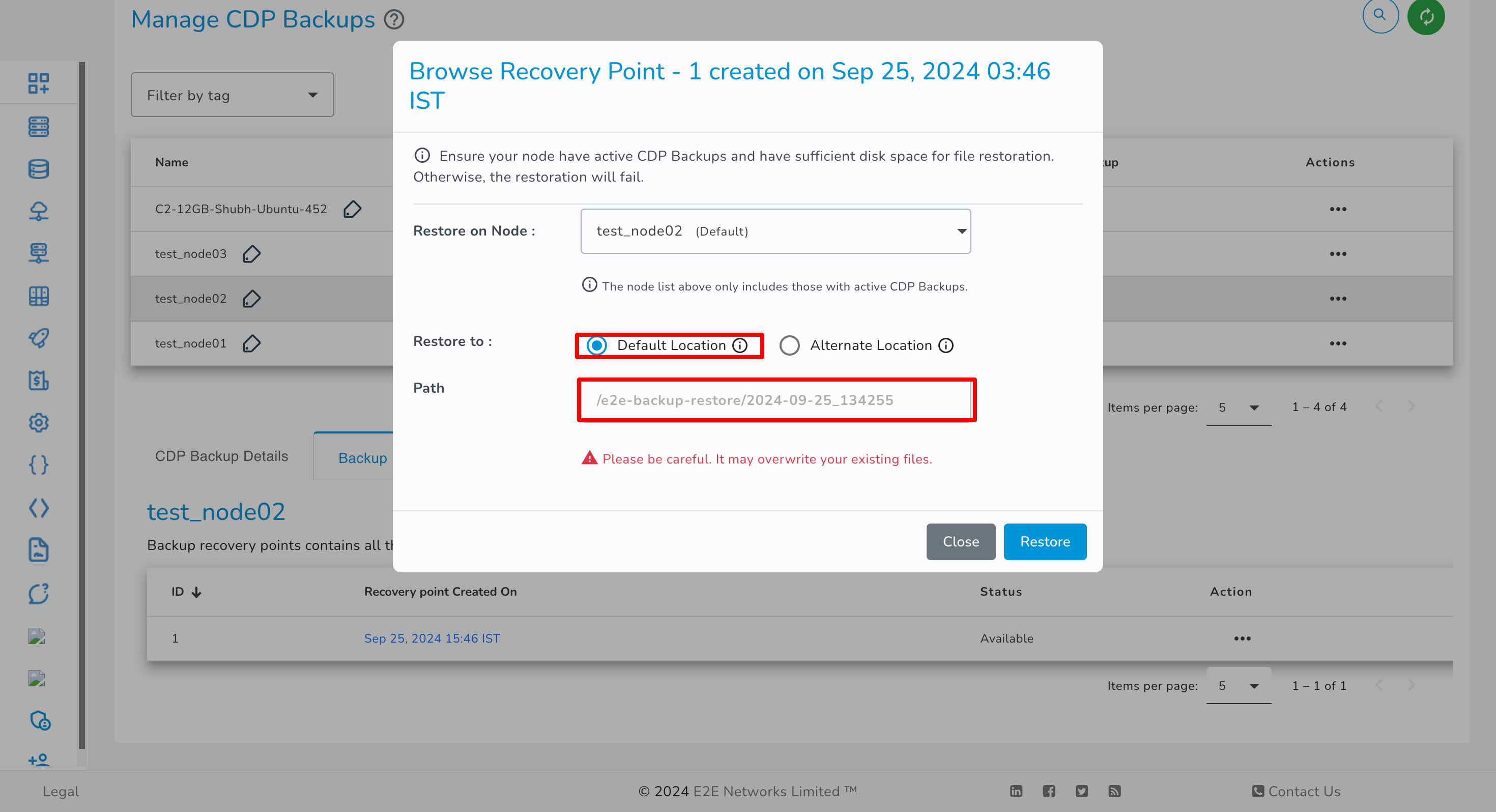
Default Location
- If you selected the default location radio button, the selected files/folders will be restored at a different path, which is
/e2e-backup-restore/instead of the original path. You need to manually move folders/files from the restore path to the original path.
Alternate Location
If you selected the alternate location radio button, the selected files/folders will be restored at your specified location on a disk in your Node.
Note: Please ensure that enough disk space is available on your node to restore files. Otherwise, the restoration will fail, and due to restore failure, the node might face downtime. You will be solely responsible for this.
- An Information message will appear when the restoration process is initiated.
- The restoration process will take a few minutes for completion. It will depend on the size of files/folders you have selected for restoration.
- Once, Backup Restoration is completed successfully for your E2E Node, you will be notified via email, and the selected files/folders will be available in your E2E Node.
How to perform Lock in Actions Tab of Backup Recovery Points?
You can use lock action to prevent backup recovery point from being merged automatically as per the recovery point protection policy.
- Click on Lock symbol in actions of Backup Recovery Points.
- Click on Lock button.
How to perform Unlock in Actions Tab of Backup Recovery Points?
- Click on Unlock symbol in actions of Backup Recovery Points.
You can use unlock action to unlock the locked backup recovery point to allow it to be merged automatically as per the recovery point protection policy.
- Click on Unlock Button.
Backup Task History
The Backup Task History tab displays a detailed list of all backup operations executed for a node in a structured grid format. Each entry provides information about the backup task name, task status, start time, end time, and the total duration of the backup. All timestamps are displayed with date and time for better tracking and auditing.
Status of Backup Task History
- Finished: 'Finished' status represents that the backup recovery point is created.
- Failed: 'Failed' status represents that backup recovery point creation failed for the respective node.
Restore Task History
The Backup Task History section displays a detailed record of all CDP backup tasks executed for a node in a tabular format. Each entry includes the backup task name, task status, start time, end time, and the total duration of the backup process. All timestamps are displayed in Indian Standard Time (IST) for consistency.
This section helps users monitor backup execution, verify successful recovery point creation, and analyze backup performance.
Status of Restore Task History
- Finished: Finished status represents that the file/folder restored successfully.
- Failed: Failed status represents that the file/folder restore failed.
- Warning: Warning status represents that the file/folder restored but the respective node's disk space is running low.
Backup Usage Report
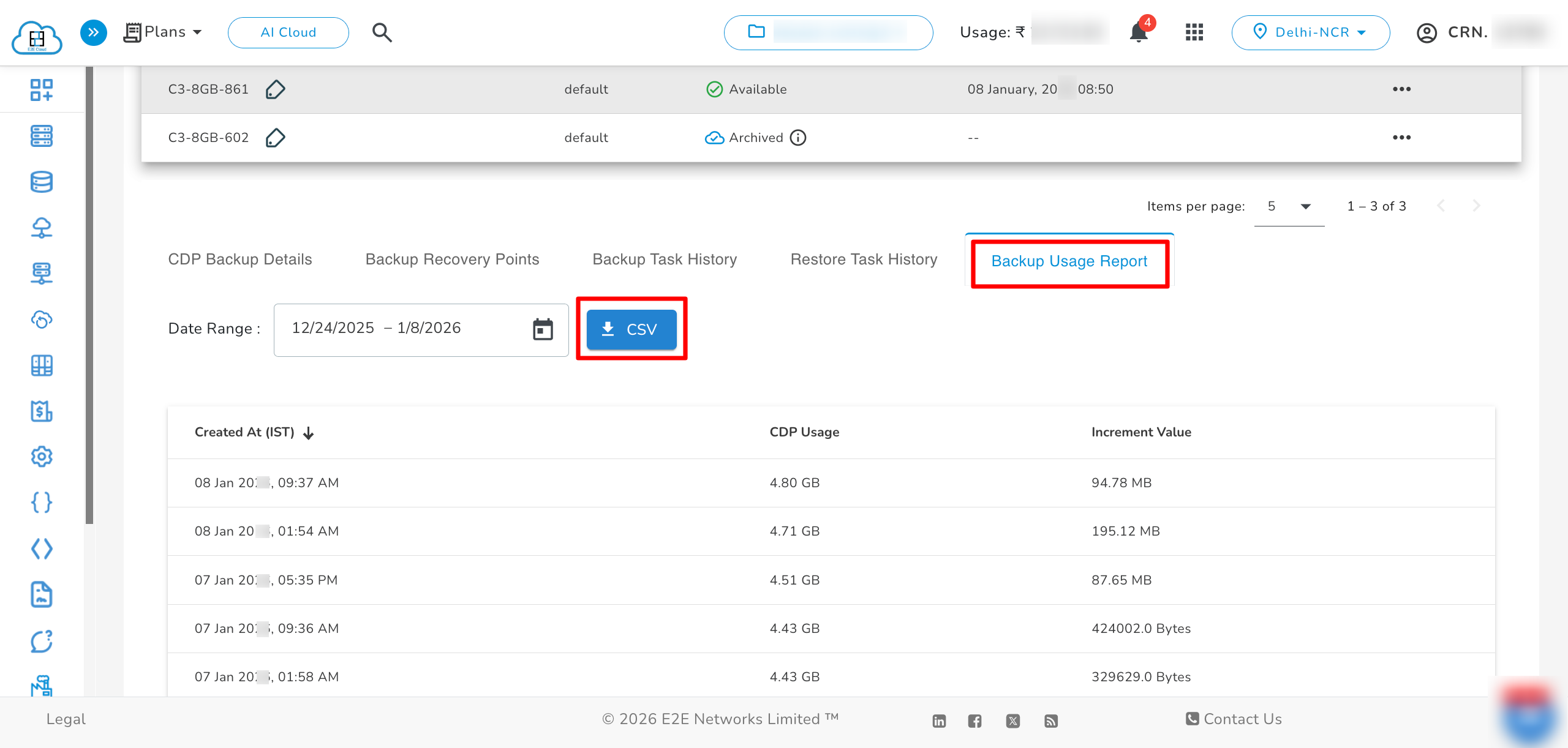
The Backup Usage Report tab is your primary tool for monitoring how much storage your backups are using. It provides a transparent view of your data footprint, helping you understand both your current storage status and how your data grows over time.
-
Created At (IST): This is the "Timestamp." It tells you exactly when the backup record was captured in India Standard Time.
-
CDP Usage: This is the "Total Size." It shows the total amount of storage your backup is currently occupying in the cloud at that specific time.
-
Increment Value: This is the "Change Amount." It shows how much new data was added since your last backup.
Downloading the Report
For more advanced analysis or record-keeping, you can use the CSV button to download a comprehensive Backup Usage Report. This exported file provides a deeper look into your infrastructure
- Node Name : Identifies the node for which backup usage is recorded.
- Public and Private IP Address : Displays the network details of the node to help distinguish between multiple resources.
- Disk Usage : Shows the total CDP backup storage consumed by the node at the time the record was generated.
- Incremental Usage : Indicates the amount of new backup data added since the previous backup cycle. If no additional data is created, the value is displayed as 0.0 Bytes.
- Created At and Updated At : Displays when the usage entry was created and last updated. All timestamps are shown in Indian Standard Time (IST) for consistency.
- Report Time : Indicates when the usage data was generated for reporting purposes.
- CRN (Customer Reference Number) : Uniquely identifies the customer account associated with the usage data.
How to Take a Complete cPanel Backup
Introduction to cPanel
cPanel is a Linux-based web hosting control panel that simplifies website hosting. To take a complete backup of the website using cPanel, follow these steps:
- Log in to your cPanel.
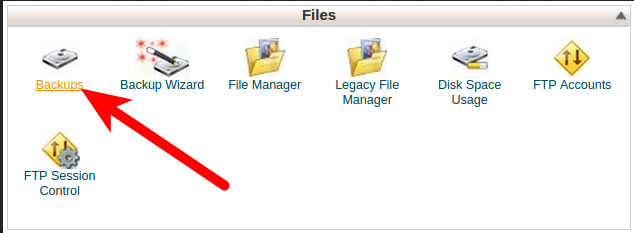
- Select Backups in the Files section.
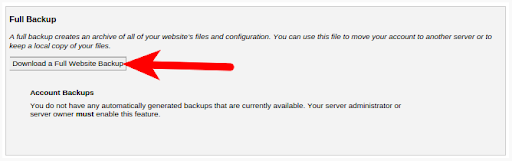
- In the Full Backup section, click the Download a Full Website Backup button.
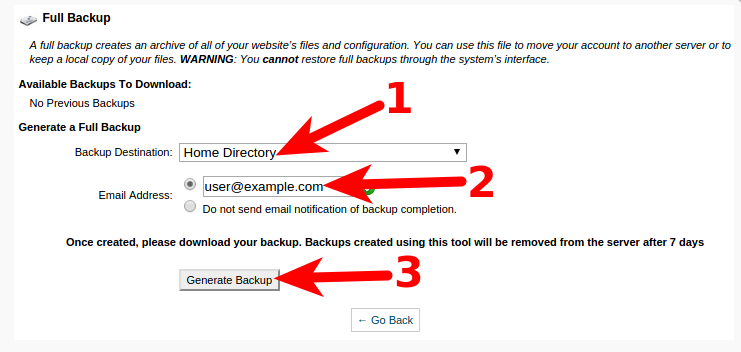
- On the next screen, make sure the Home Directory option is selected.
- If you want an email notification when the backup completes, enter your email address.
- Click the Generate Backup button to begin the Full cPanel Backups.
Step 7: Download the file from your cPanel located in the /home directory, which will start with backup and include the date, for example, backup-10.9.2015_15-52-08_example99.tar.gz.
You will now have a complete backup of your cPanel website.
Full cPanel Backup
Backup includes all website files, databases, and email accounts associated with your website hosted on cPanel.
cPanel backups are not automatically enabled on your E2E Node. You need to manually take a backup through the cPanel interface and follow the above steps.