Manage Access Token
Create New Access Token
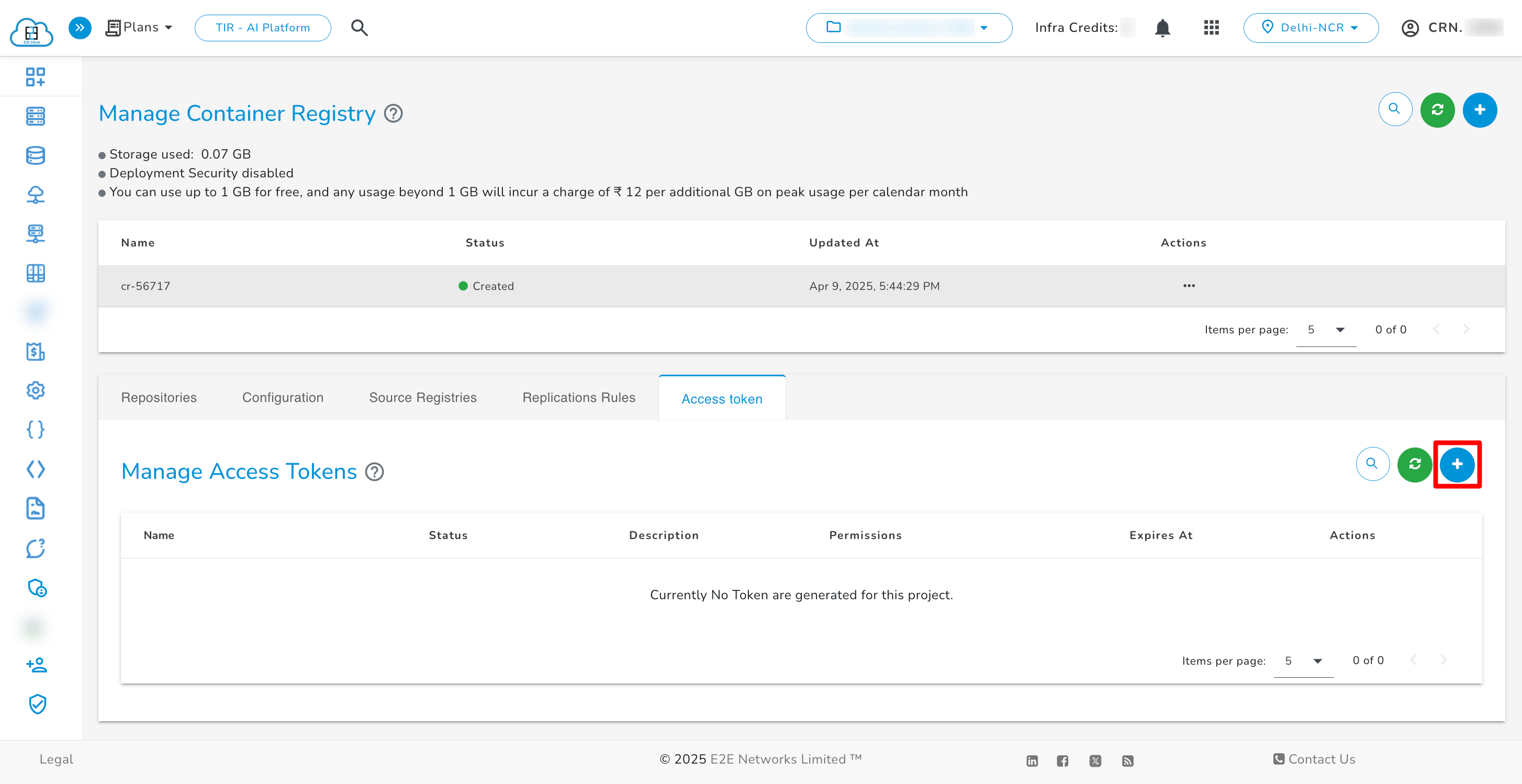
- Click on the "Access Token” tab.
- Click on the + icon.
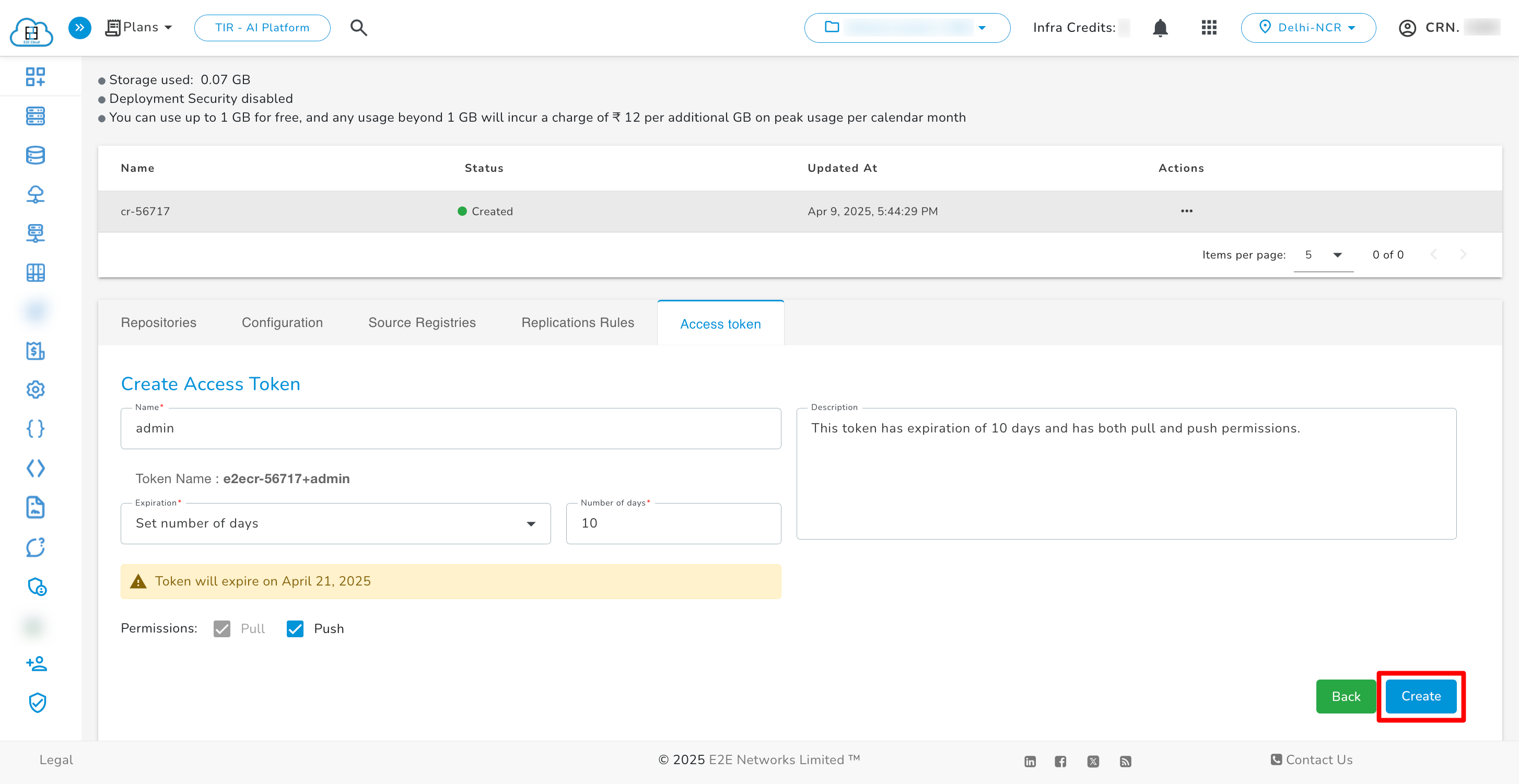
- Provide a name for the token.
- Set the expiry time for the token.
- Set number of days - the token will expire after the specified number of days.
- Never expires - the token will never expire.
- Choose the permission level:
- Pull – allows pulling images only.
- Pull & Push – allows both pulling and pushing images.
- Description - (optional) provide a description for the token.
- Click Create to generate the token.
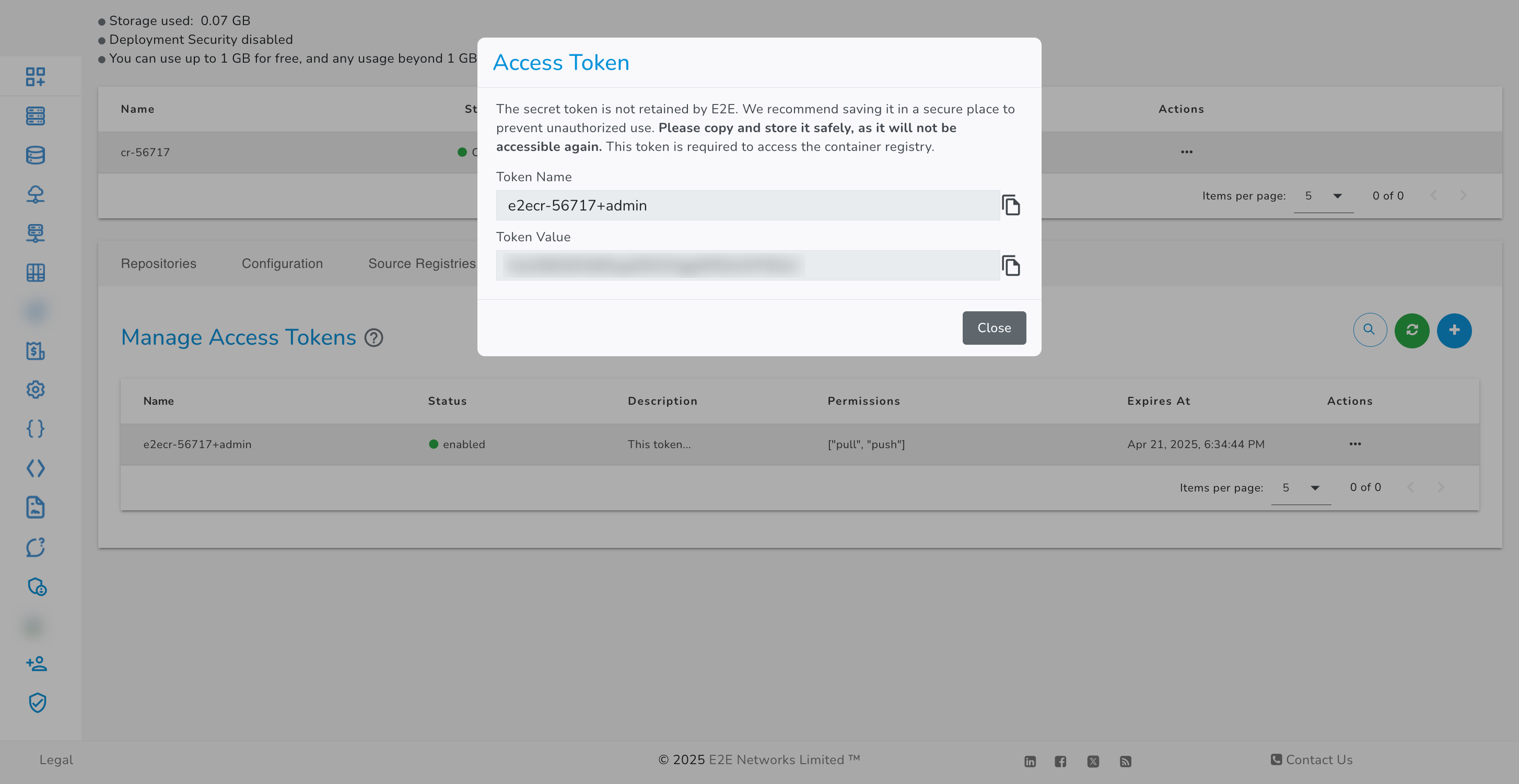
Copy the token name and token value and store it securely. You will not be able to see the token value again.
Using Access Token with Docker
Use the following command to log in using an access token:
docker login registry.e2enetworks.net -u <token_name> -p <token_value>
You can now push or pull images based on the permission set for the token.
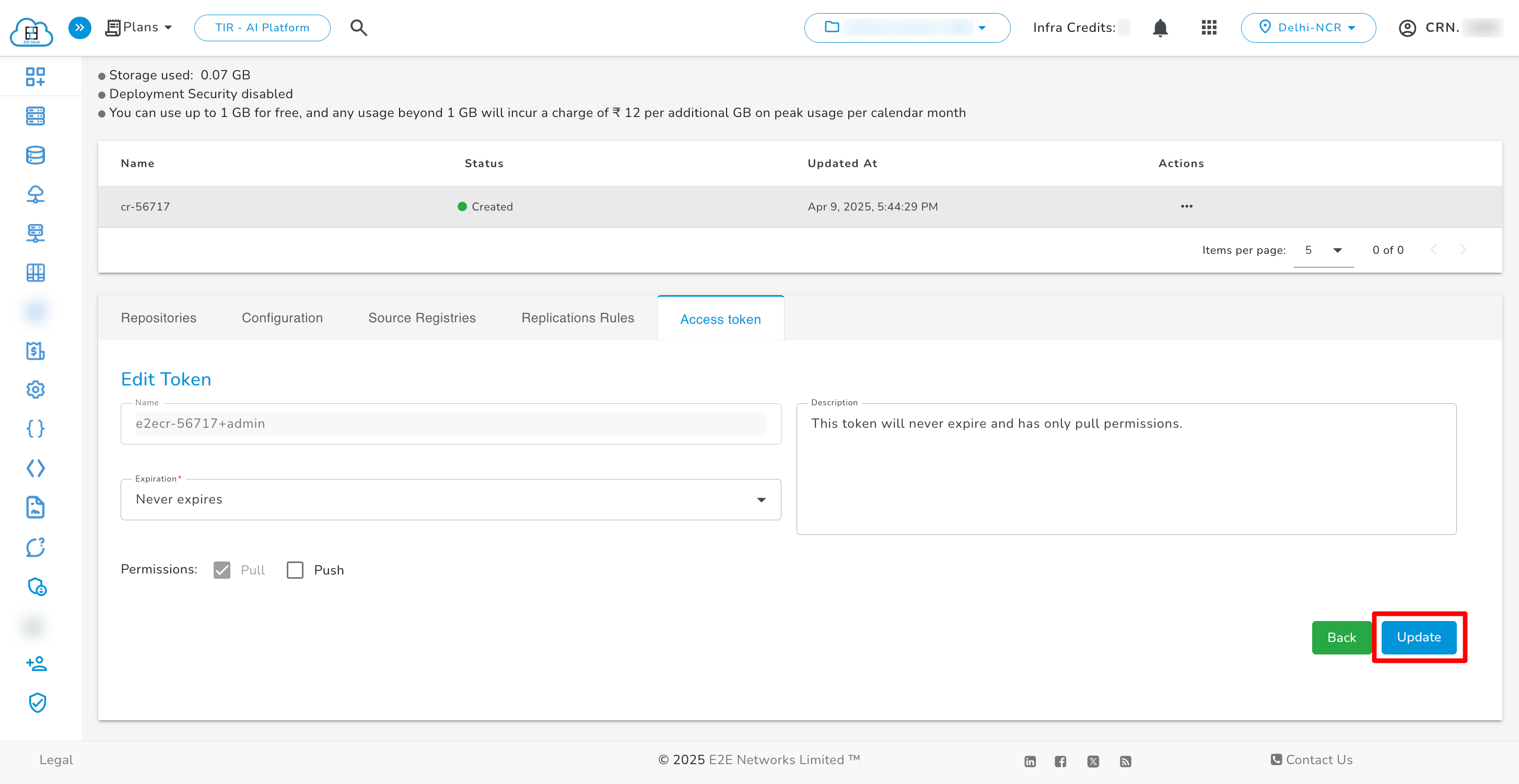
Edit Access Token
To edit an access token:
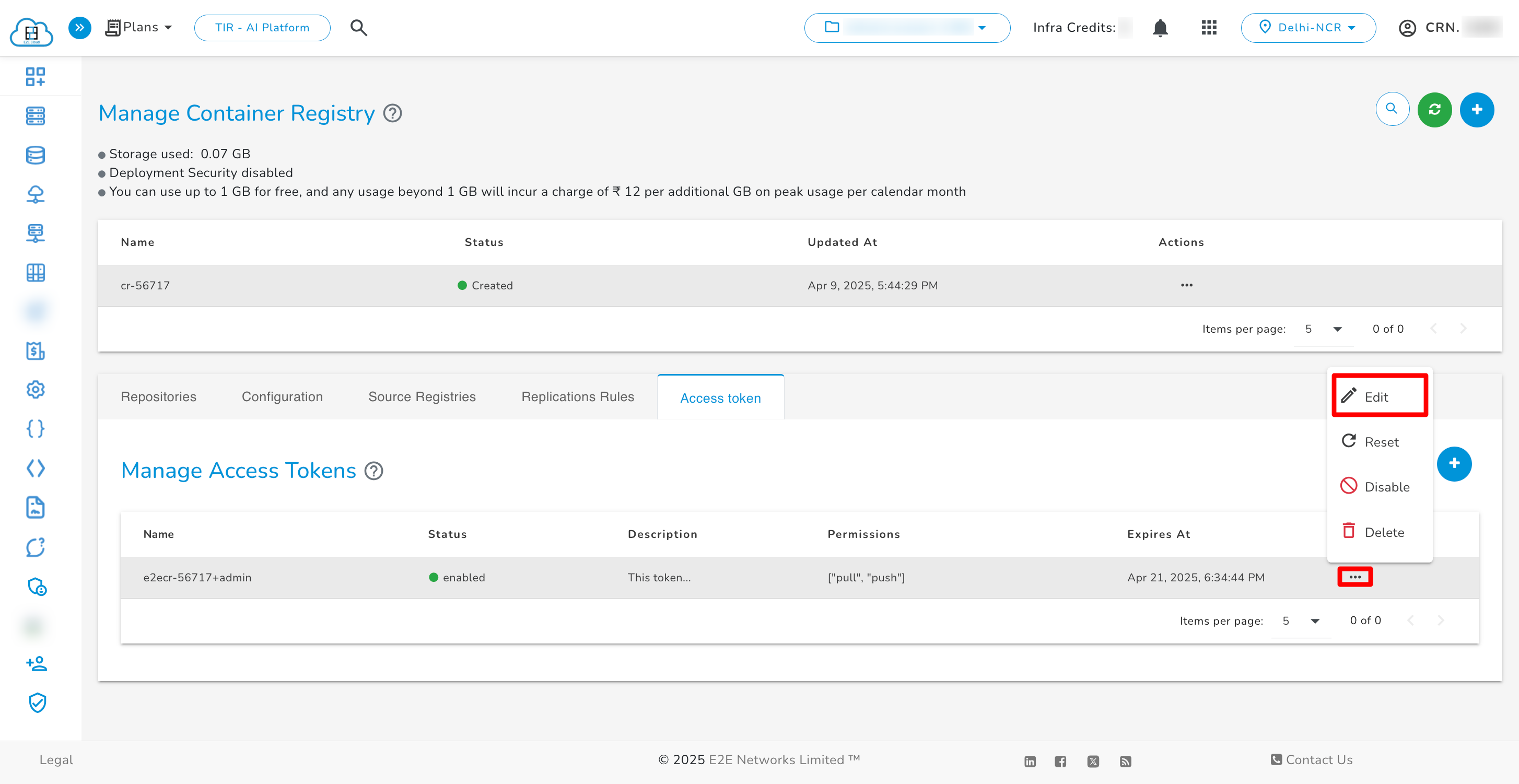
- Click on the three dots next to the respective token.
- Select Edit from the menu.
- You can modify the token's expiry or change its permission level.
- Click Update to apply changes.
Reset Access Token
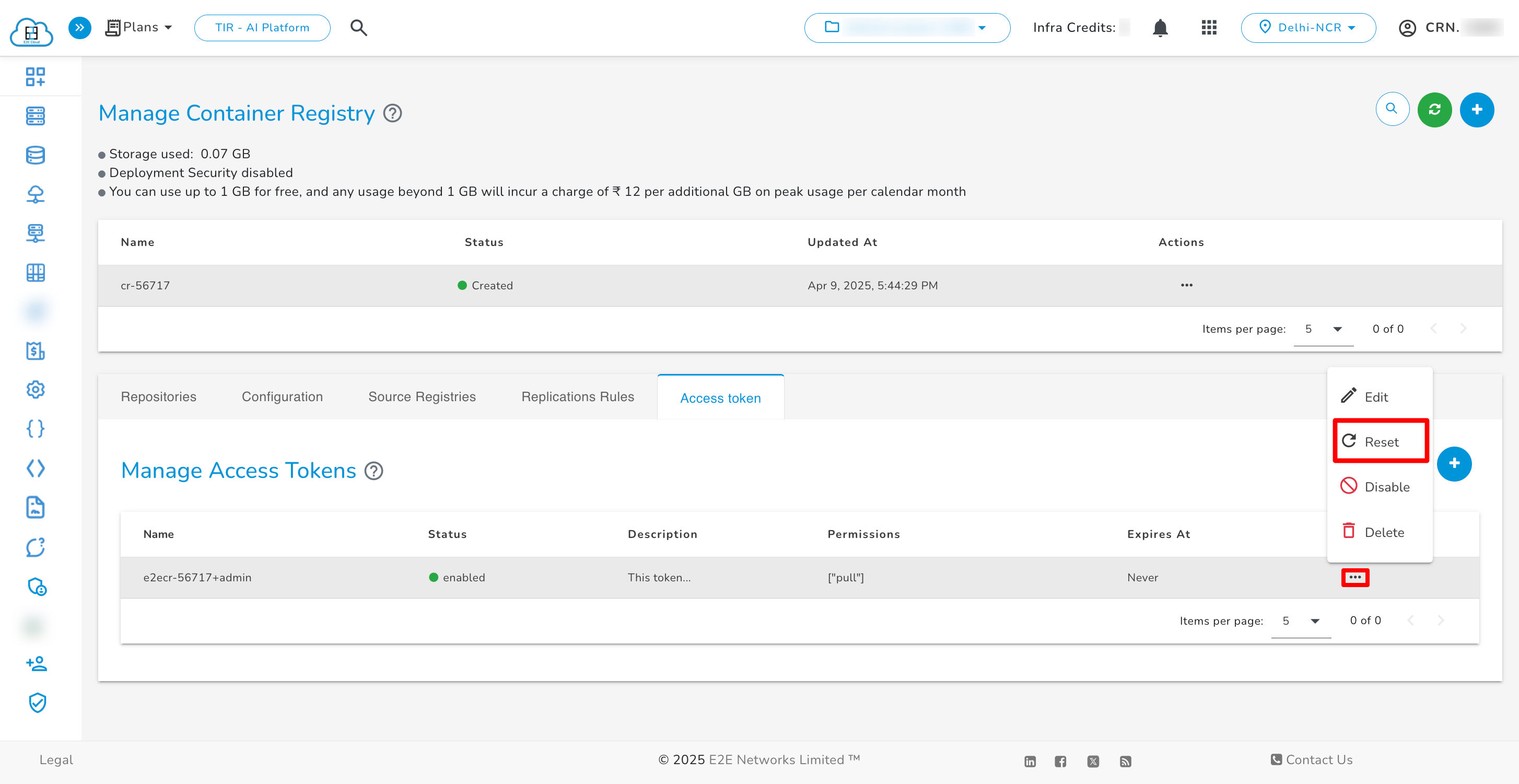
If you want to regenerate the token credentials:
- Click on the three dots next to the respective token.
- Select Reset.
- Confirm reset of the token and click Reset.
- A new token value will be generated and shown once. Make sure to copy and store it safely.


Enable / Disable Access Token
To enable or disable a token:
- Click on the three dots next to the respective token.
- Choose Enable or Disable depending on the current status.
- Confirm the action in the popup.


Delete Access Token
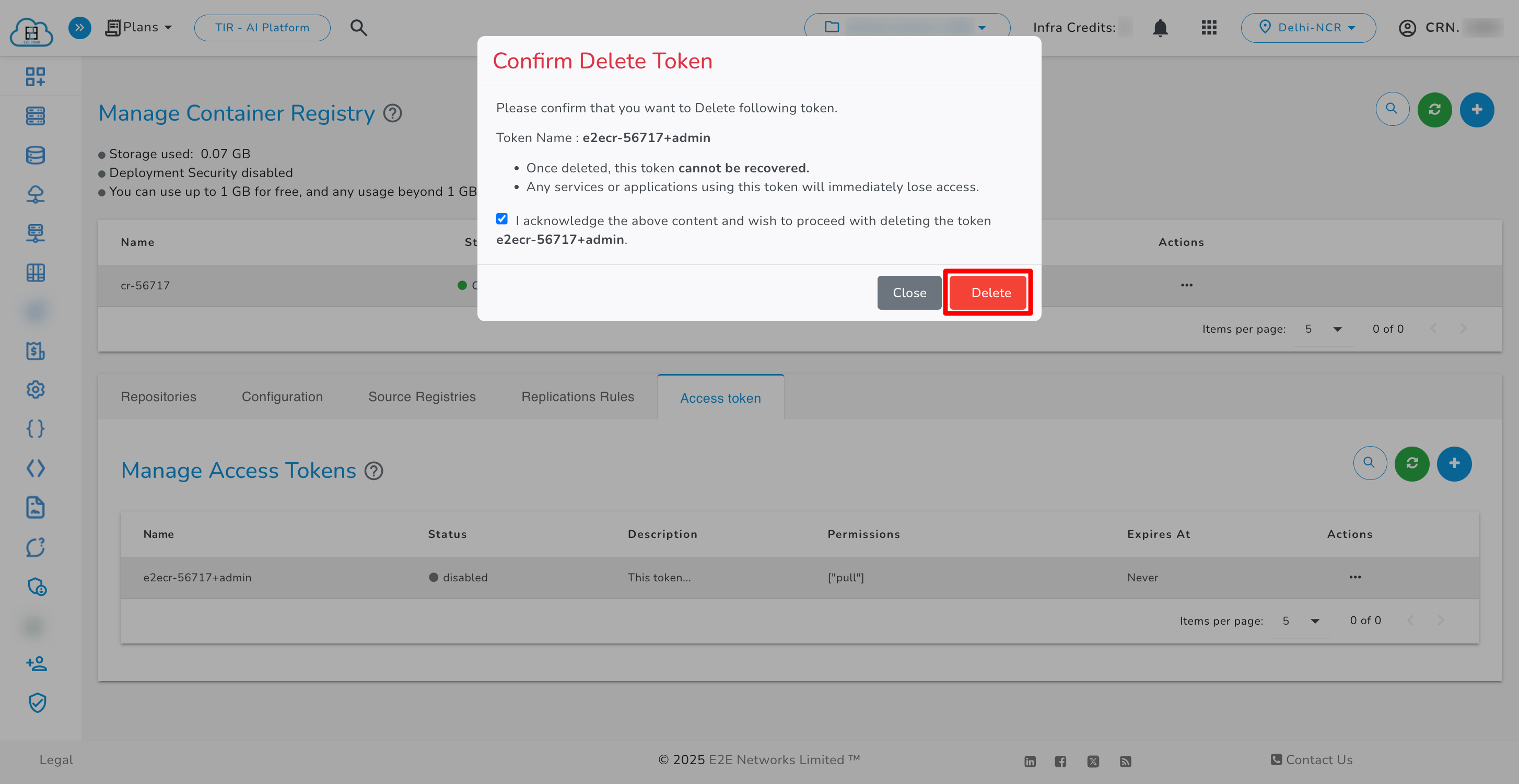
To delete an access token:
- Click on the three dots next to the respective token.
- Select Delete from the dropdown.
- A confirmation popup will appear. Confirm the deletion.

Last updated on May 15, 2026.