Simplifying Pull Operations with User-Friendly Interface
Source Registries
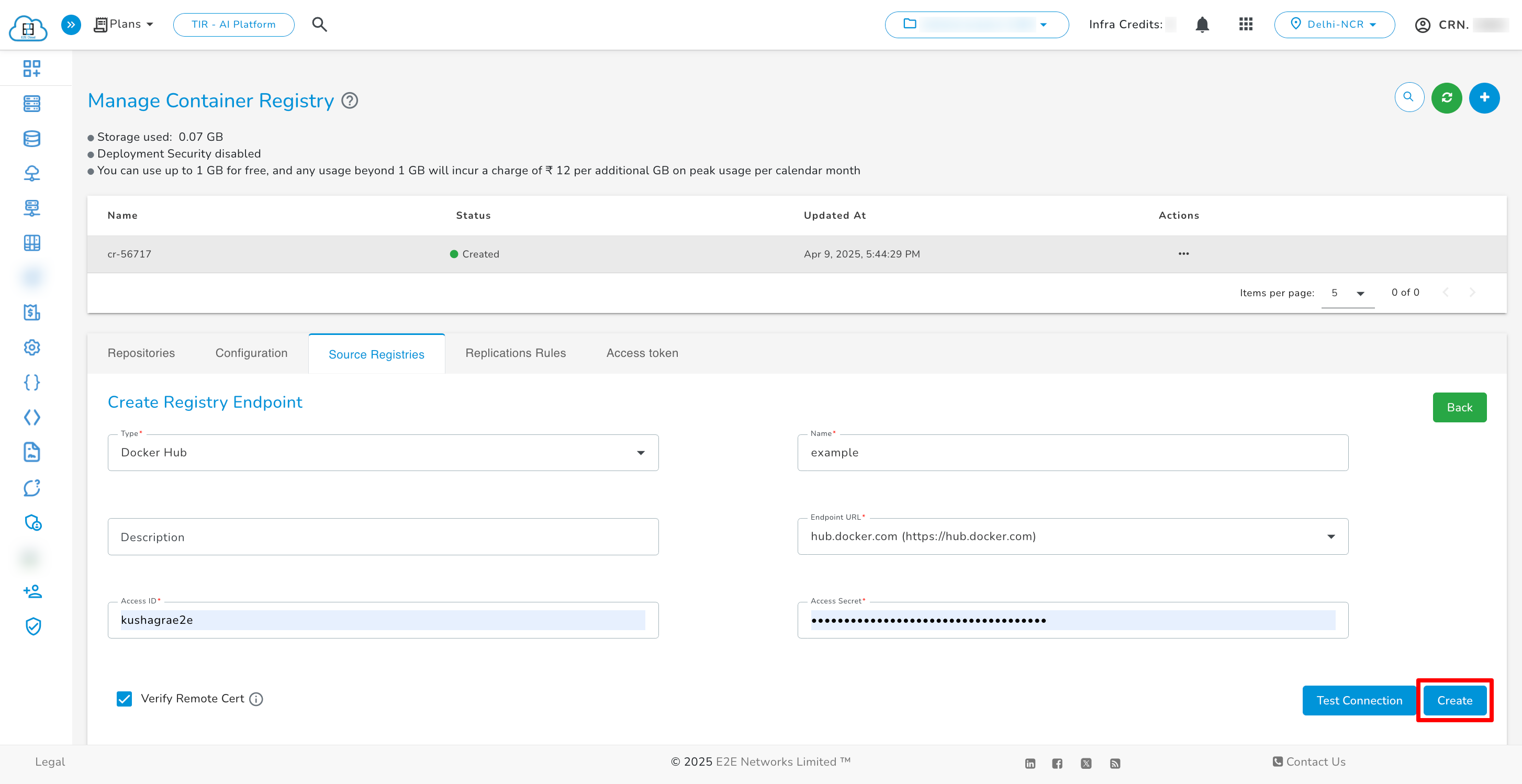
To utilize Source Registries, users need to specify the Source from which they want to obtain their resources. To create a new Source Registry Endpoint, follow these steps:
- Click on Source Registries tab.
- Click on + icon.
- Enter the required information in the provided fields.
- Click the Create button to finalize the creation of the Source Registry Endpoint.
You can also verify the credentials by clicking on Test Connection button.

After adding Source Registry, they will be shown in the list.

Source Registries Action
You can perform two actions on Source Registries: Edit and Delete.
Edit
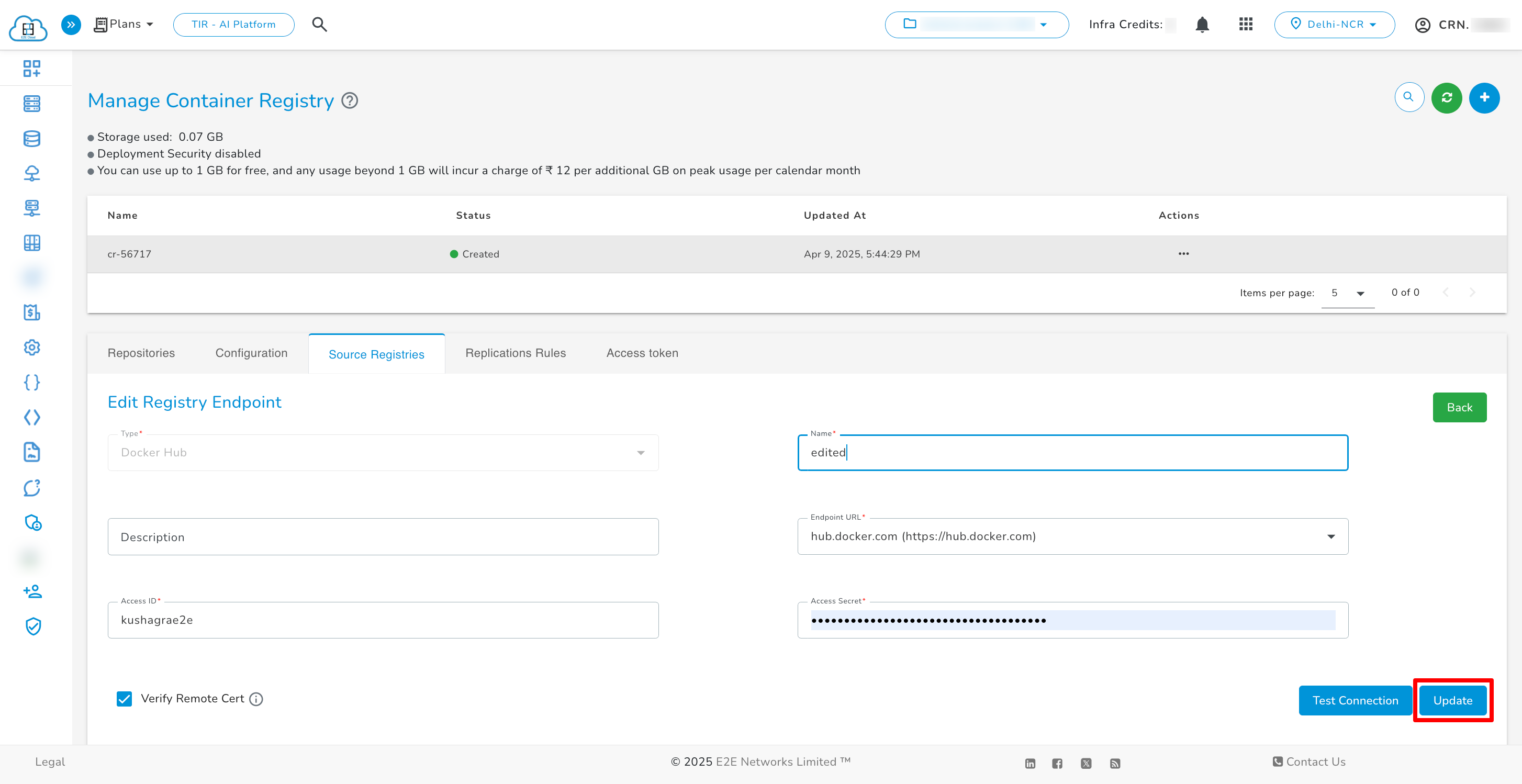
To update the source registry, click on the three dots next to the respective registry, click on Edit button, a new page will open and update the value as per your choice and click update.

Delete
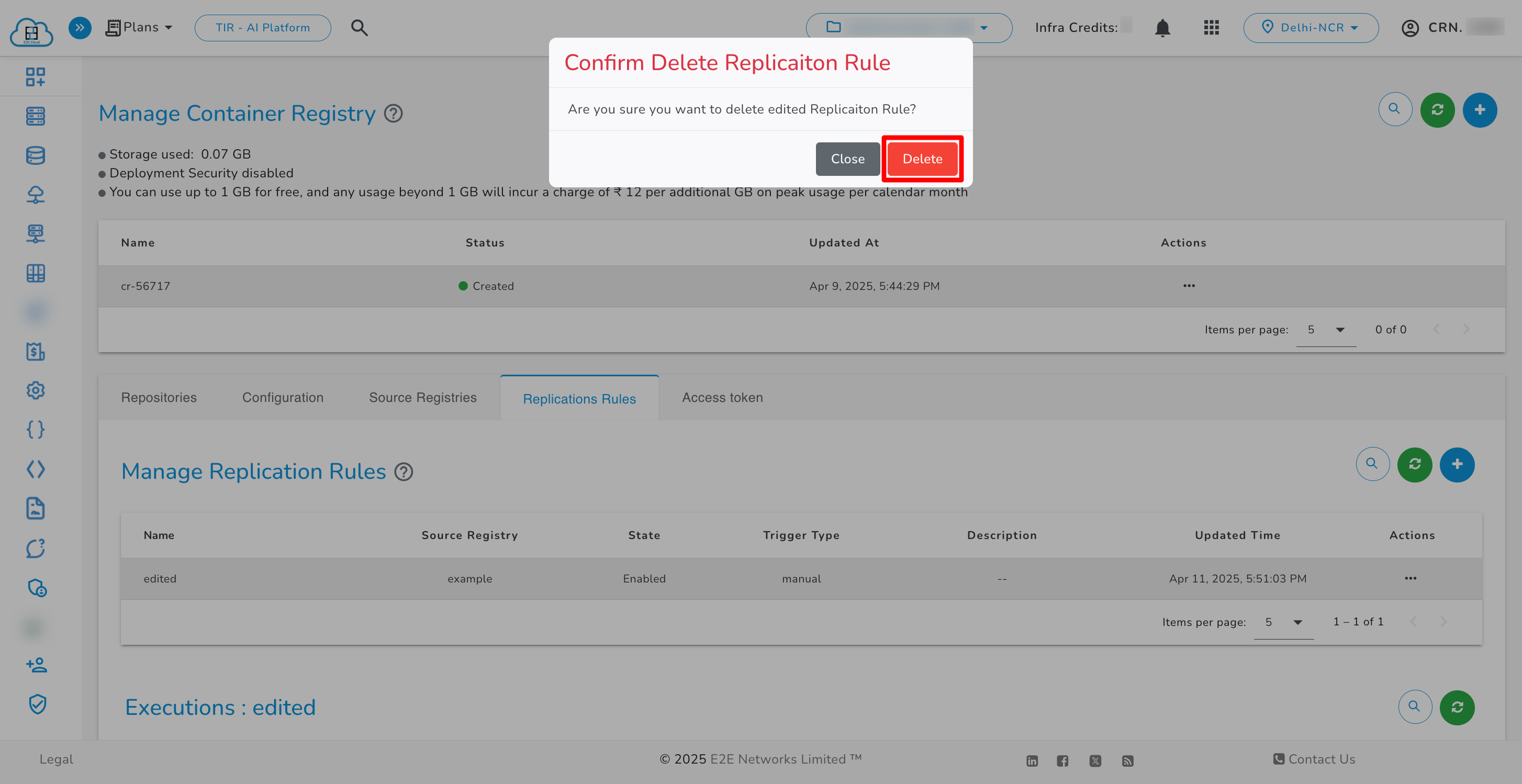
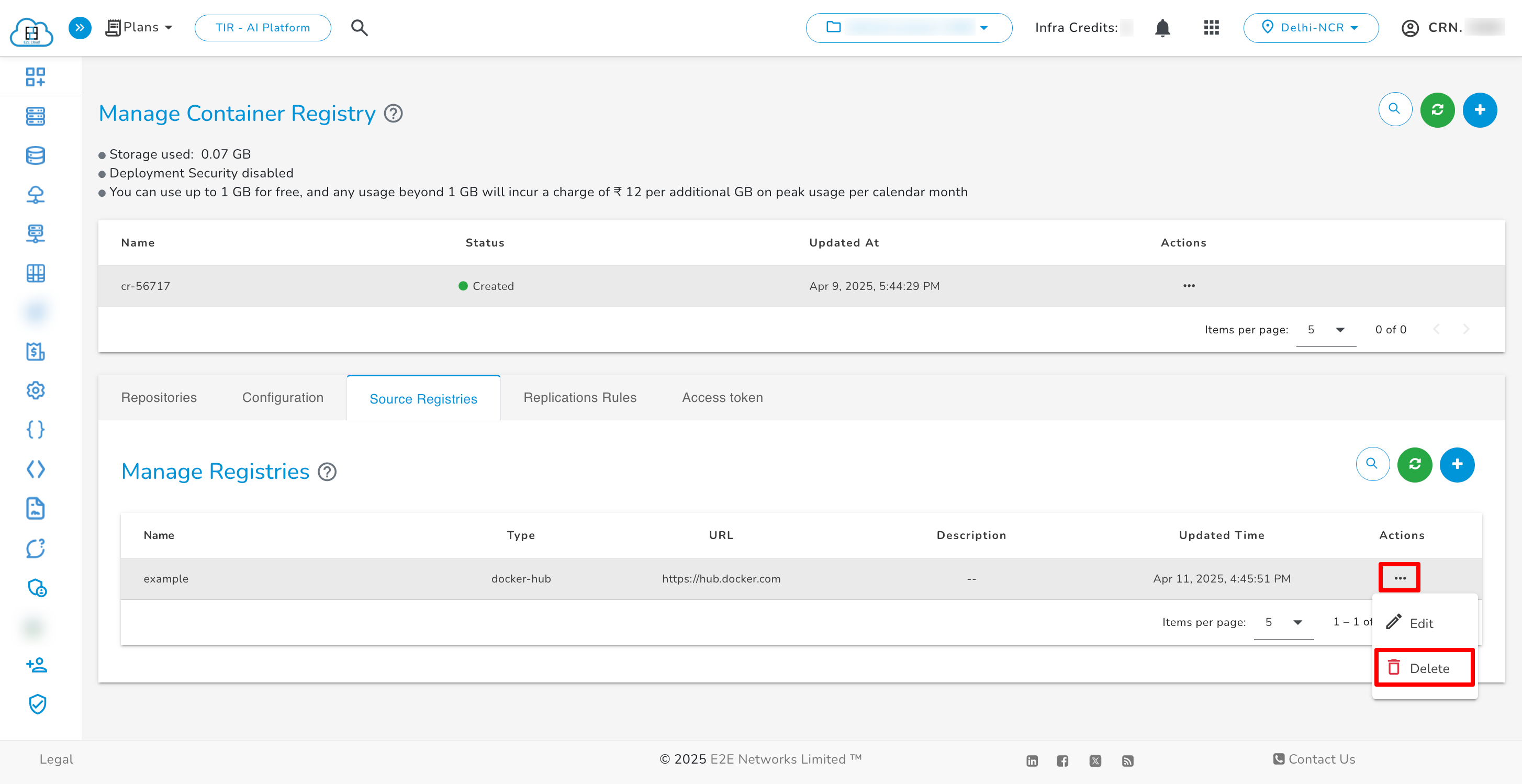
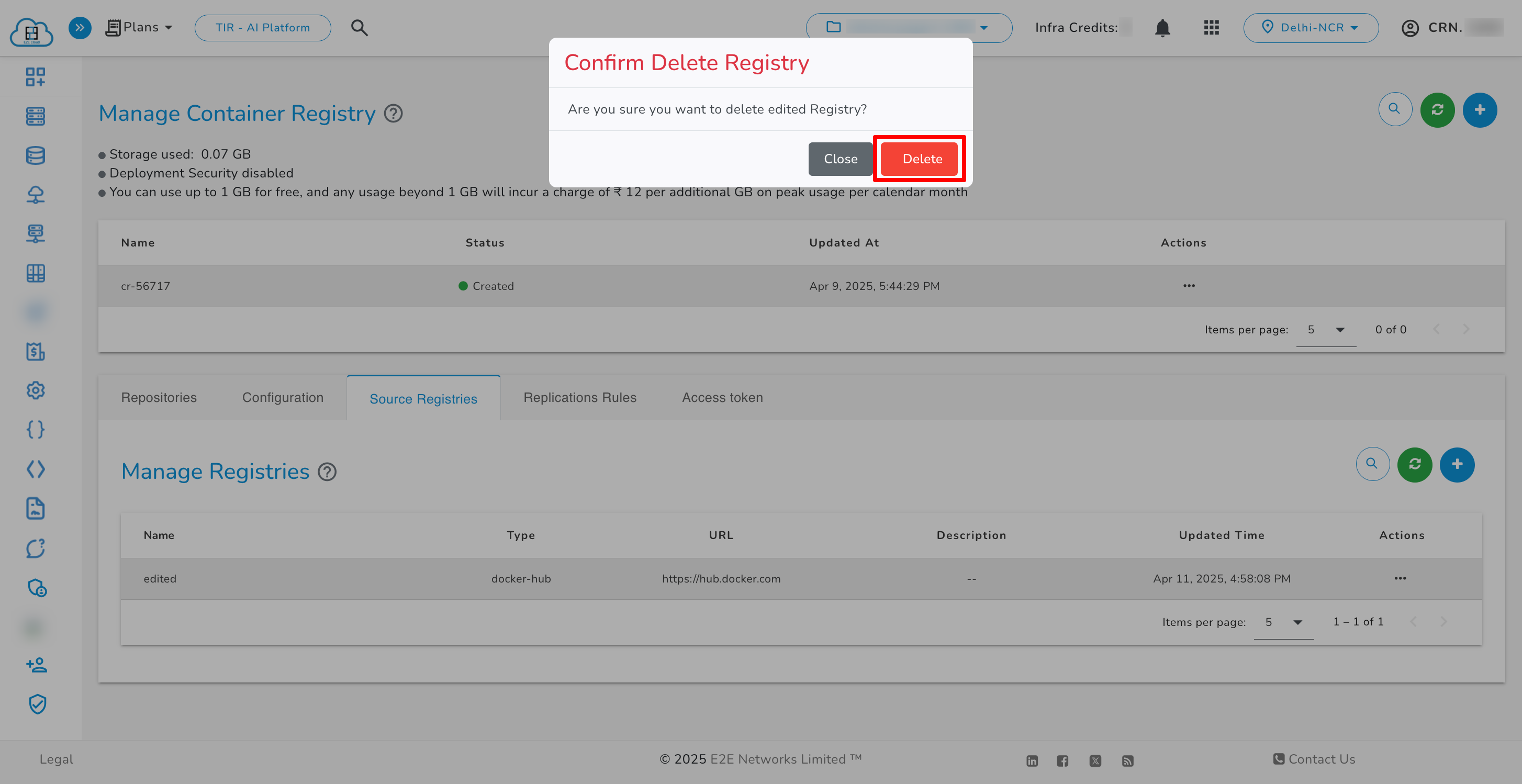
To delete the source registry, click on the three dots next to the respective registry. A confirmation popup will be open, confirm it and click on Delete.
Replication Rule
Replication Rules allow you to specify how you wish to replicate your resources from a certain source registry. To create a new Replication Rule, follow these steps:
- Click on Replications Rules tab.
- Click on + icon.
- Enter the required information in the provided fields.
- Click the Create button to finalize the creation of the Replication Rule.


Replication Rule Action
You can perform three actions on the Replication Rule: Execute, Edit, and Delete.
Execute
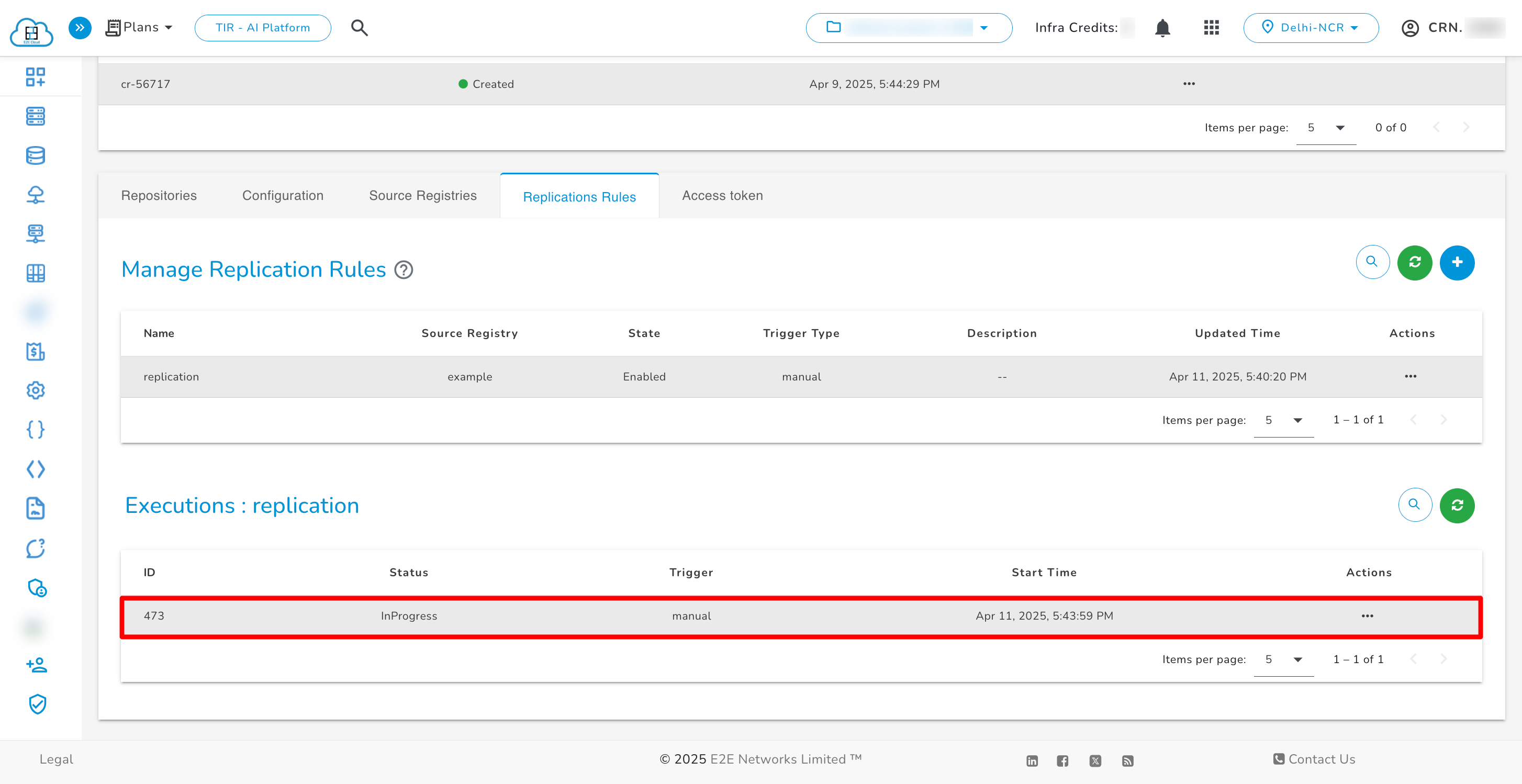
To execute the Replication Rule, click on the Execute button, and the execution will start as per the replication rule you have set.

Edit
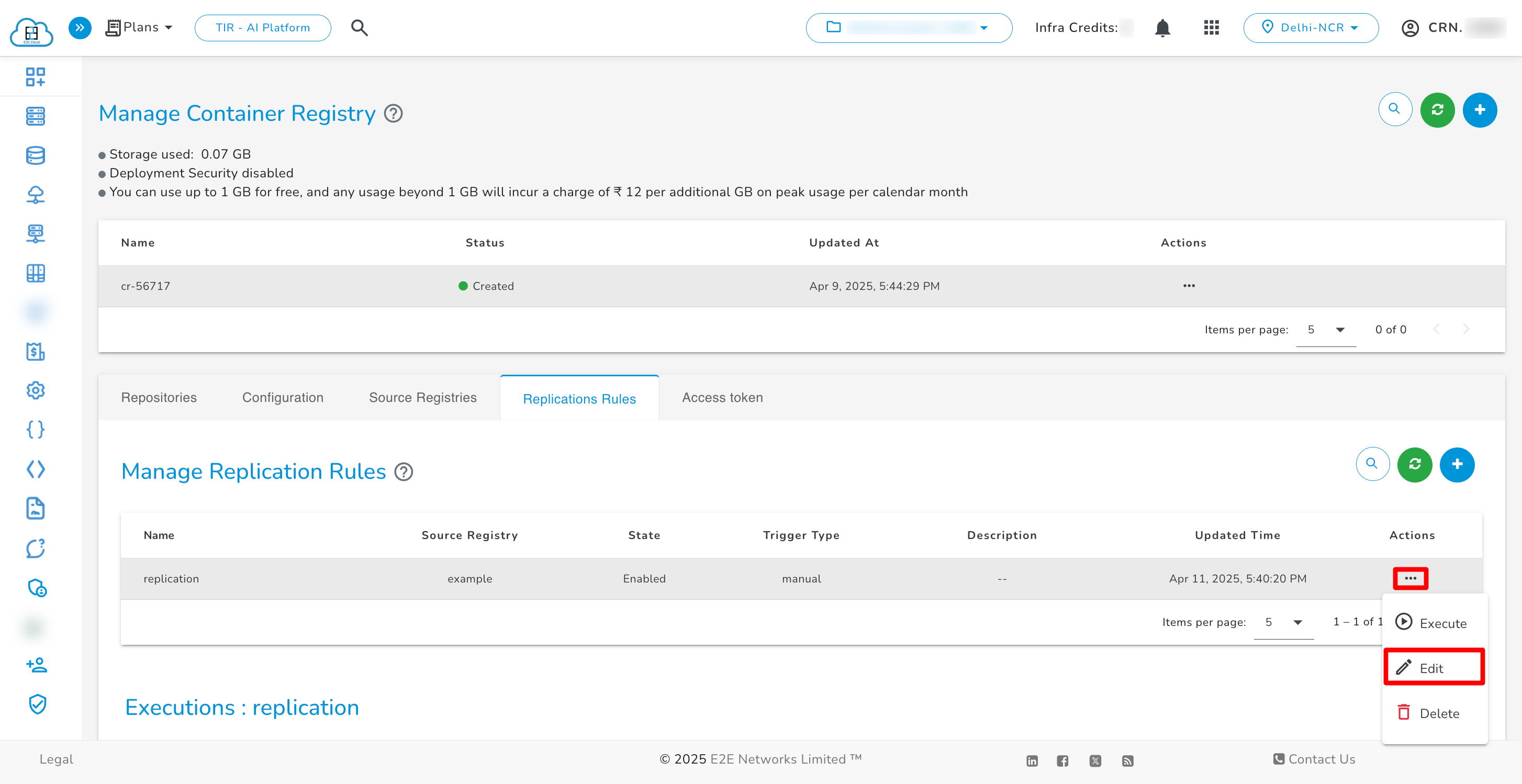
To update the replication rule, click on the three dots next to the respective rule, click on Edit button, a new page will open and update the value as per your choice and click update.

Delete
To delete the replication rule, click on the three dots next to the respective rule. A confirmation popup will be open, confirm it and click on Delete.