Import Volume
Importing a volume into the E2E Cloud Platform allows you to easily migrate existing data from external source to E2E cloud platform. By uploading your volume image to E2E Object Storage and providing its public URL, you can seamlessly import and attach it to a node. This guide walks you through the prerequisites and steps to successfully import a volume to the E2E Cloud Platform.
Prerequisites for importing an volume to E2E Cloud-Platform
- Create an E2E Object Storage for storing the exported volume images or choose an existing bucket. To learn how to create an E2E Object Storage, follow
Object Storage. - Upload the volume image to the Object Storage using the Upload feature
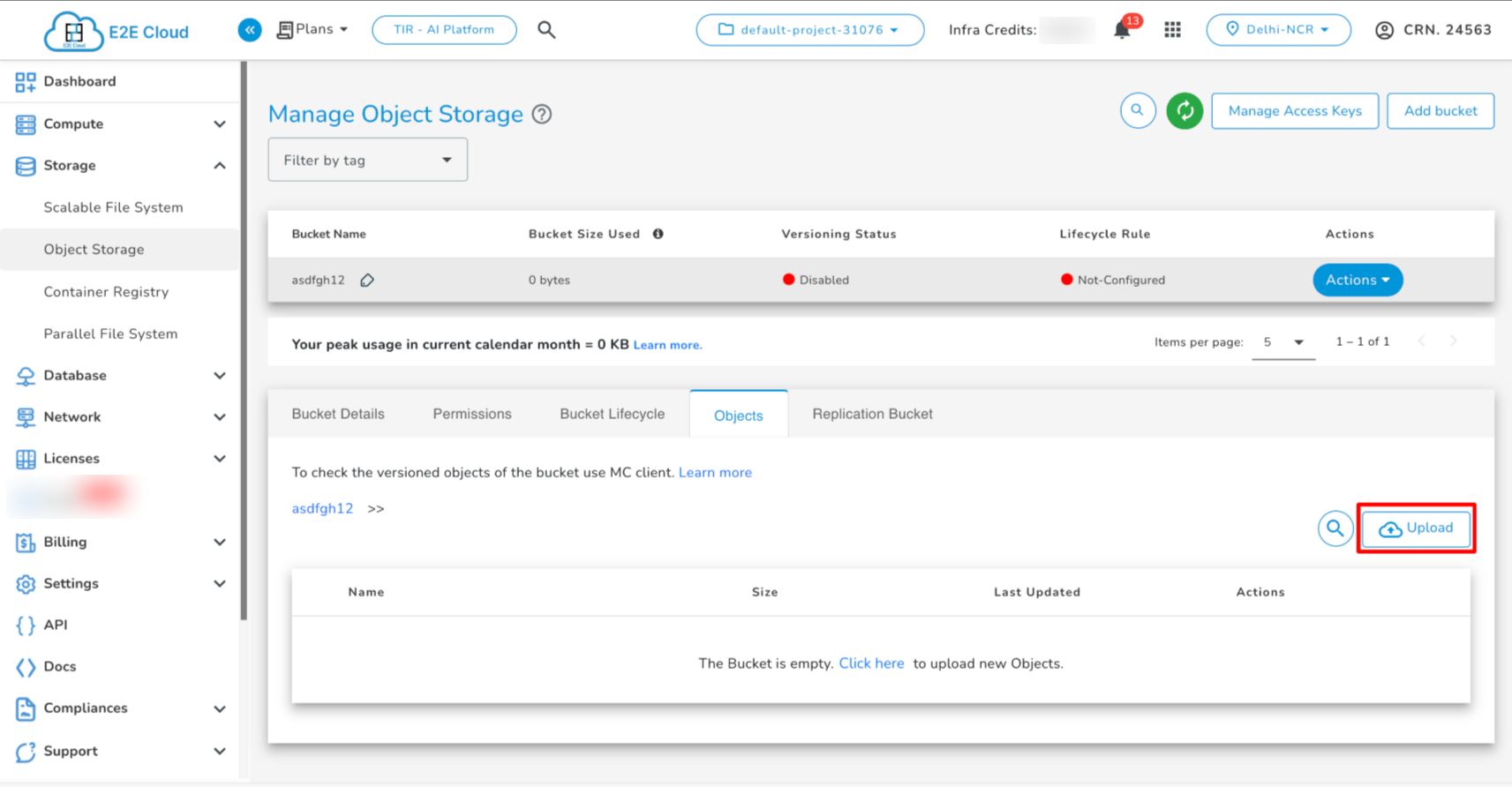
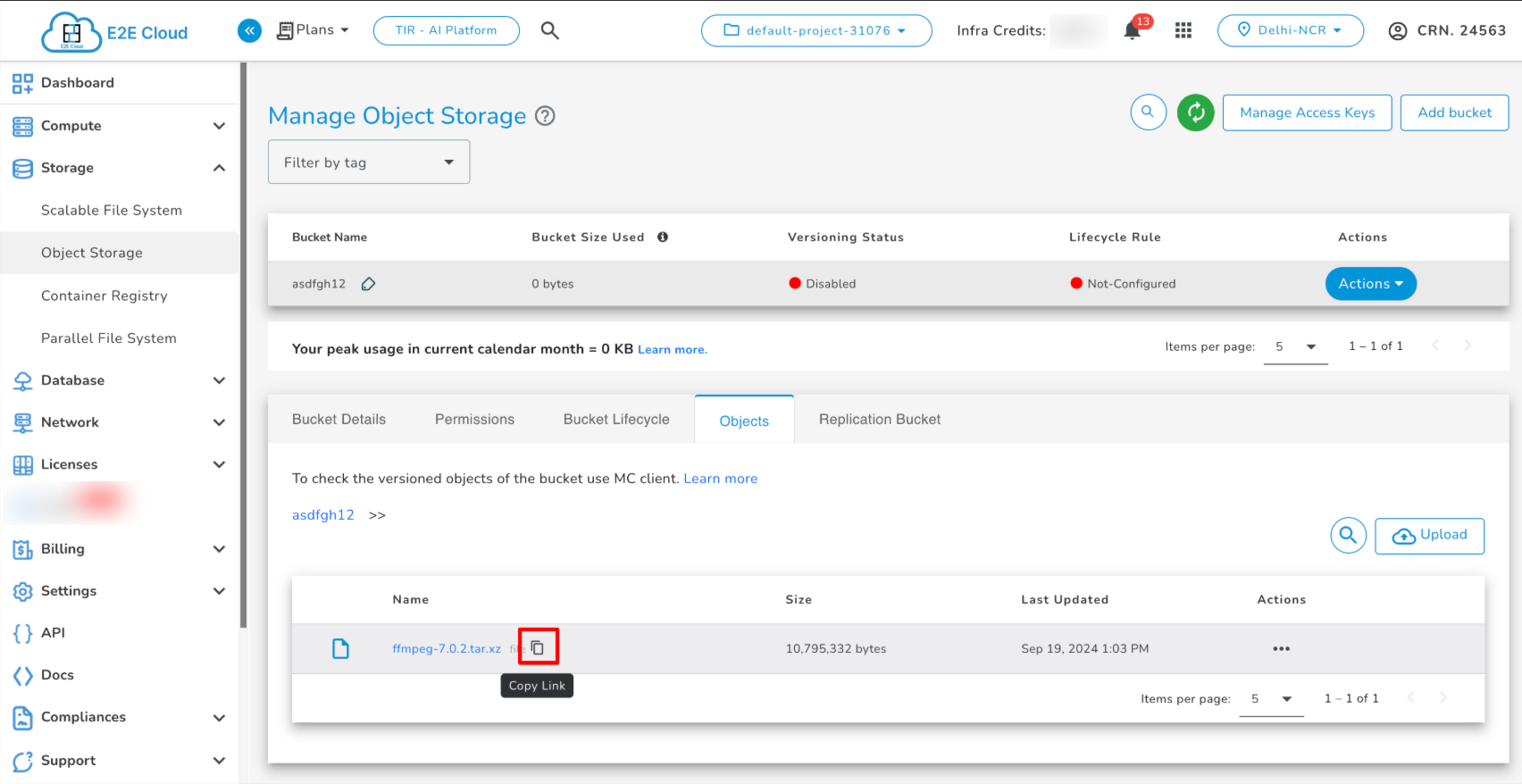
- After the volume image has been uploaded to the bucket, you can simply copy the link, which is a public E2E Object Storage URL.
Importing an volume to E2E Cloud-Platform
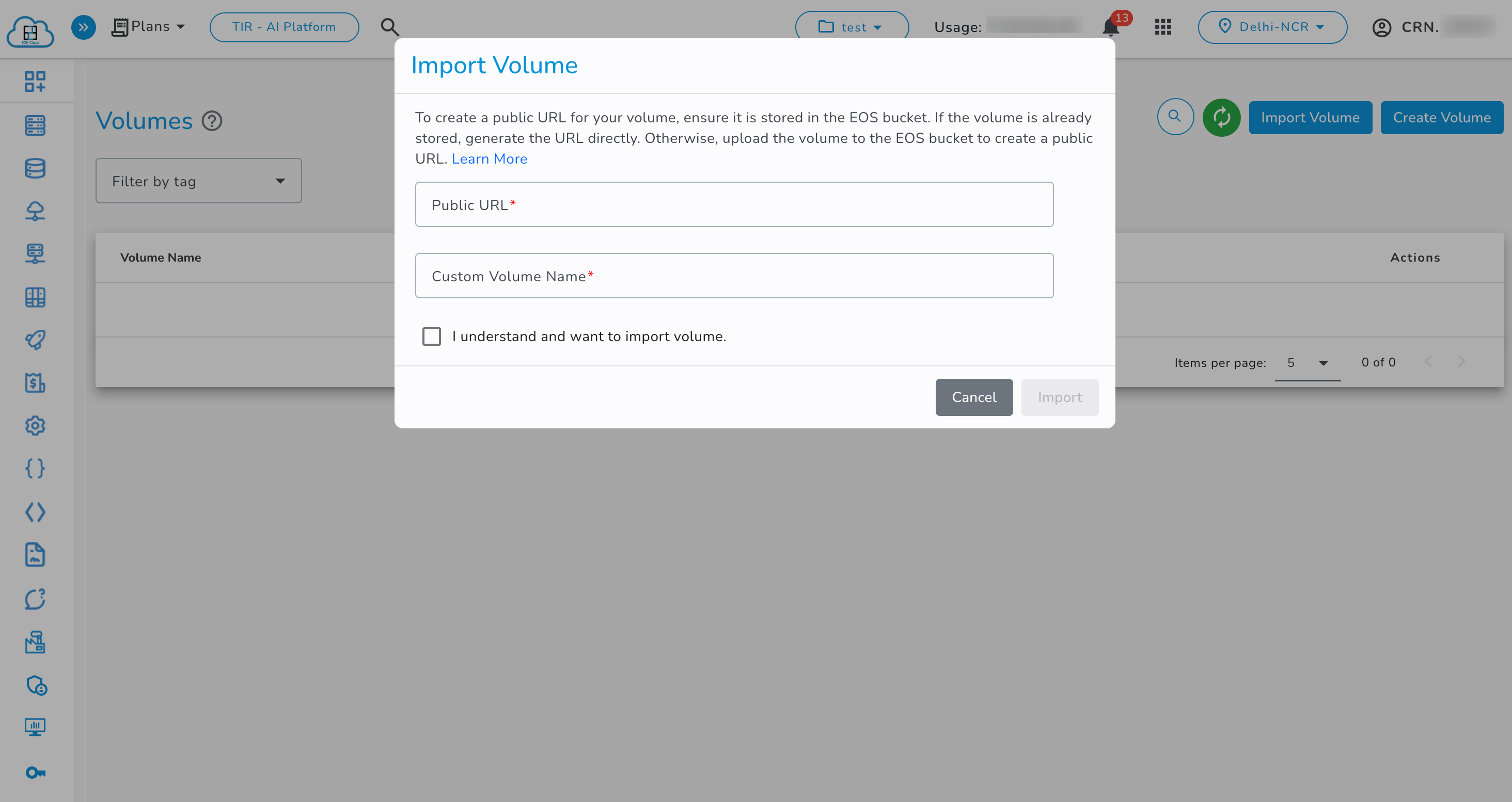
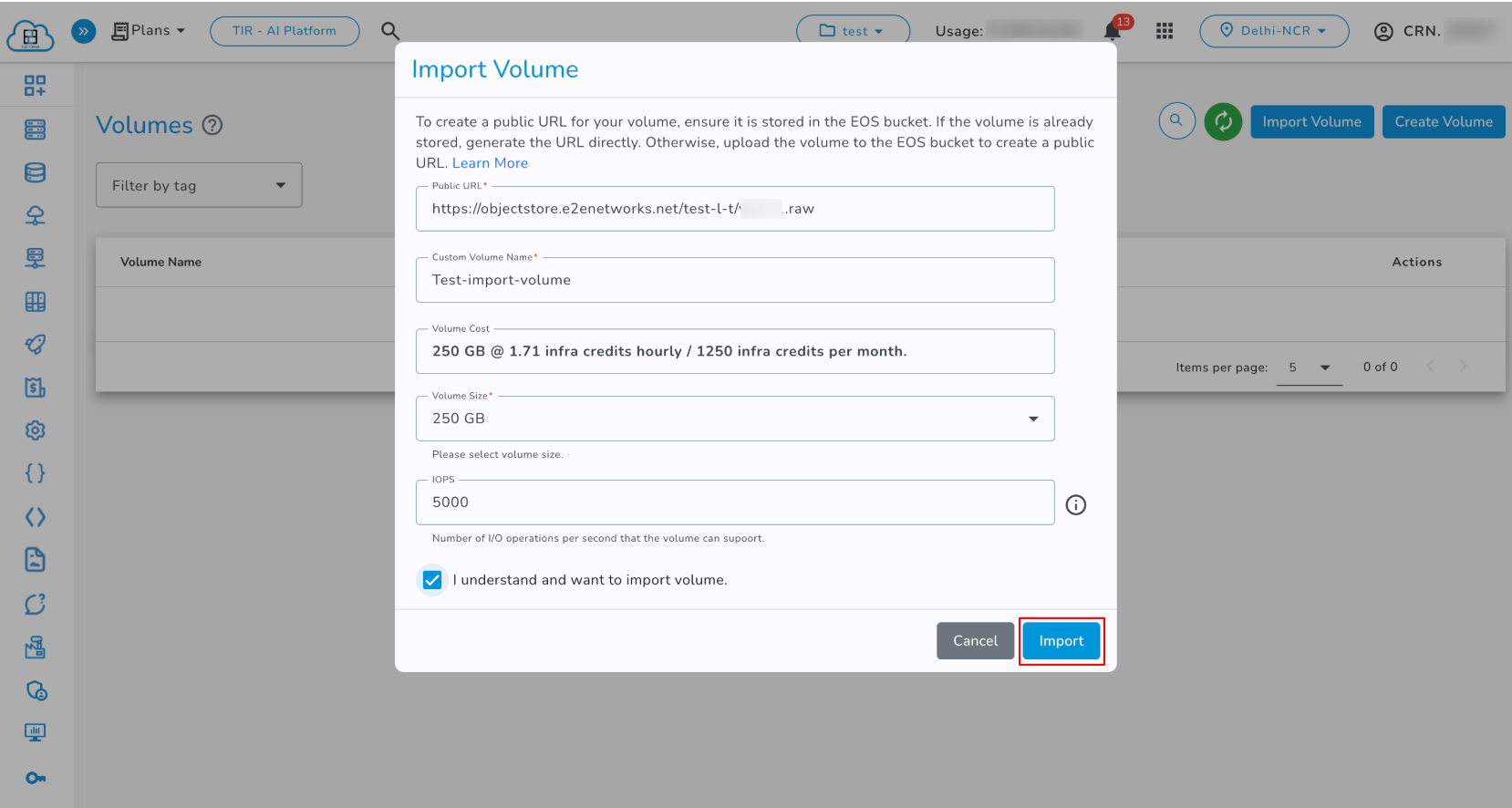
- Using the import volume feature, you can provide a public URL of your volume image to create a volume from it. To create a public URL for your volume image, ensure it is stored in an EOS bucket. If it is already stored there, you can directly generate the public URL.
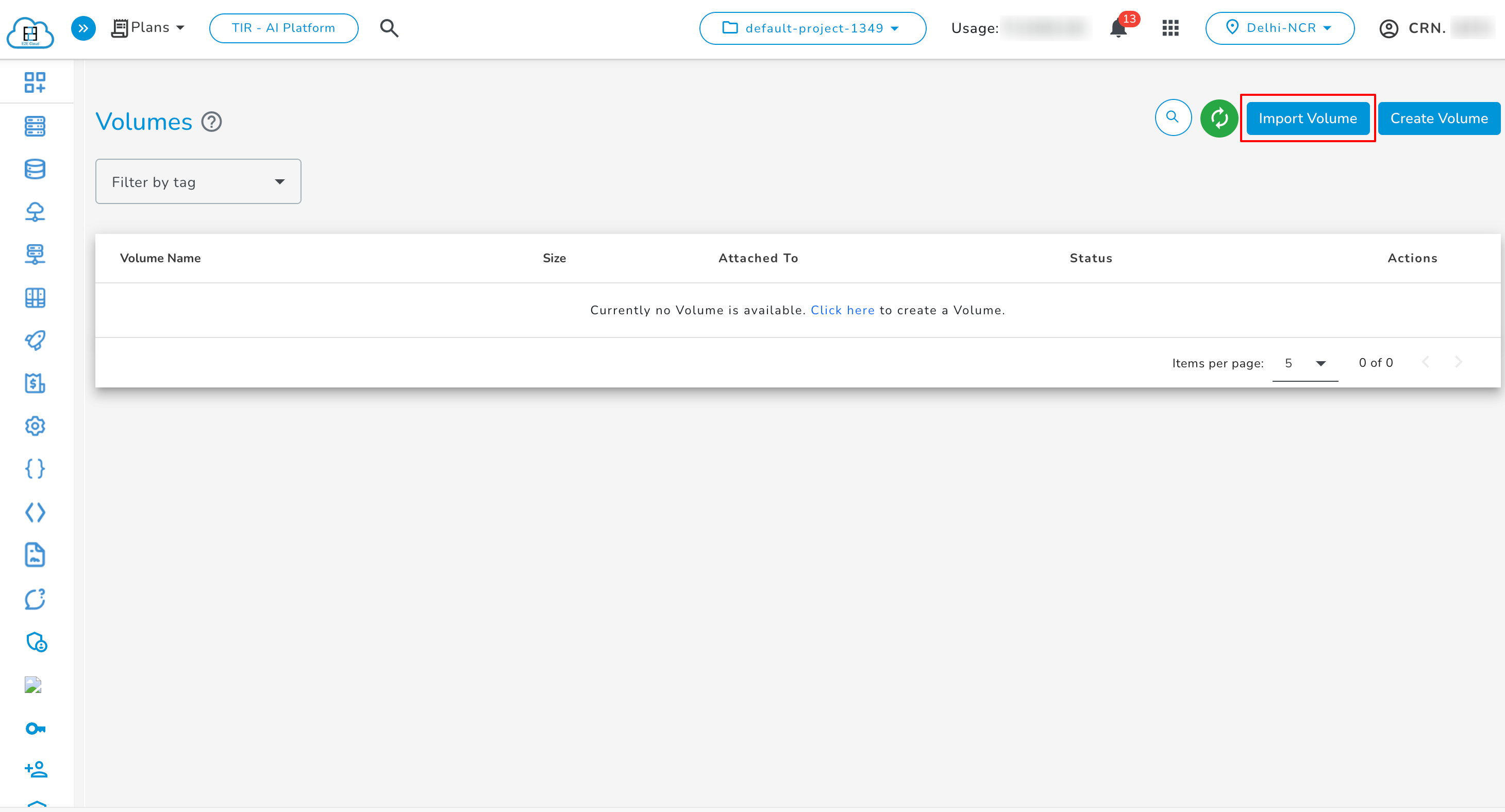
To import volume click on Import Volume
- Paste the public URL of your volume image and provide a custom name for the volume. If the size of your volume doesn't exactly match any available SKU, the volume will be allocated using the next higher available SKU size. Pricing and IOPS will be based on the allocated SKU size.
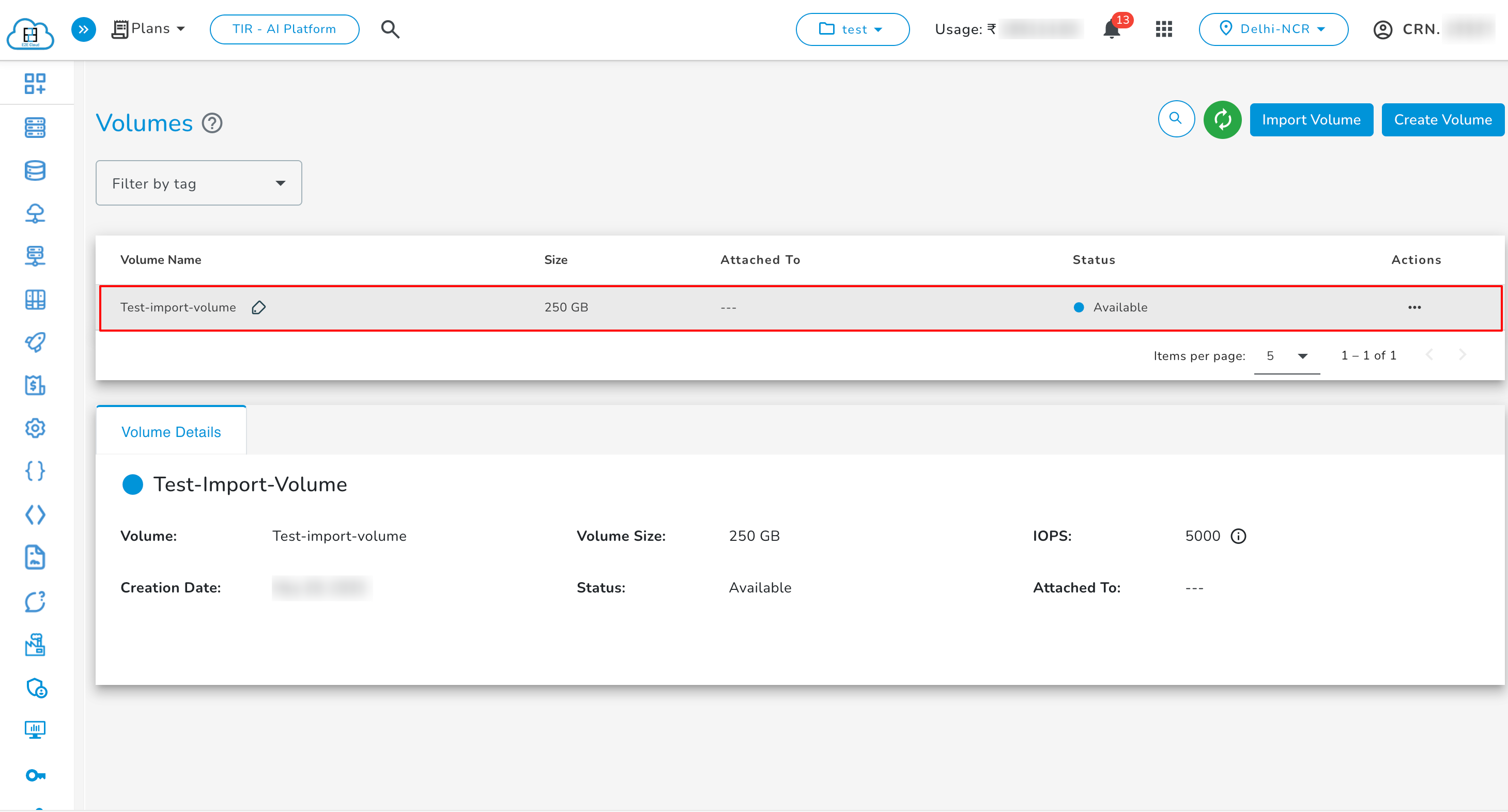
- When imported volume comes in available state, it can be attached to the node.
Last updated on May 15, 2026.