Kubernetes in Private Cluster
E2E Cloud’s Private Cluster offering enables users to leverage Kubernetes automation, scalability, and orchestration while maintaining full control over their infrastructure and data flow within a trusted, private network boundary. This setup ensures secure communication, isolated workloads, and compliance with organizational security standards.
Steps to Create a Kubernetes in a Private Cluster
1. Navigate to the Kubernetes Section
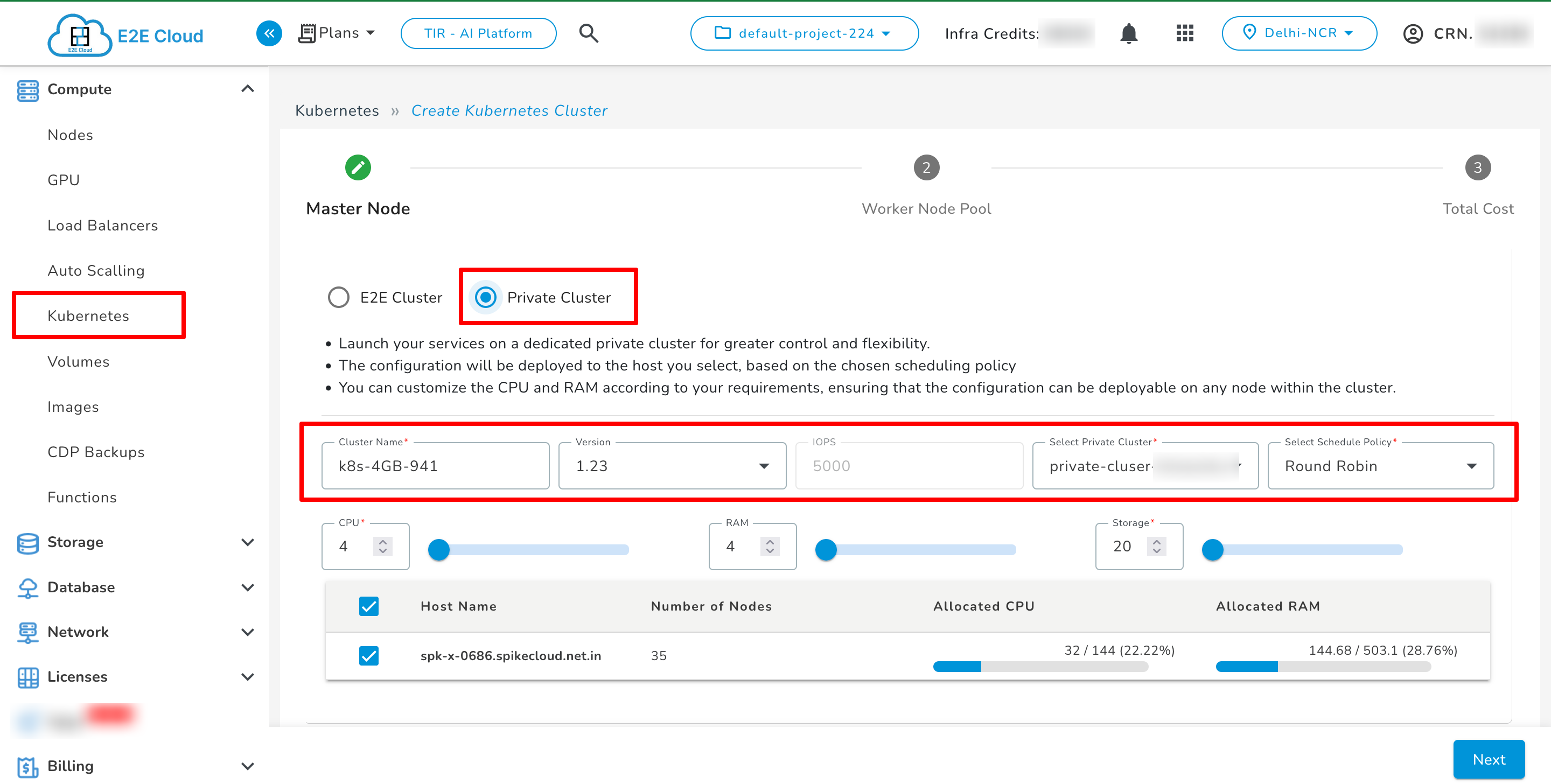
2. Select Private Cluster Option
Click on the “Private Cluster” option to deploy Kubernetes in a private environment.
Provide the following details:
Cluster Name: Enter a unique name for your Kubernetes cluster.
Version: Choose the desired Kubernetes version.
Cluster Type: Select Private Cluster.
Scheduled Policy: Define when and how the cluster resources should be provisioned (e.g. Round Robin).
3. Configure Resources
Define the resource configuration for your cluster’s control plane and worker nodes:
CPU Count: Choose the number of virtual CPUs required.
Memory (RAM): Specify the memory allocation.
Storage: Configure the storage size.
Host Selection: Select a host for deployment, aligned with your scheduling policy.
Ensure the host you select has sufficient capacity for your chosen configuration.
4. Network & Security Configuration
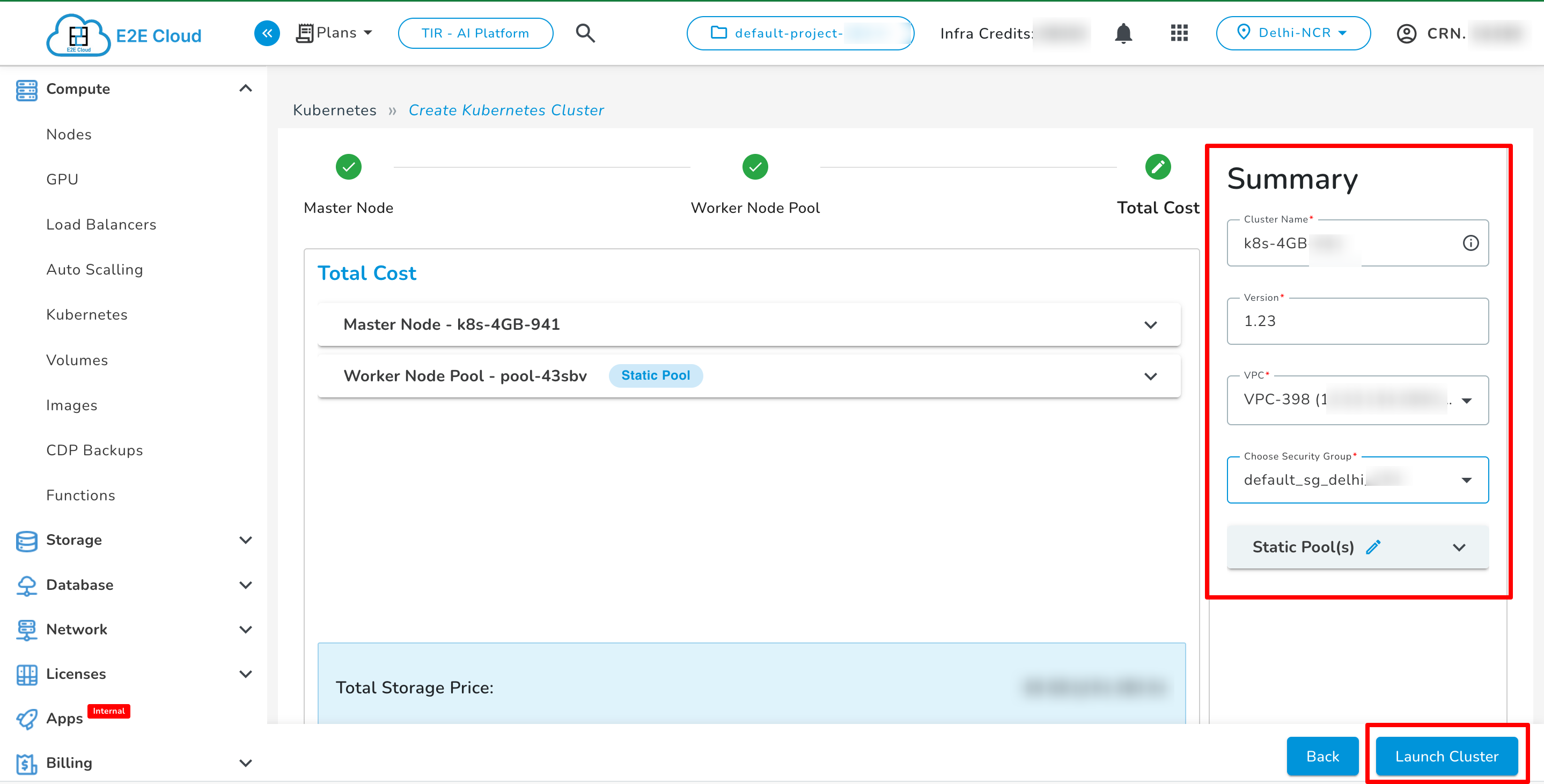
Attach a VPC (Virtual Private Cloud) — this is mandatory for all private clusters.
Configure network security and encryption settings according to your compliance and privacy requirements.
The vpc field is a required parameter when creating Kubernetes within a private cluster. You can attach existing VPCs or create a new one before cluster deployment.
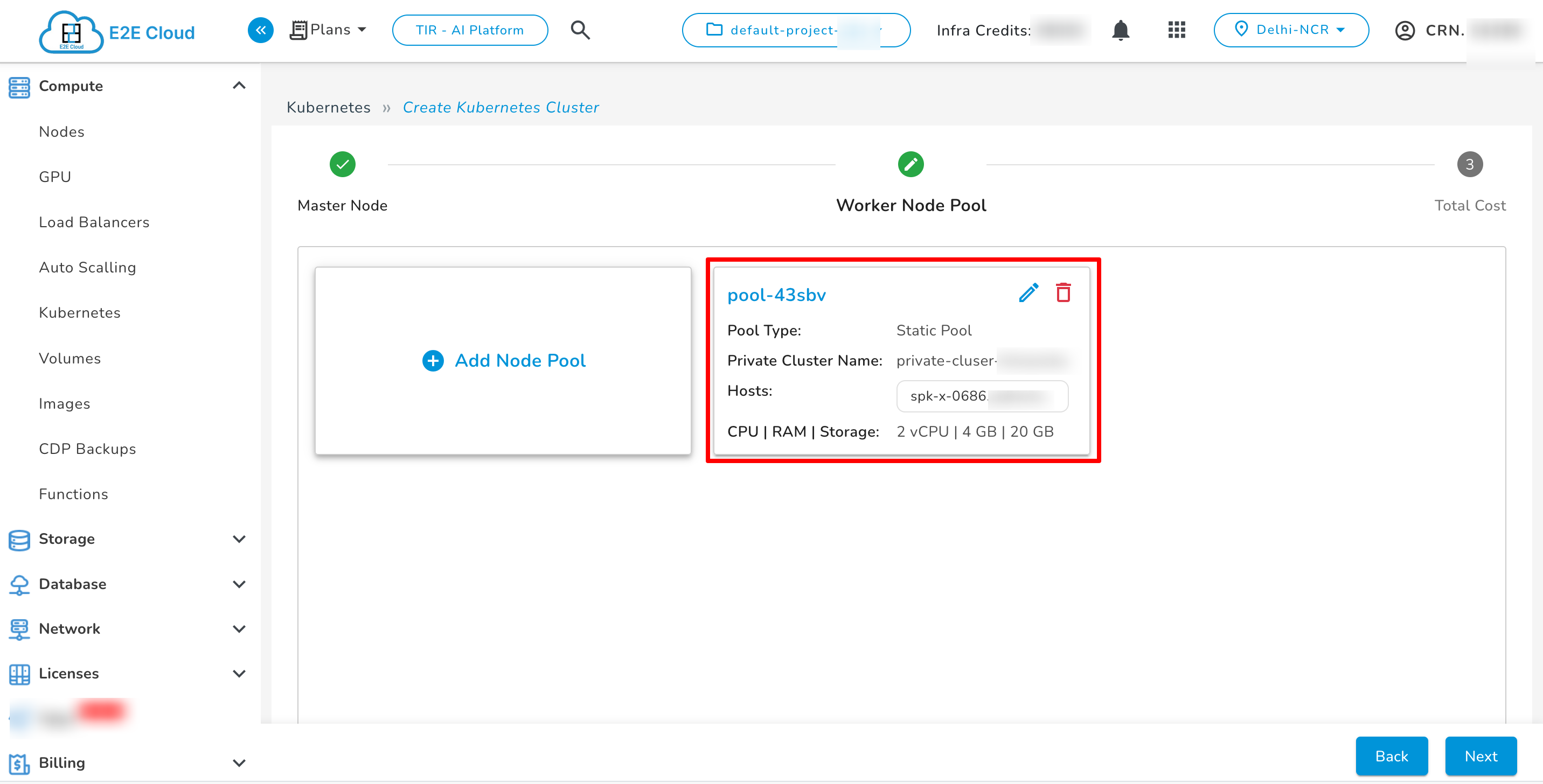
Add Pool
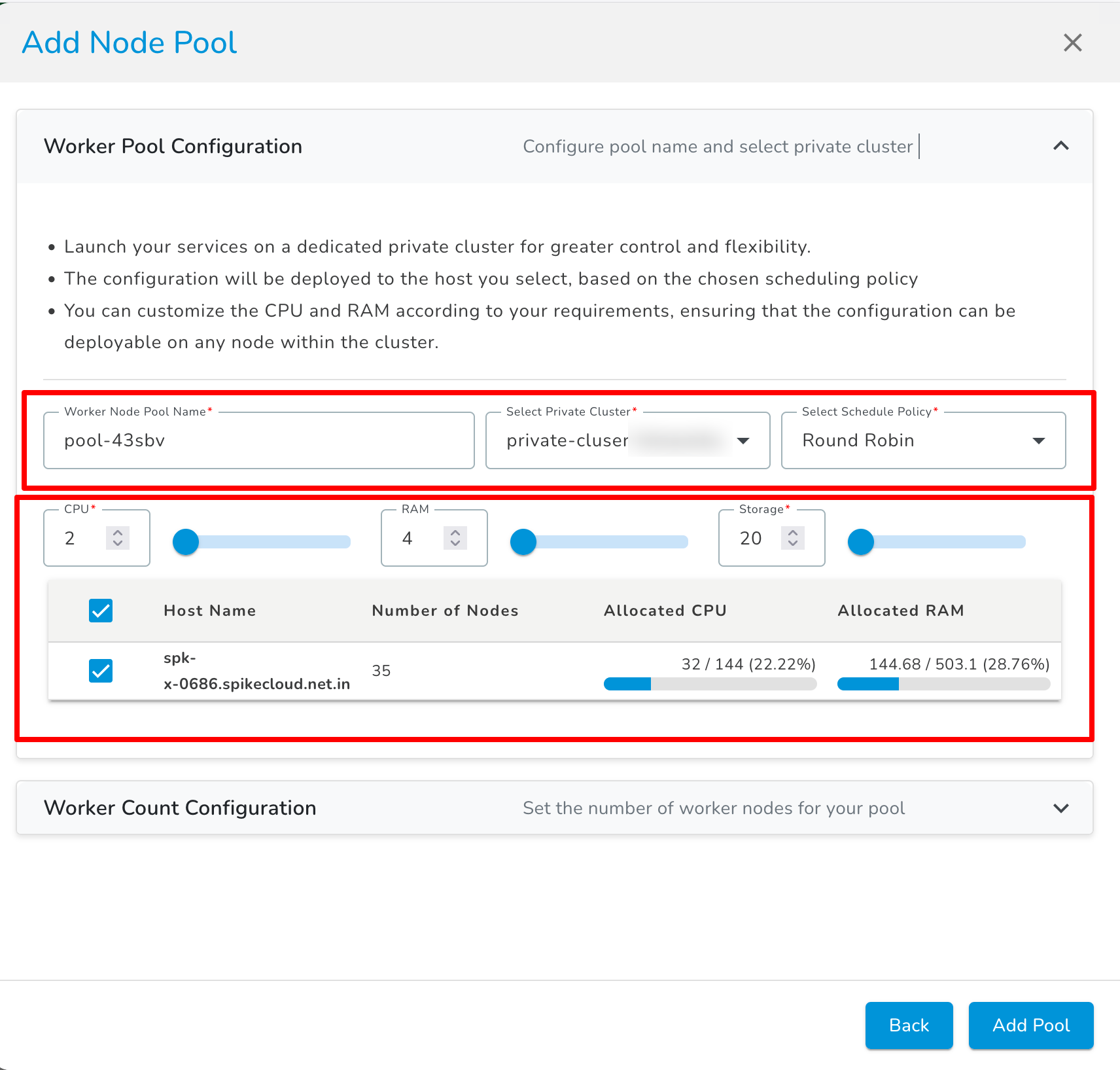
Worker Node Pool Configuration
The Worker Node Pool is where your applications and services run. It provides flexibility, scalability, and dedicated compute resources within the private cluster.
Configuration Steps
Ensure configurations are compatible with any node in the selected pool.
Worker Count Configuration
Set Worker Count: Specify the number of worker nodes in your node pool. This determines how many worker nodes will be available for workload distribution and scaling.
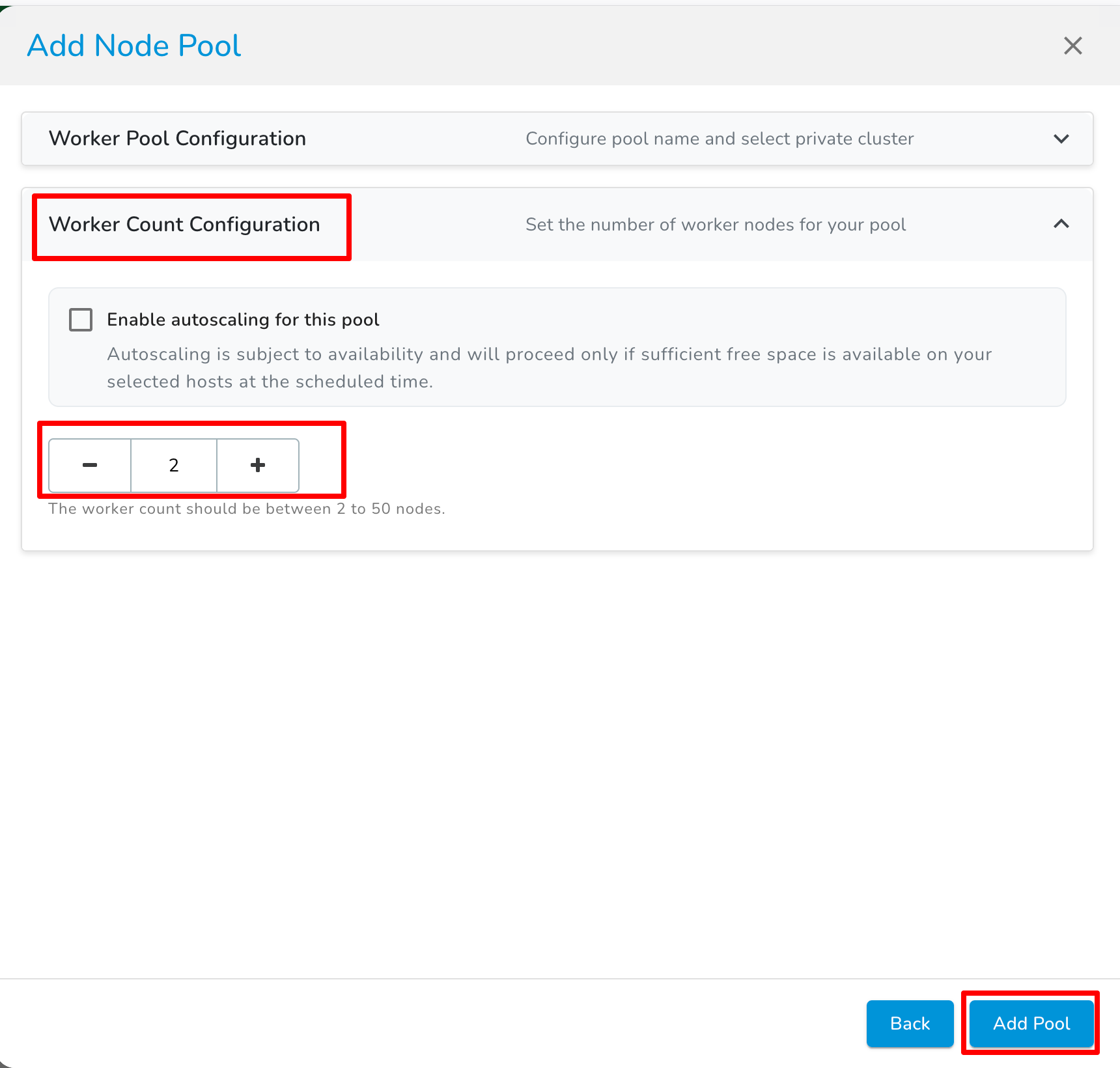
Enable Autoscaling (Optional)
Enable autoscaling to automatically adjust the number of worker nodes in the pool based on demand.
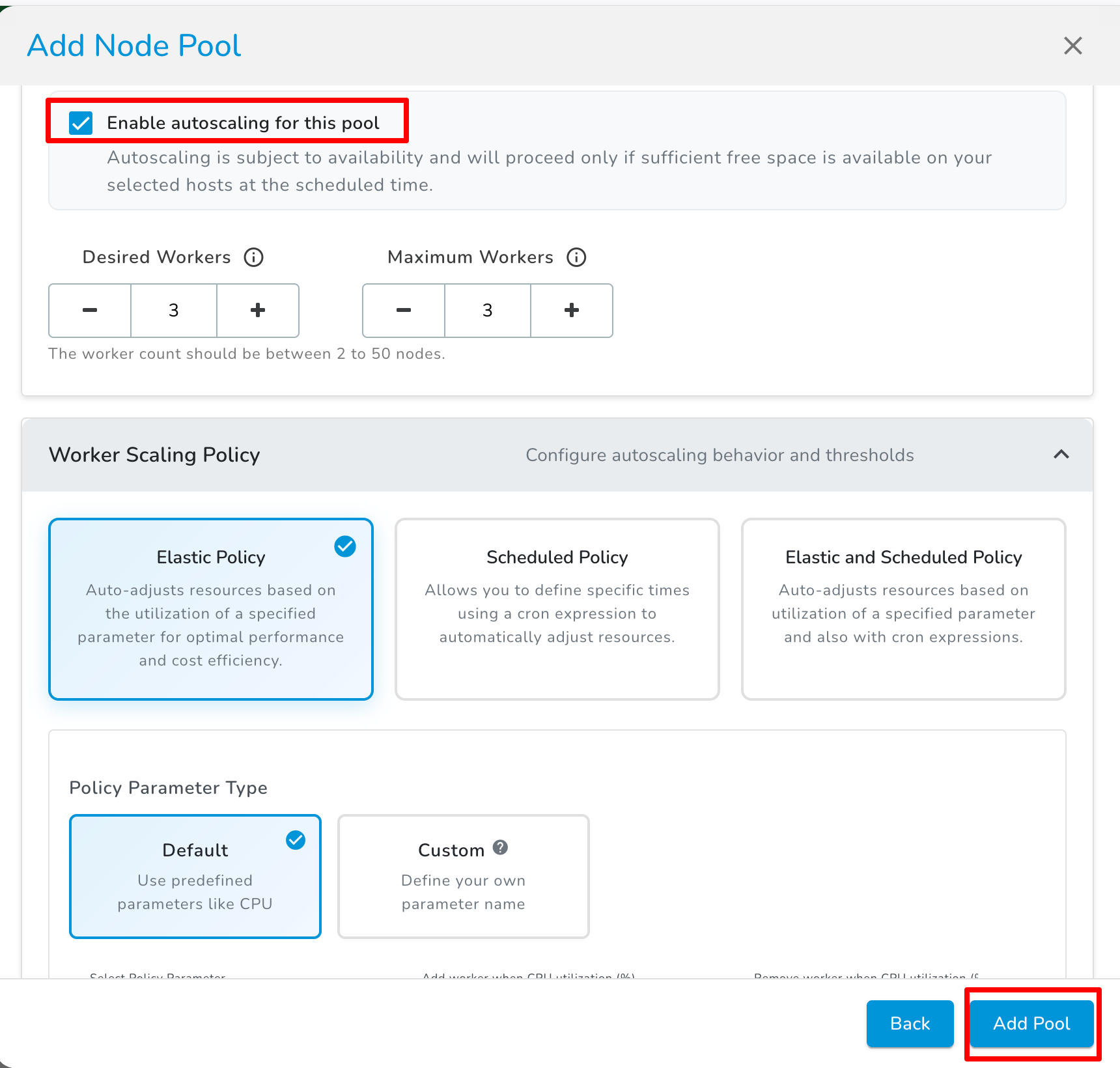
Autoscaling depends on resource availability. Scaling will proceed only if sufficient free space is available on your selected hosts at the scheduled time.