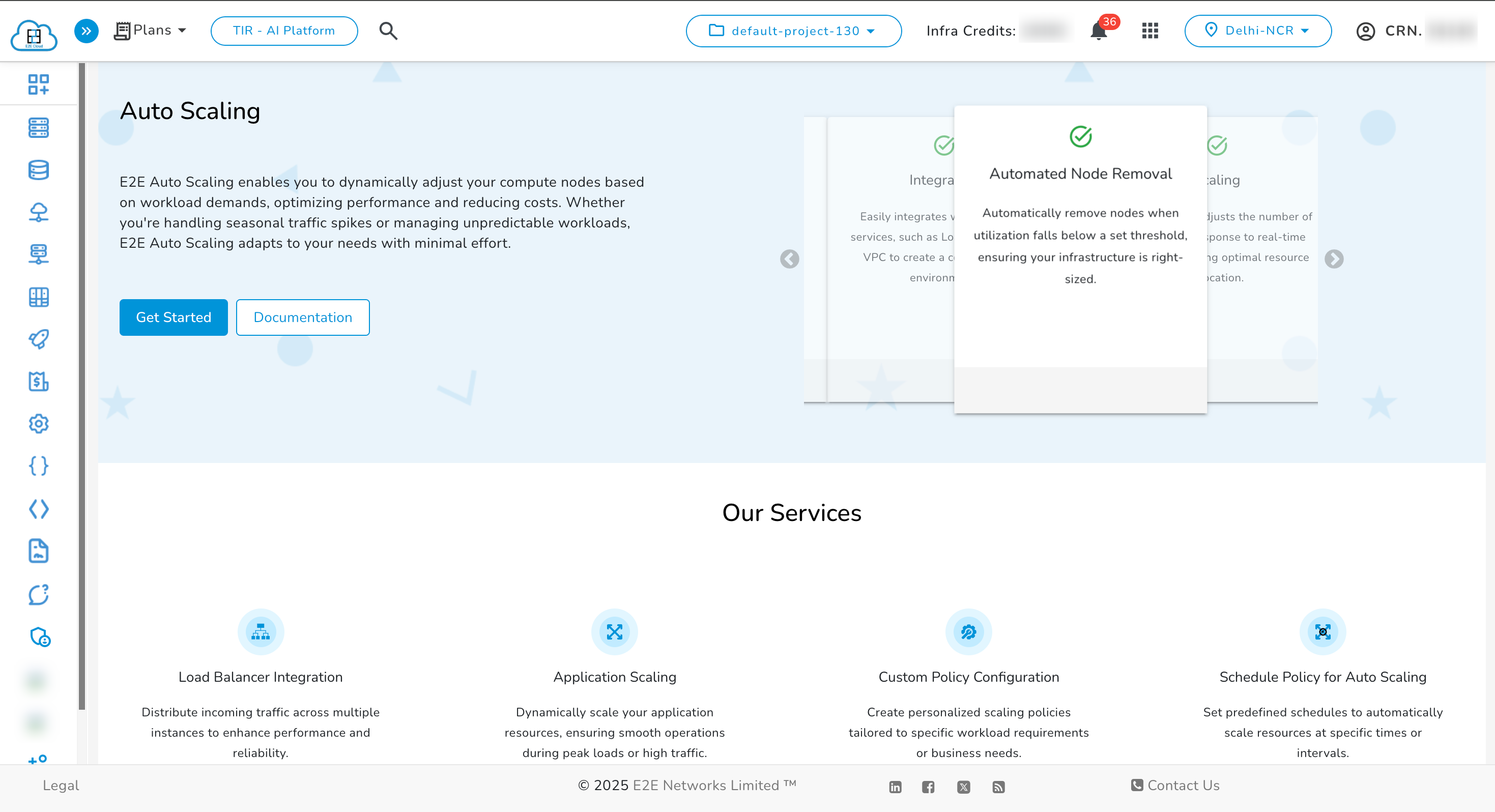
Autoscale in Private Cluster
Autoscaling in a Private Cluster allows automatic adjustment of compute resources by dynamically adding or removing nodes based on demand.
Steps to Create Autoscale in a Private Cluster
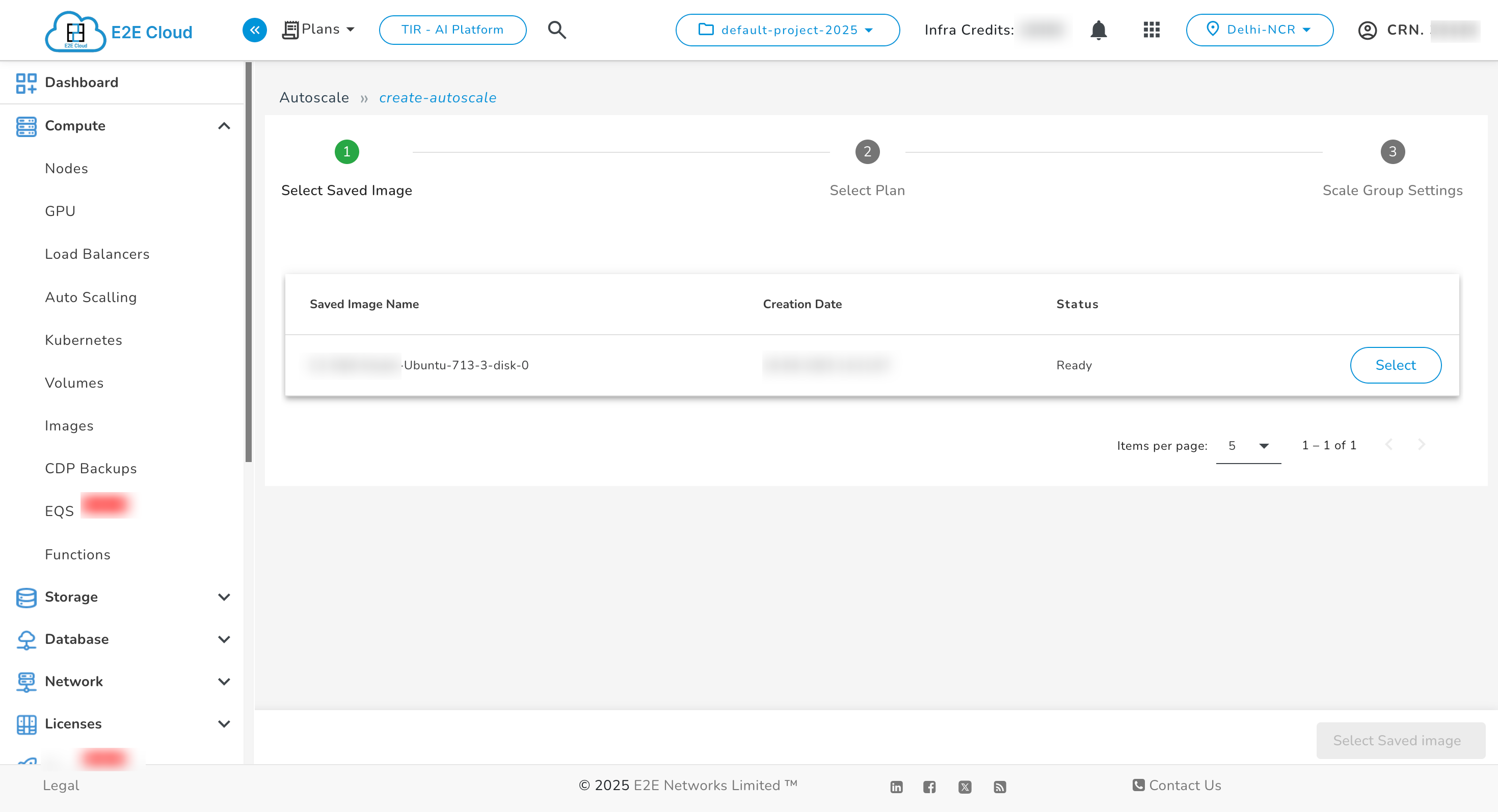
1. Select Saved Image
-
Navigate to the Auto Scaling section in the sidebar and click Create Autoscale.
-
Choose a saved image from the available list.
2. Select Plan
-
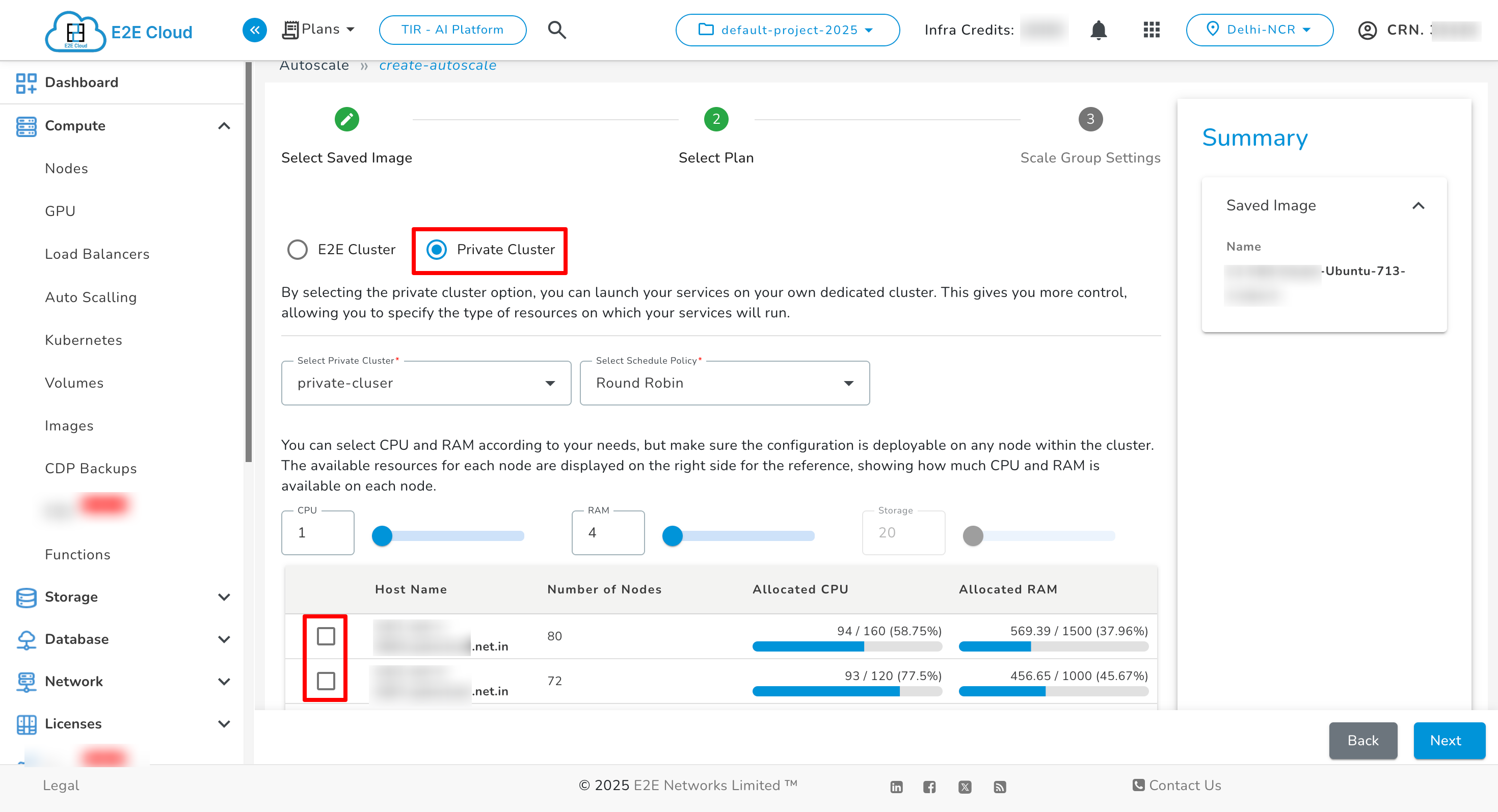
Choose Private Cluster as the plan type.
-
Select the target Private Cluster from the dropdown.
-
Choose the Schedule Policy (e.g., Round Robin).
-
Allocate CPU, RAM, and Storage based on requirements.
-
Select the target Host(s) to deploy autoscale nodes.
3. Configure Scale Group Settings
-
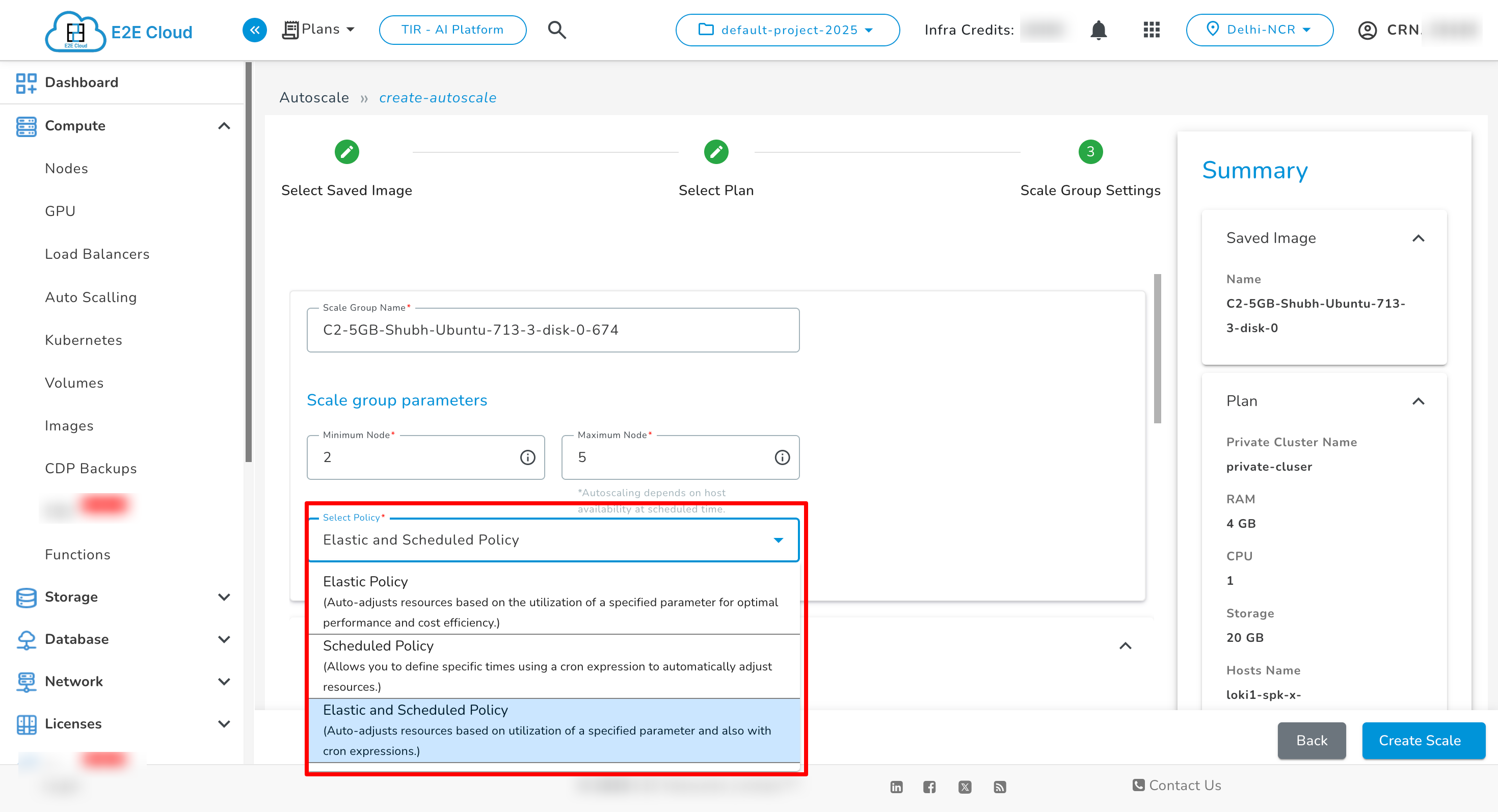
Provide a Scale Group Name.
-
Define Minimum Nodes and Maximum Nodes for the autoscale group.
-
Select a Scaling Policy:
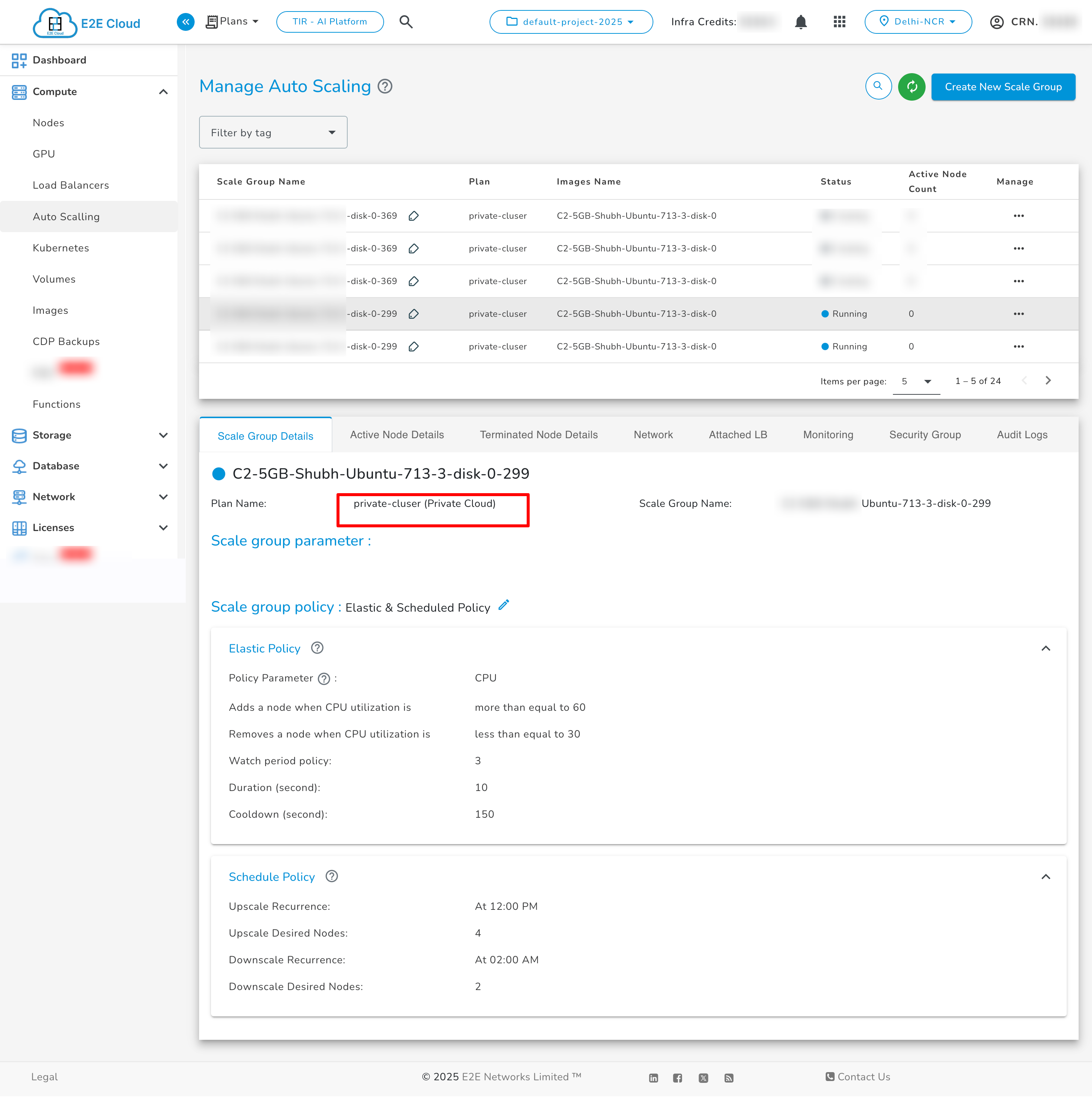
- Elastic Policy – Auto-adjusts resources based on utilization (e.g., CPU, RAM).
- Scheduled Policy – Allows scaling at specific times using cron expressions.
- Elastic & Scheduled Policy – Combines both for maximum flexibility.
4. Configure Policies
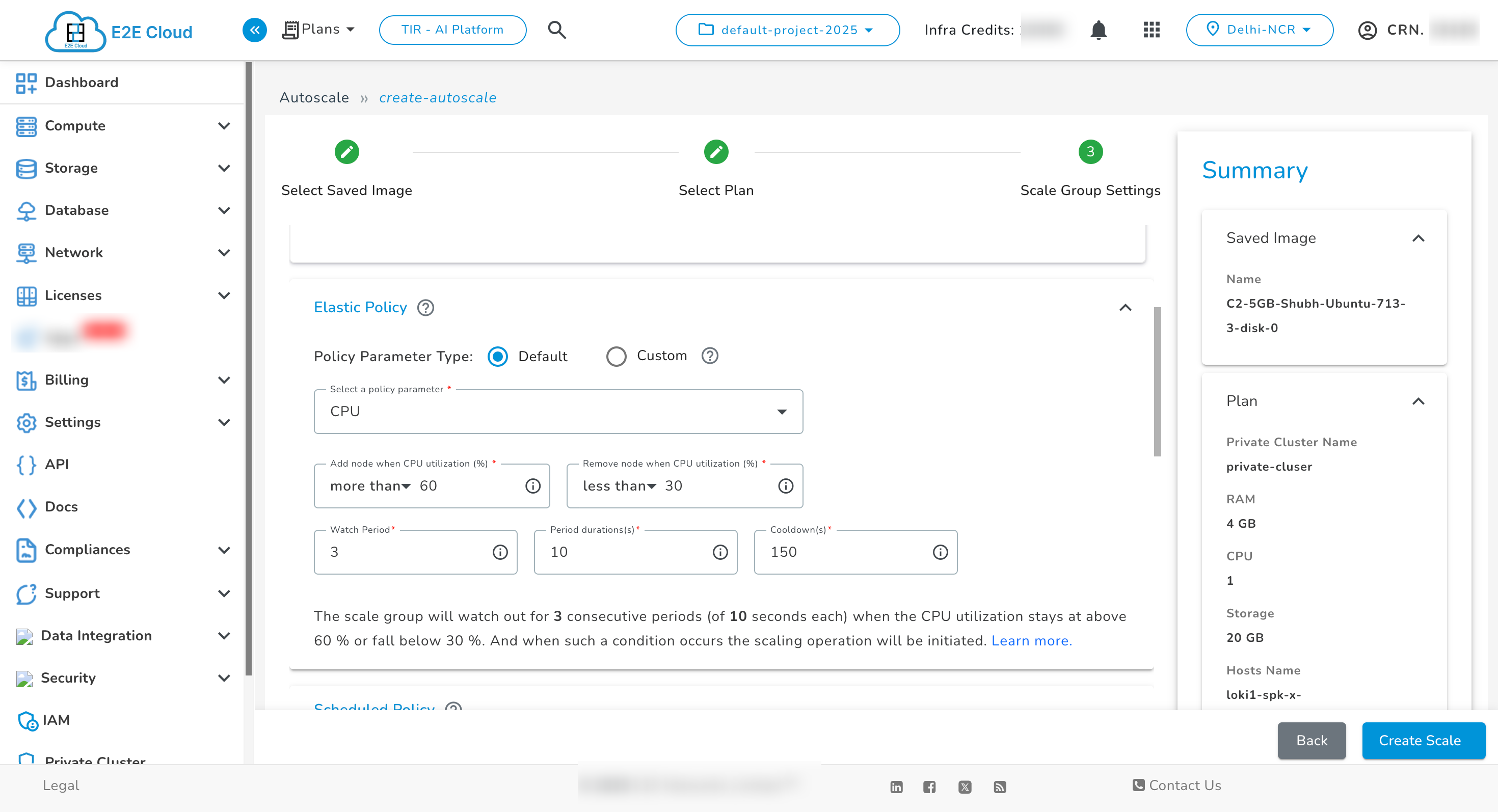
Elastic Policy
-
Set scaling triggers based on utilization metrics (CPU, RAM, etc.).
-
Define thresholds:
- Add node when utilization > X%
- Remove node when utilization < Y%
-
Configure Watch Period, Duration, and Cooldown timers.
Scheduled Policy
-
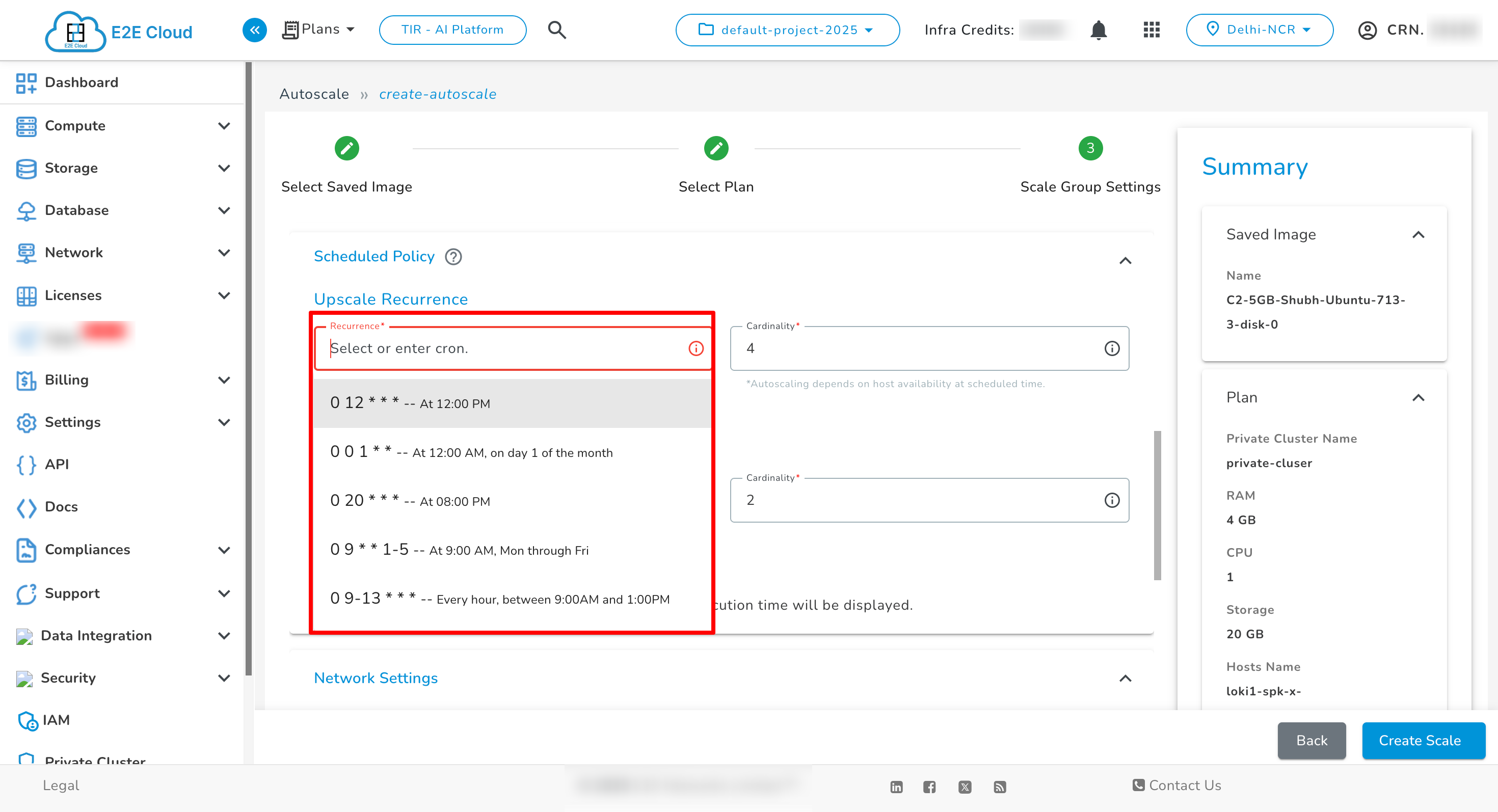
Define scaling rules using cron expressions.
-
Set Recurrence (time-based) and Cardinality (number of nodes to scale).
Elastic & Scheduled Policy
-
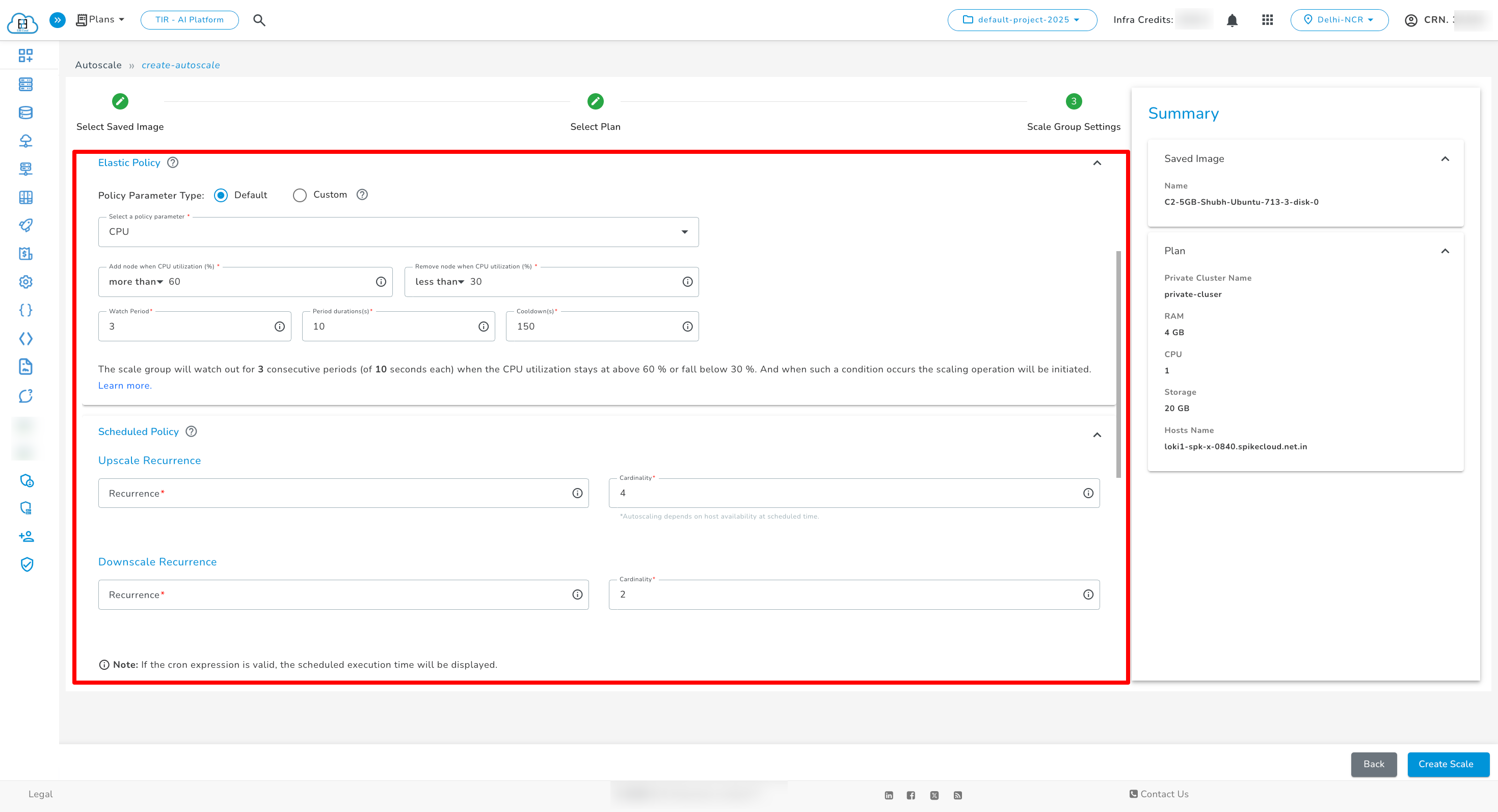
Use both Elastic and Scheduled rules together:
- Elastic Scaling handles real-time load changes (e.g., add node when CPU > 60%).
- Scheduled Scaling ensures predictable resource availability at fixed times (e.g., upscale to 4 nodes at 9 AM on weekdays).
- This ensures cost efficiency while maintaining performance reliability.
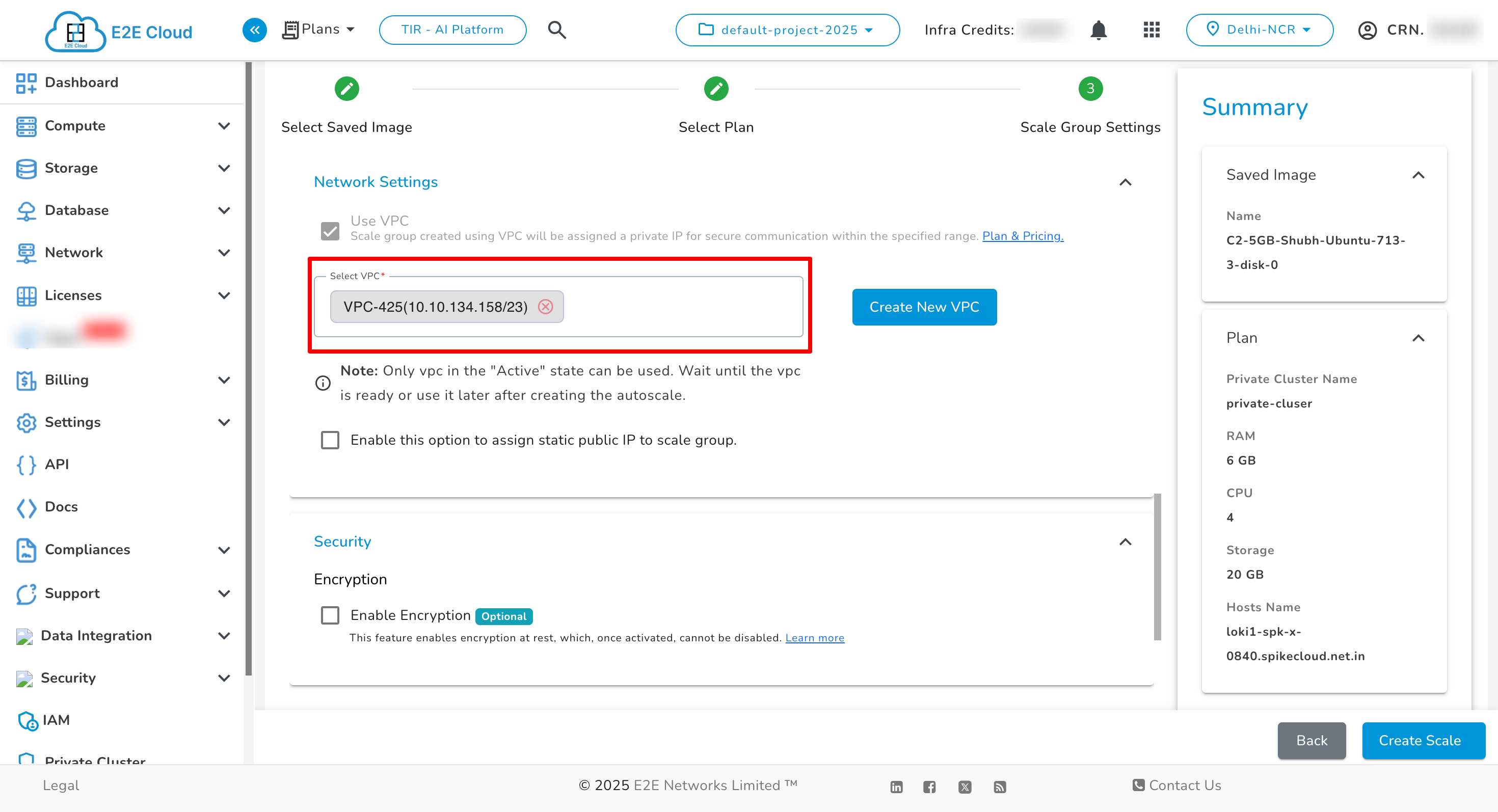
5. Configure Network Settings
- Select the VPC for private communication within the cluster.
- Enable Public IP Assignment (Optional).
The VPC field is mandatory when creating Autoscale in a Private Cluster.
6. Configure Security
-
Enable Encryption for storage (Optional).
-
Select an existing Security Group or create a new one.
-
Click Create Scale to complete setup.

Managing Autoscale
-
Navigate to the Auto Scaling section.
-
Select the autoscale group to view details - Scale Group Parameters, Network & Security Settings, Monitoring & Audit Logs.