Create Encrypted Volume
-
E2E Networks allows users to enable encryption for their storage volumes to ensure the protection of data both at rest and during transit. The encryption process is streamlined and robust, utilizing LUKS (Linux Unified Key Setup) for block-level disk encryption.
-
This guide provides step-by-step instructions on how to create an encrypted volume, attach it to a Node, and configure encryption options to meet your security and compliance requirements. Whether you're storing application data, databases, or backups, E2E's volume encryption ensures that your data is always protected with industry-standard security.
Step 1: Initiate Volume Creation
1. Login to the MyAccount Portal
• To begin, log in to the E2E Networks MyAccount Portal using your credentials.
2. Create the Encrypted Volume.
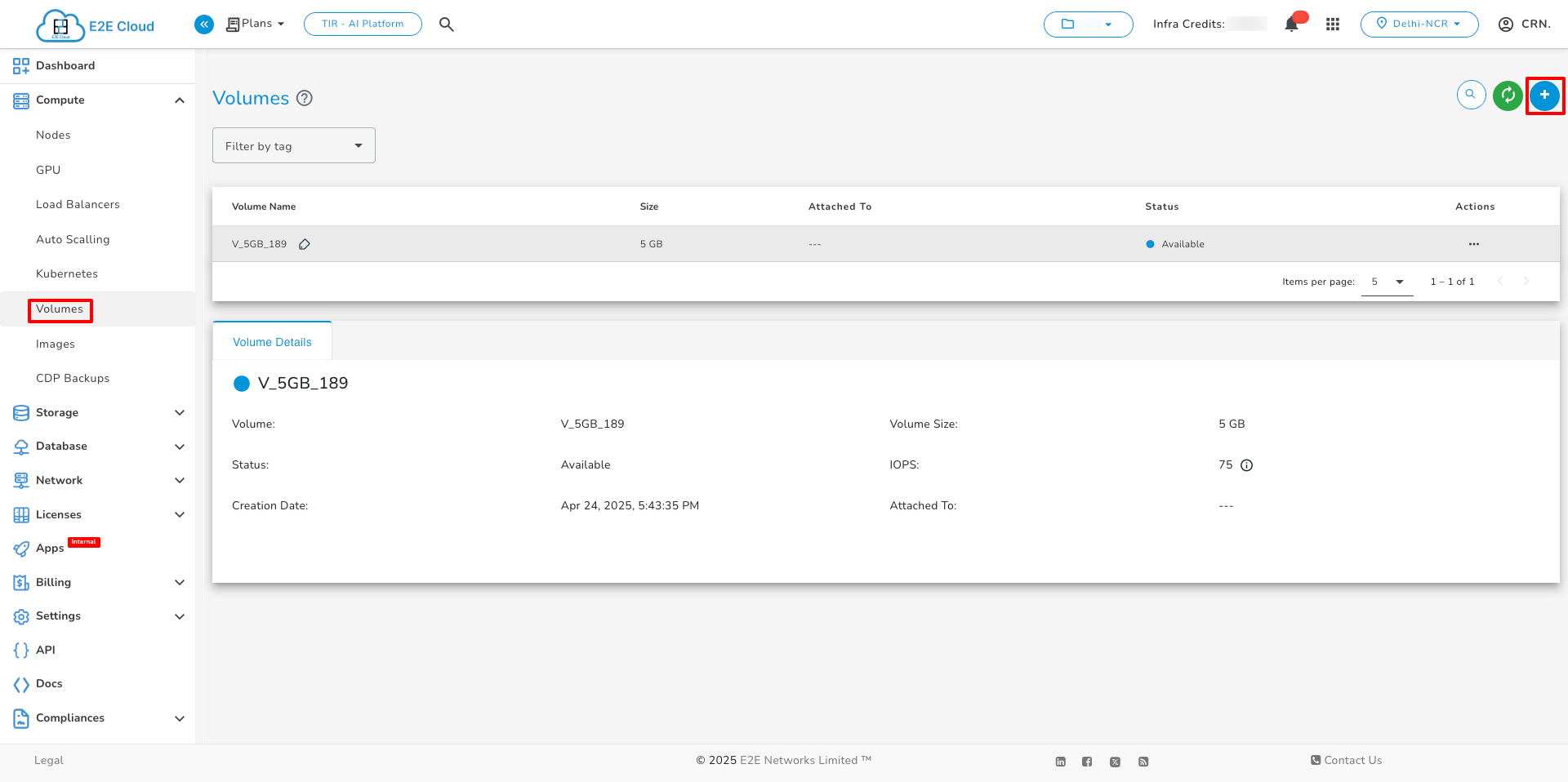
• Click on Volumes and then click on Create Volume".
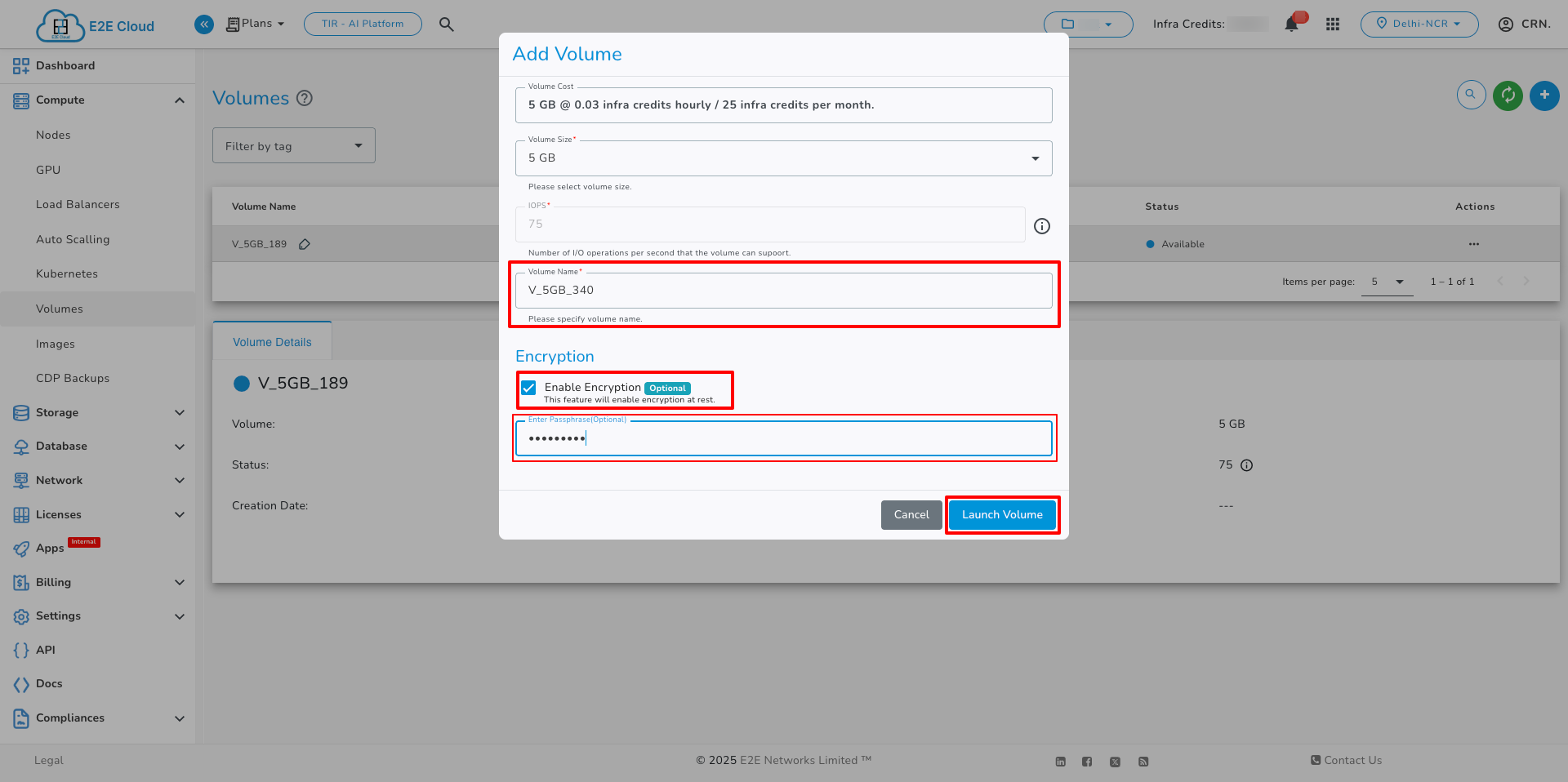
• Enter the Volume Name, then select the Enable Encryption checkbox. The passphrase field is optional.
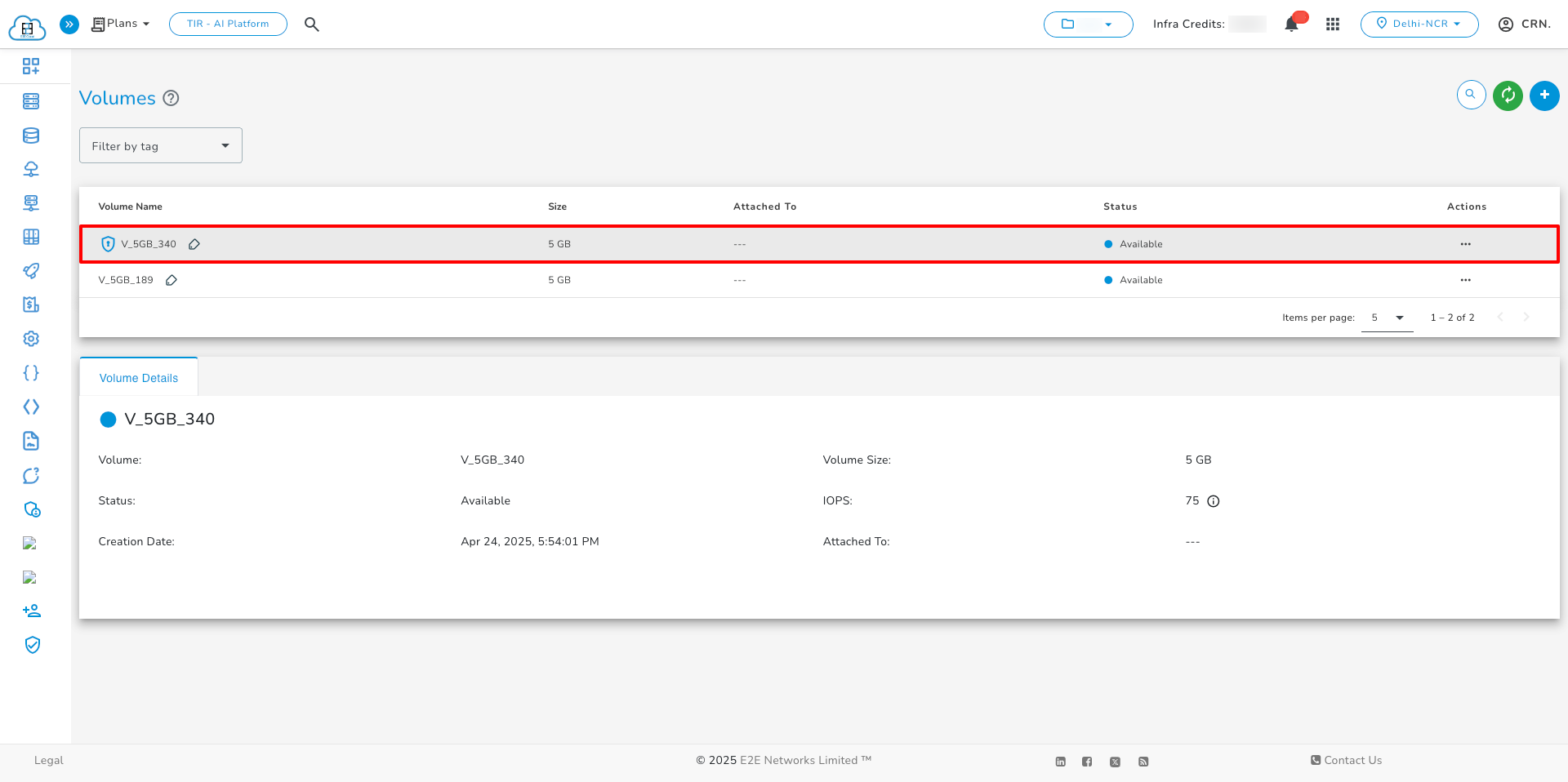
• The volume will be successfully created, and an encryption shield icon will appear in front of the volume name to indicate that it is encrypted.
- Users can enable encryption during the creation of a new Volume.
- The Snaphot created from encrypted Volume is also encrypted.