Manage Customer Profile
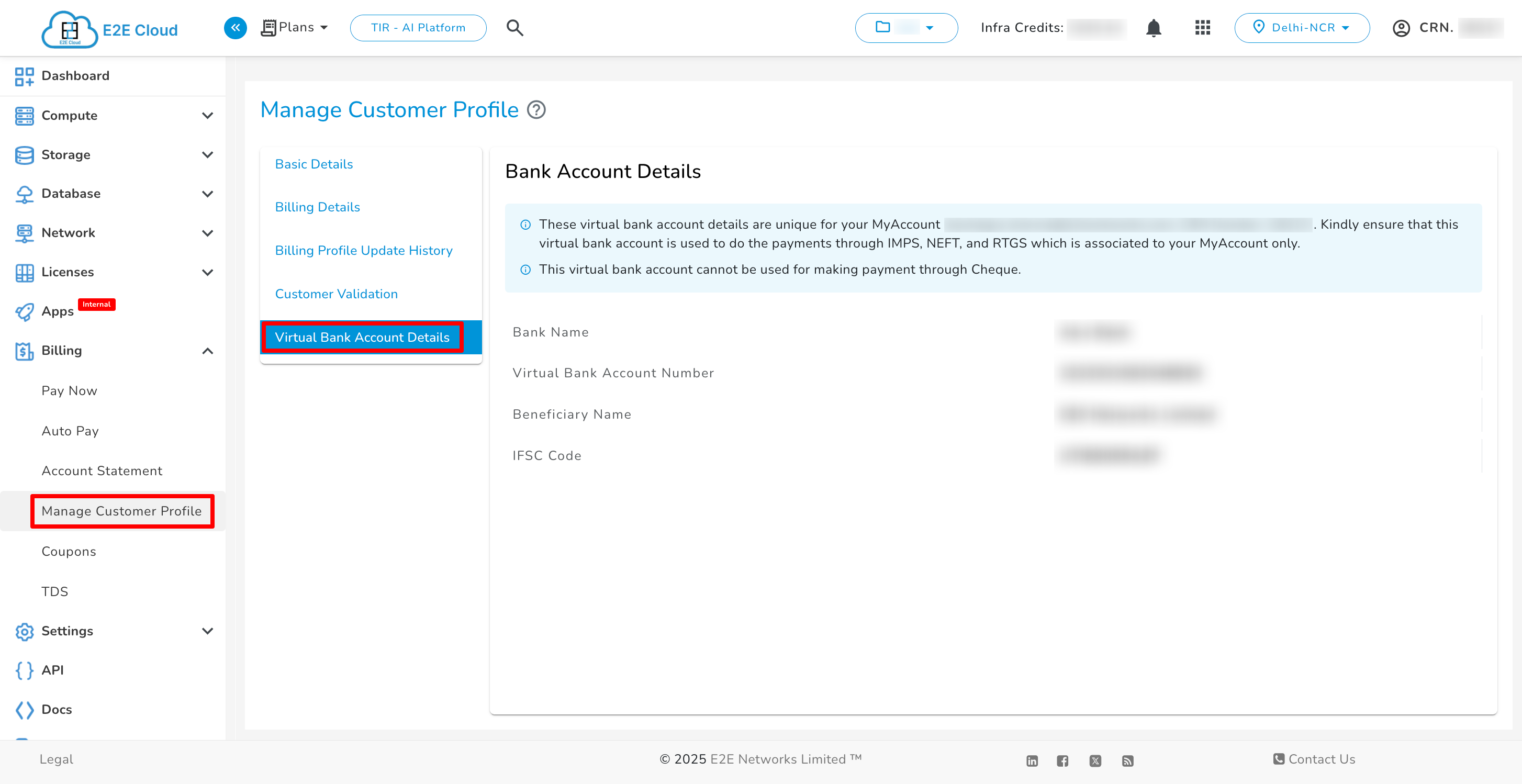
The Manage Customer Profile contains basic details (CRN Number, first and last name, e-mail address, mobile number, and Sign-Up time), Billing details (GSTIN, Taxpayer Type, Organization Name, Billing Address, City, State/UT, Postal Code), Billing profile update history, Customer validation, and Virtual bank account details. Billing profile information is required for invoicing and payments of your E2E Networks MyAccount login. It is also helpful to contact you regarding financial or other related matters.
In general, your 'Manage Customer Profile' contains the information specified during sign-up on the E2E Networks MyAccount portal. You can edit your Manage Customer Profile information at any time because maintaining your billing profile details is just as important as administering your servers.
Logging into E2E Networks ‘MyAccount’
- Open E2E MyAccount home page.
- Sign in to your MyAccount using your credentials.
Open Manage Customer Profile Page
-
Click on the “Manage Customer Profile” sub-menu available under the Billing section.
-
You will be redirected to the Manage Customer Profile web page.
View/Update Manage Customer Profile Details
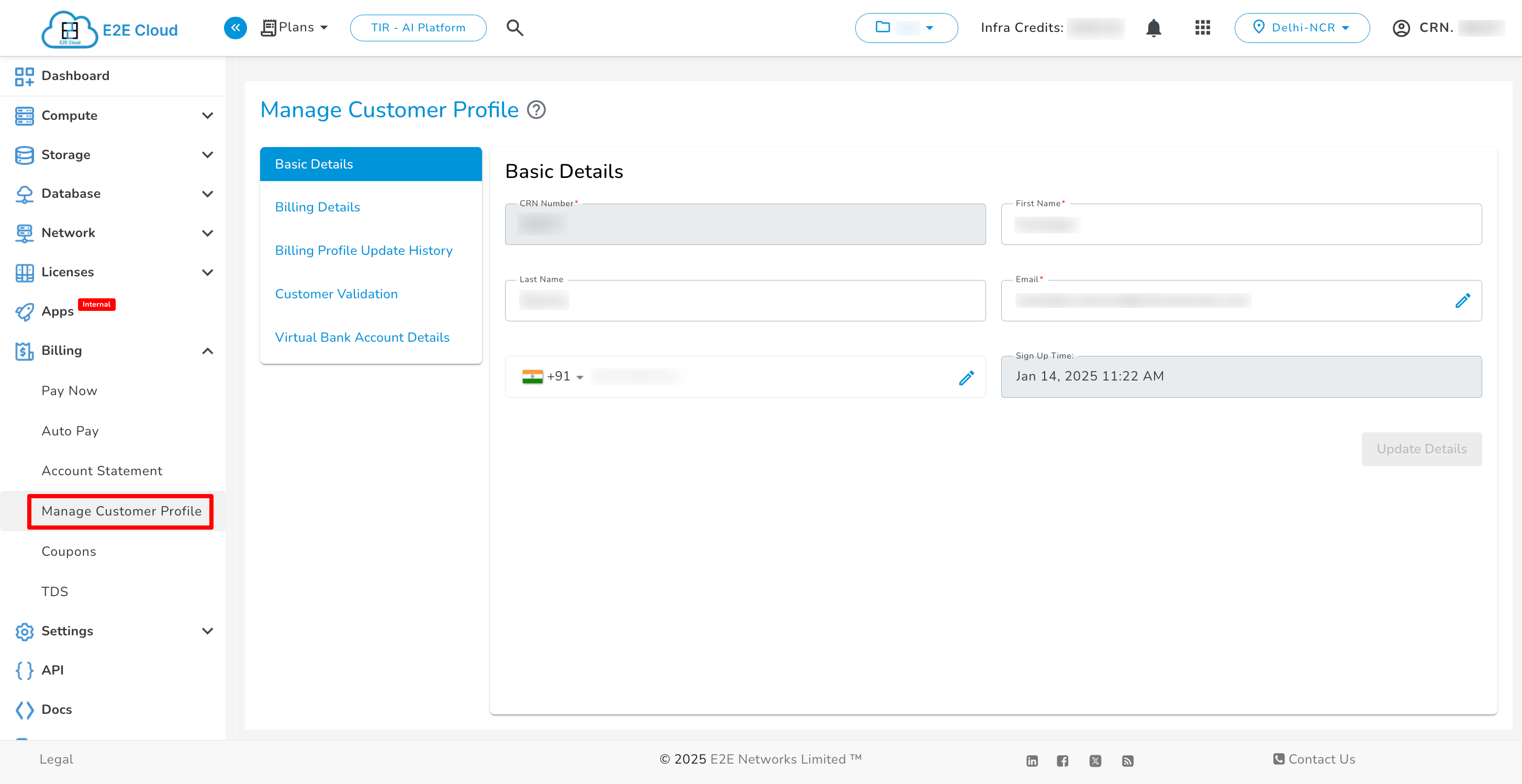
Once you are on your Manage Customer Profile page, you will see the tabs for Basic Details, Billing Details, Billing Profile Update History, Customer Validation, and Virtual Bank Account Details. Each tab contains different information, and you can make necessary changes if required.
Basic Details
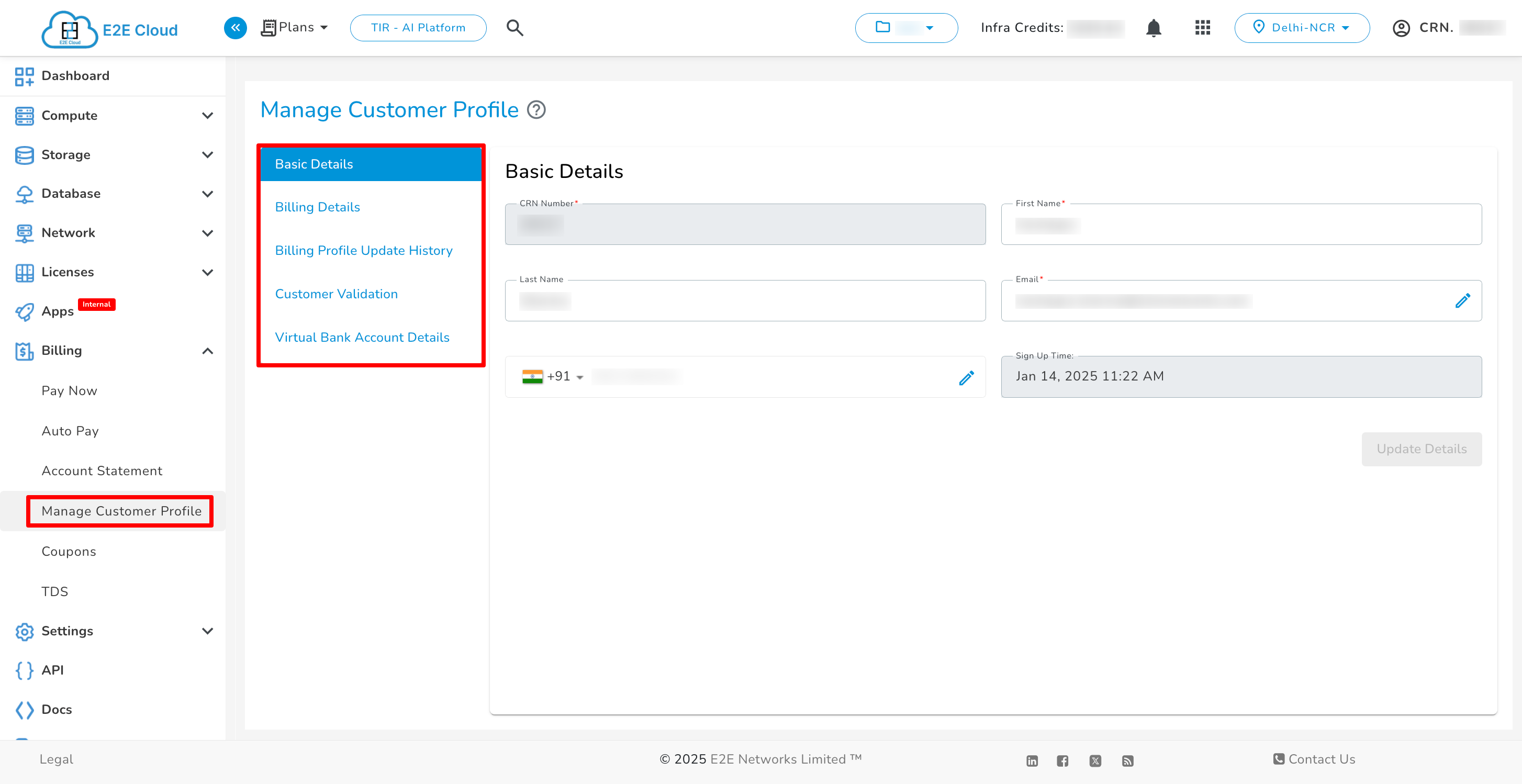
The Basic Details tab contains your identification information like First & Last Name, Email, Mobile Number, Sign-Up time, and unique MyAccount CRN number. You can modify your personal information except for your registered CRN Number, and Sign-Up Time.
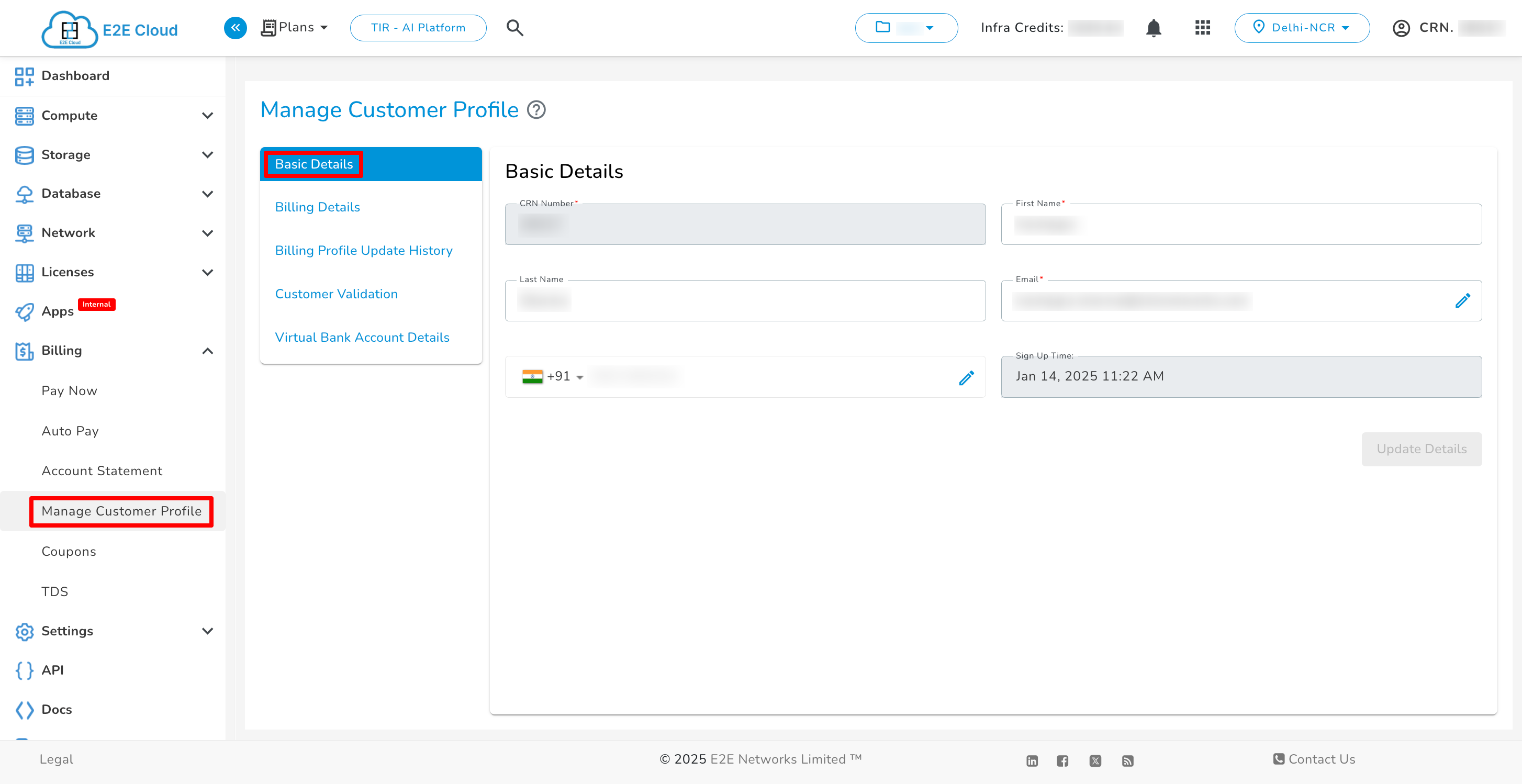
Tip: We suggest using the company/organization’s phone number and corporate email distribution address (e.g., technical.admins@example.com) if using E2E Networks services for the company/organization. Avoid using a specific employee's email address (e.g., john.smith@example.com). This practice ensures your organization retains access to the E2E MyAccount even when an employee changes positions or leaves the company. The email address can be used to reset account credentials.
Change Mobile Number
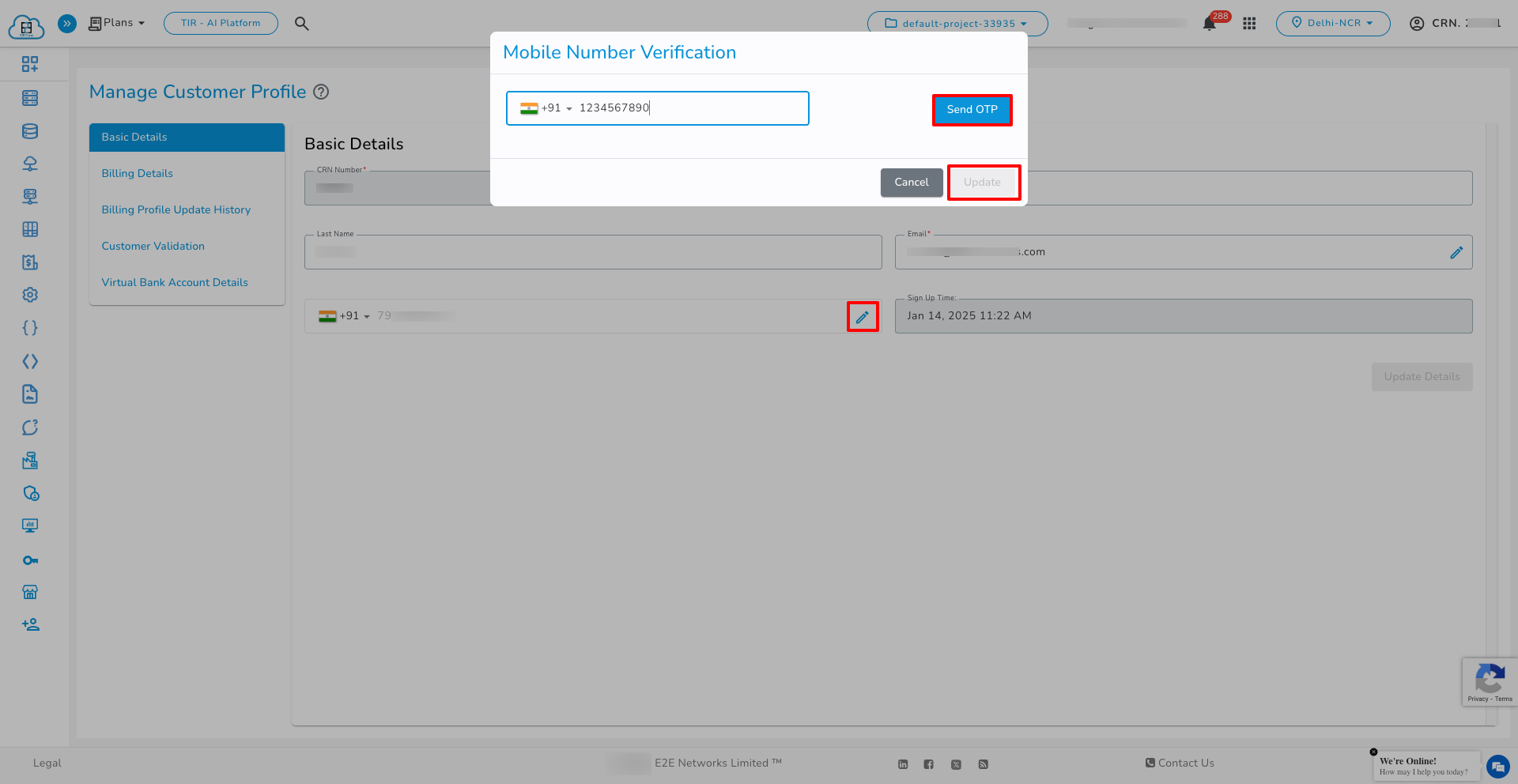
To change your mobile number, click the edit button next to Phone Number in the Basic Details tab. A pop-up window will appear (as shown in the image below). Enter your new phone number, then enter the OTP for verification, and finally click the Update button.
Change Email Address
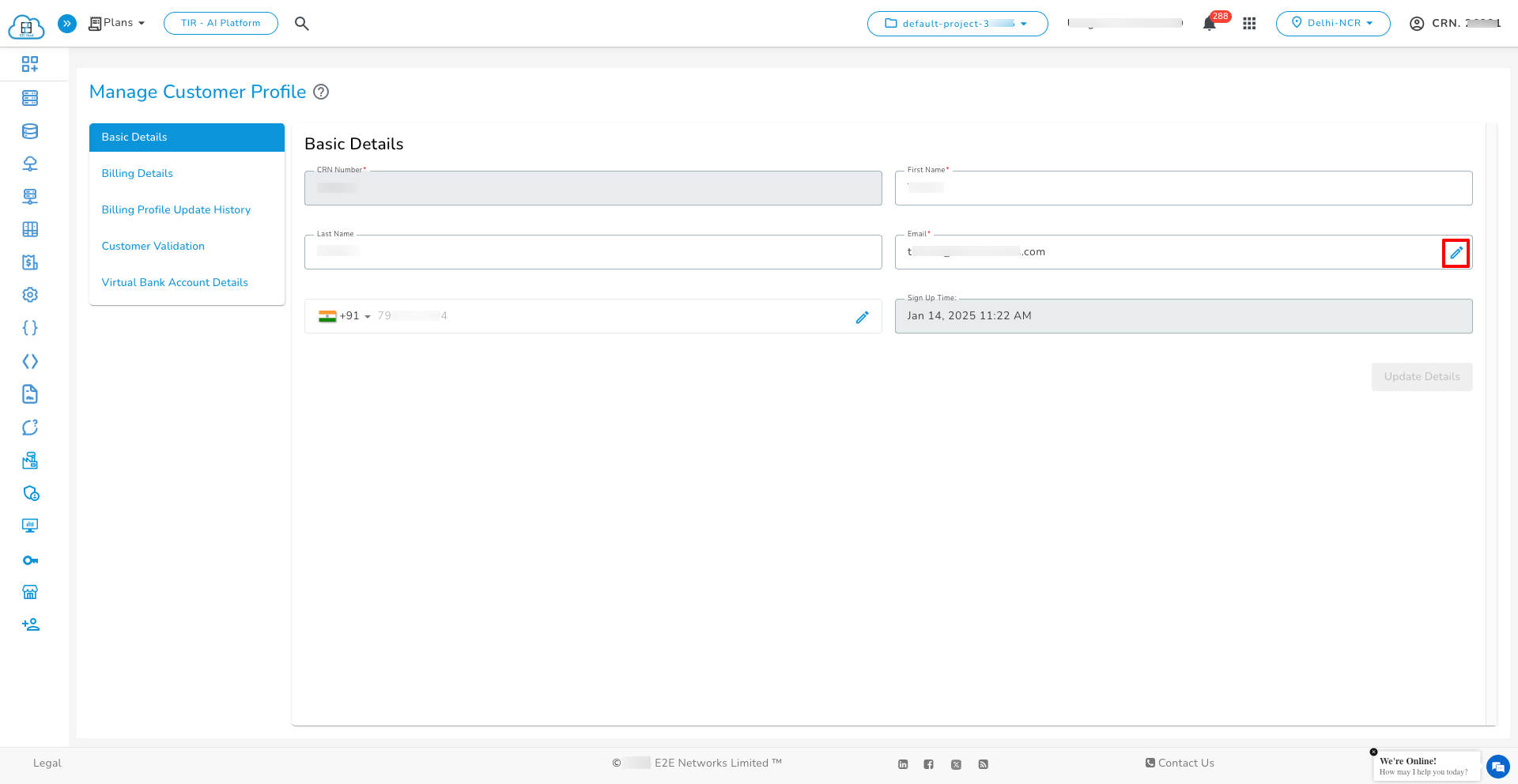
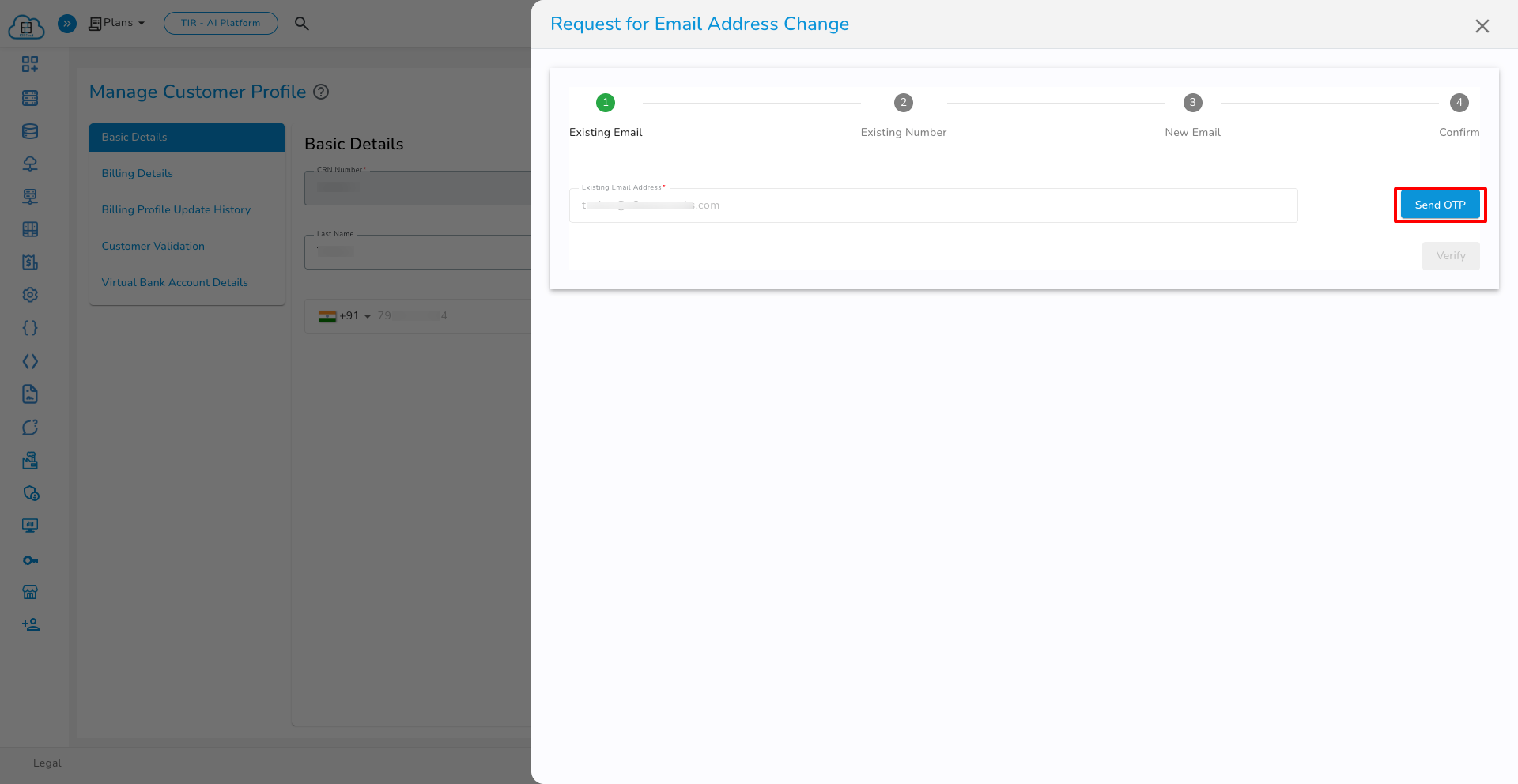
To change your email address, click the Edit button next to Email Address in the Basic Details tab. A sidebar will appear (as shown in the image below).
A side-bar will appear for changing your email address, follow the steps shown. For more details, click here.
Billing Details
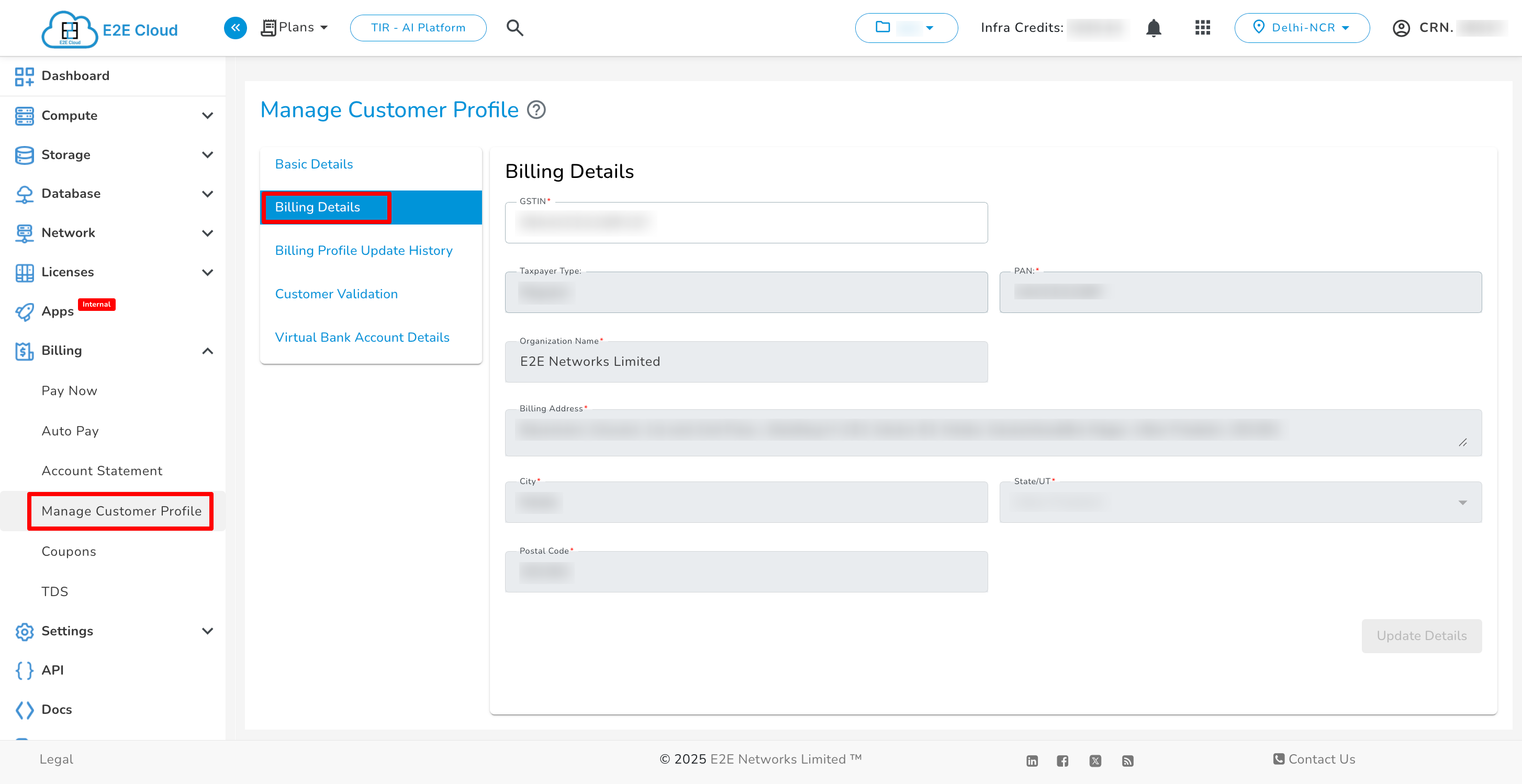
The Billing Details tab contains your invoicing information like GSTIN, Taxpayer Type, PAN, Organization Name, Billing Address, City, State/UT, and Postal Code. This information is used for your invoicing. You can modify your billing details.
Billing Profile Update History
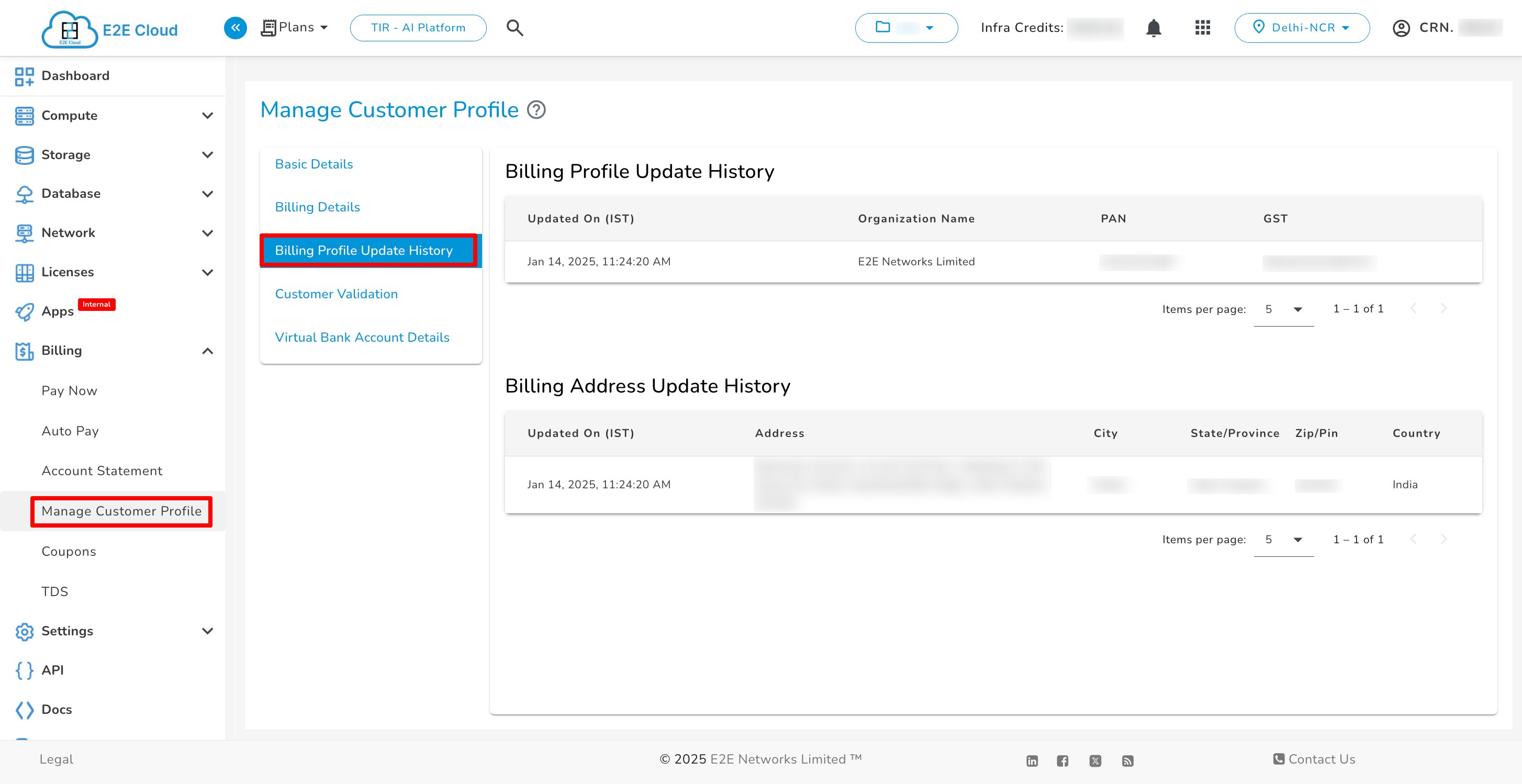
On the “Billing Profile Update History” tab, you can check and track the update history of billing details.
Customer Validation
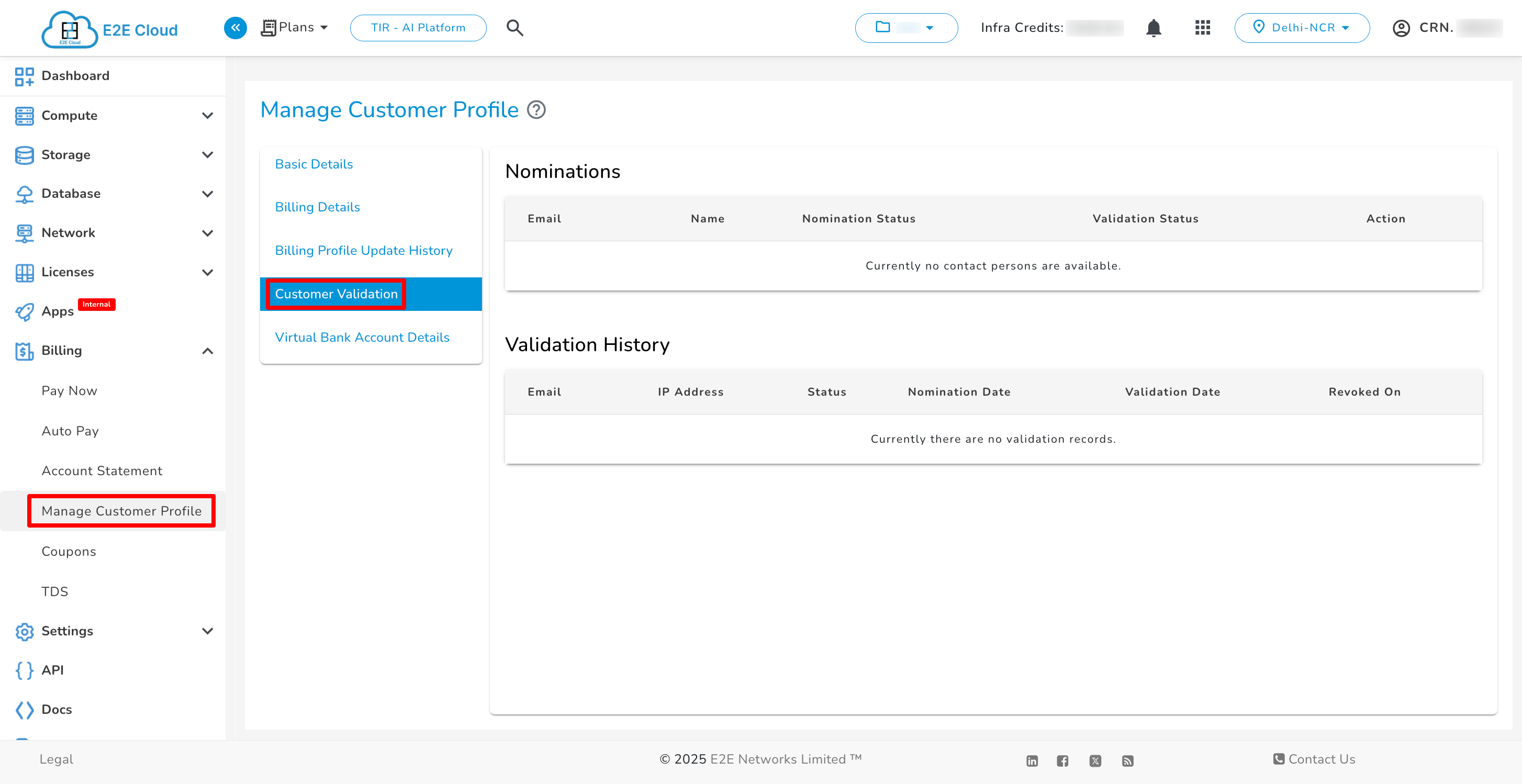
On the “Customer Validation” tab page, the Primary and Admin users can nominate and revoke contact users.
Virtual Bank Account Details
To make payments through IMPS, NEFT, and RTGS, transfers can be made through a virtual bank account associated with your E2E MyAccount. The Virtual Account Bank Transfer feature is available to all E2E’s customers (prepaid as well as postpaid). Learn More.